Manual:Technical Manual
 Note: Would you like a section-by-section view of the manual instead? See here.
Lua
Mudlet uses Lua 5.1 as the scripting language.
Command Line
Mudlets command line is especially designed for playing MUD and MUSH games. It aims at reducing the amount of typing by using autocompletion and tab completion schemes that are optimized for typical game playing situations. The command line offers tab completion (TAB key with or without shift) and autocompletion (cursor up and cursor down keys).
Tab completion searches the last 100 lines in the game output buffer for words matching the word that you are currently typing. This is useful if you have to type complicated long names. You only have to type the first letters and then press the tab key until the proposal is what you want.
Autocompletion tries to match your current typing with your command history. Example: If you typed the same command a while ago, you only have to start typing the first couple of letters and then press the cursor up key until the proposal matches the command that you want to use.
Command history - if you haven’t started to type anything yet, you can browse through your command history with the cursor up and cursor down keys. However, if you have started typing pressing cursor up will result in a shot at autocompletion.
Escape key - to get out of autocompletion you can press the ESC key any time. After pressing ESC the entire text gets selected and you can overwrite it or get back into command history mode.
Command-line Shortcuts
The command line has some built in keyboard shortcuts.
| Tab | Tab completion, see this technical manual section. |
| Up or Down | Command line history, see this technical manual section. |
| Home | Move cursor to beginning of line. |
| End | Move cursor to end of line. |
| CTRL+A | Select all. |
| CTRL+F | Move cursor to search bar. |
| SHIFT+Enter | Create an additional input line. |
| SHIFT+Left | Highlight one character left of the cursor (or unhighlight if already highlighted). |
| SHIFT+Right | Highlight one character right of the cursor (or unhighlight if already highlighted). |
| CTRL+Left | Move cursor one word to the left. |
| CTRL+Right | Move cursor one word to the right. |
| Backspace | Deletes the character to the left of the cursor. |
| CTRL+Backspace | Remove one word left of the cursor. |
| Delete | Deletes the character to the right of the cursor. |
| CTRL+Delete | Remove one word right of the cursor. |
| SHIFT+CTRL+Left | Highlight one word left of cursor. |
| SHIFT+CTRL+Right | Highlight one word right of cursor. |
| CTRL+C | Copies the selected text to the clipboard. |
| CTRL+Insert | Copies the selected text to the clipboard. |
| CTRL+K | Deletes to the end of the line. |
| CTRL+V | Pastes the clipboard text into line edit. |
| SHIFT+Insert | Pastes the clipboard text into line edit. |
| CTRL+X | Deletes the selected text and copies it to the clipboard. |
| SHIFT+Delete | Deletes the selected text and copies it to the clipboard. |
| Ctrl+Z | Undoes the last operation. |
| Ctrl+Y | Redoes the last undone operation. |
| PgUp | Scroll up one page in the main window buffer |
| PgDn | Scroll down one page in the main window buffer |
| Ctrl+Enter | Return to the bottom of the main window buffer |
See also: QT manual
Logging Output to text or HTML Log Files
Press on the little button with the blue folder with the green arrow icon on the lower right side of the command line to turn on plain text logging. Click again to stop logging.

This will inform you about the file name and path of the log file. If you want to log in color you can choose to log to files in HTML format, but note that due to the nature of HTML, these log files tend to get very large quickly. This, along with other options, can be set in the Preferences window (Alt+P).
Log files can be found at the Mudlet home directory in your profile directory. To get the path to your Mudlet home directory you can type on the command line:
lua getMudletHomeDir()
Log files are stored in "<mudletHomeDir>/logs". Each profile has its own <mudletHomeDir> path. Log files have a similar naming convention to the autosaved profiles: date#time.txt or date#time.html
Split Screen
Mudlet has a split screen: if you scroll up in the game text screen (or any other mini console window), the screen will split in two parts. The lower part will follow the game output while the upper part will stay focused on your scrolling: this way you can read easier through old passages without missing what is going on at the moment. Split screen can be activated via the scroll bar, page up / page down keys or the mouse wheel.
Scrolling back to the end will close the split screen automatically. A click on the middle mouse button will close the split screen immediately as well as pressing Ctrl+Enter on the keyboard (command+return for mac). The size of the 2 parts of the split screen can be modified by dragging the separator bar in the middle with the mouse. Split screen can be helpful when selecting text in order to copy it to trigger editor e.g. when making triggers. If you don’t use split screen when selecting text, new arriving text will upset your selection.
To scroll quicker, hold Ctrl while scrolling. Conversely, to scroll just one line at a time hold Shift (available in Mudlet 4.11+).
Multi Session Gaming
Mudlet lets you play several simultaneous game sessions. However, currently we have the restriction that you cannot use the same profile twice. Consequently, if you want to play three characters on the same game at the same time, you need to make 3 profiles with 3 different names e.g. [email protected], [email protected] etc.
Each profile will be shown in a new tab as a session of its own. That means, your old session will not be stopped, when you start a second one. When you have more than one active session, try clicking the menu button "MultiView" to see them all together.
You can switch between profiles (characters) by pressing Ctrl+Tab or select a particular one with Ctrl+<number of tab>.
Want to be able to control all your profiles at once for games that allow multiplaying? Check out a package just for this. On Mudlet 4.10 and earlier, a pre-installed send-to-all-profiles package provided control through the :<command> alias.
Base UI
 Available in Mudlet5.0+
Mudlet builds new players a small starter interface out of whatever their game already provides: a map, a chat window and a set of health bars, docked down the right-hand side of the screen.

It is a starting point rather than a finished interface. Everything in it is an ordinary Mudlet package, so you can move it, hide it, take it apart, or replace it with something of your own.
Who gets it
The base UI is installed into new profiles, and only for players who are new to Mudlet - if you have been using Mudlet for a while, your profiles will not suddenly grow a dock. It is also skipped for games that bring an interface of their own.
Nothing appears straight away. The dock is only built once the game sends something worth showing, so a profile that has connected but not yet received recognisable data will look completely ordinary. Typing baseui at that point reports that it is waiting for game data.
What is in the dock

Map
The map section shows a placeholder - "Your map will appear here as you explore" - until the profile actually has map data in it. Once there is a map, the placeholder is replaced by Mudlet's real mapper, with its own zoom buttons and area selector.
Chat
Tells, says and channel chat are copied into the chat window as they arrive, sorted into All, Tells and Channels tabs. Tabs you are not looking at carry an unread counter, which clears when you switch to them.

Capture is additive: a line copied into the chat window is still shown in the main window, in its original colours. Nothing is taken away from the game's own output.
Health bars
Up to four gauges are drawn, from whichever of health, mana, experience, movement and enemy health the game reports. When a game supplies more than four, movement is the one that loses its slot. An enemy health bar only appears while there is an opponent to show, and disappears again afterwards.
Where the data comes from
Every part of the dock is built from data the game already sends - the base UI never guesses. For the gauges it works down a ladder, and the first source that produces a complete health reading owns the gauges from then on; only a better source can take them over, so gauges built from a prompt hand themselves to GMCP whenever it turns up.
- GMCP -
Char.Vitals,Char.MaxstatsandChar.Status, with the various spellings games use for the same field (hp/health,maxhp/max_hp/maxHealth, and so on) all understood. - MSDP - negotiated quietly on connect, reading
HEALTH,MANA,EXPERIENCE,MOVEMENTandOPPONENT_HEALTH. This costs nothing on games without MSDP, and gives gauges to games that have it but no GMCP. - Prompt and score lines - self-sufficient prompts (ones carrying labelled current/max values, or a percentage) are trusted once they have recurred, and score screens are read as they go past. As a last resort, on games whose prompt only carries current values,
scoreis sent once per session to learn the maxima - visibly, and announced in the main window, so it is never a command you did not know about. If the score screen teaches it nothing, that is the end of it: there is no retry.
Chat works the same way. If the game offers Comm.Channel.Text over GMCP, that is used. Otherwise a set of triggers catches the line shapes most games share - tells, says, yells, whispers, group tells, and [tag], (tag) or < tag | channel prefixes whose first word is a recognised channel name. Those triggers retire themselves the moment GMCP chat shows up.
Note: The chat triggers are a plain trigger tree in the script editor, under the mudlet-base-ui package. They are meant to be read and copied - if your game names a channel the list does not know about, the tree is the place to add it.
Moving things around
Nothing is stuck in the dock.
- Drag the "Mudlet UI" title bar to move the whole dock.
- Drag a section's header row - the strip carrying MAP, CHAT or VITALS - to pull that section out of the dock and drop it anywhere over the game's text.
The sections left behind share out the space the departing one had, so the dock stays tidy. Where you leave each section is remembered between sessions.

baseui dock puts every section back where it started.
Commands

| Command | What it does |
|---|---|
baseui |
Report what the interface is currently doing, and list the options below. |
baseui hide |
Remove the interface. Remembered between sessions. |
baseui show |
Bring it back. |
baseui dock |
Put every section back in the dock, if you dragged any out. |
When a game brings its own interface
Games that install an interface of their own win. The moment Mudlet installs a game-supplied GUI package, the base UI stands aside: its dock is hidden and its capture triggers retire, and it stays aside in later sessions too. This happens silently - the game's own interface arriving is announcement enough.
If you prefer the base UI, baseui show brings it back. If the game's package is later uninstalled, the base UI quietly returns to duty on its own.
Package authors can hook the same moment through the gameUiInstalled event.
Removing it
The base UI is an ordinary package named mudlet-base-ui, so it can be uninstalled from the package manager like any other. baseui hide is usually enough though, and is reversible.
Its own settings - whether you hid it, and whether it is standing aside - live in base_ui_settings.lua in the profile directory. Where each section was left is remembered separately, by Geyser.
Using Variables in Mudlet
One of the major design goals in Mudlet was to integrate scripts and variables into triggers/aliases/buttons etc. as seamlessly as possible. The usage of variables in Mudlet is distinctly different from the other major clients, as native Lua scripting has been integrated into Mudlet from the ground up. As scripts are so closely intertwined with the core of Mudlet, variables do not need any special treatment as in other clients i.e. there is no need for code such as:
totalKills = getVariable("killedMonsters") + getVariable("killedVillains")
echo( "kills=" .. totalKills )
In Mudlet, the above code translates into:
totalKills = killedMonsters + killedVillains
echo( "kills=" .. totalKills )
If you define a variable in any given script in Mudlet, be it a trigger, a button, an alias key, an event handler, a free function, etc. It can be used from within any context without any special getVariable() type of function or any special variable symbols, such as @myVar etc.. In Mudlet all variables are native Lua variables. Each session (= profile/connection tab) runs in its own dedicated Lua interpreter. Consequently, all scripts of a profile are compiled into the same Lua interpreter and thus their code runs in the same variable space. All scripts from another simultaneously opened profile will not interfere because each profile uses its own Lua interpreter. Note Everything shares the same variables & functions.
To give you an example: Let’s make a little trigger that counts how many monsters you have killed. Each time you have made a new kill, the trigger matches on the kill message and runs a little script that increases the amount of kills by one each time the trigger fires - in other words, each time you kill a monster and the kill message is sent from the MUD. For the kill counter we declare a variable and call it myKills. This variable is going to hold the number of kills we’ve made so far. The script will look like this:
myKills = myKills + 1
Then we add a little alias, a button or a keybindings that executes another little script that prints your current kill statistics on the screen. The attached script would look like this:
echo( "I have killed " .. myKills .. " monsters today." )
Lua variables can be either a string of letters (aka string) or a number, among a few others. They are whatever there were initially created with or what data type they can be converted to.
a = "Jim"
b = "Tom"
c = 350
d = 1

--Then you can write:

e = c + d -- and e will equal 351
e = a .. b -- and e will equal "JimTom"
e = a .. c -- and e will equal "Jim350"
Note: You can't use a + b to concatenate string values. For this you must use the double-dot: ..
String Interpolation - the f function
However, starting with Mudlet 4.11.0 we have included the f function to perform string interpolation. This is a very fancy way of saying "replacing code in strings with their value". When you run a string through the f function then it replaces anything inside a pair of {} with the value of the variable or outcome of the expression. To expand upon the example above:
a = "Jim"
b = "Tom"
c = 350
d = 1

function simple_addition(a,b)
  return a+b
end

--Then you can write:

e = c + d -- and e will equal 351 (no change here)
e = f"{c + d}" -- end e will equal "351". This is a string, not a number, if you need to do math with e then do it like above.
e = f"{simple_addition(c,d)}" -- same as above, but shows using the function we've defined.
e = f("{a}{b}") -- and e will equal "JimTom"
e = f"{a}{c}" -- and e will equal "Jim350"
A shrewd observer might notice that I have written the above uses of f without the usual parentheses. In Lua you can omit the () when you are only passing a single string argument to the function. It is usually considered best practice to include the () but in the case of f for interpolation I find it reads a bit better without them. As shown in the example above it works with or without them in place.
For a more 'real world' example and comparison of concatenation, f, and string.format consider the following:
-- For the following, we assume the following variables exist:
-- target which holds the target's name
-- target_health_color which is a cecho color determined elsewhere
-- target_health which is the actual health the target has.

-- this function uses the concatenation operator .. to glue strings together for display
function displayTarget()
  local msg = "\n<green>Target:<r> " .. target .. " <green>Health:<r> " .. target_health_color .. target_health
  cecho(msg)
end

-- this function does the same thing, but uses f
function displayTarget()
  local msg = f"\n<green>Target:<r> {target} <green>Health:<r> {target_health_color}{target_health}"
  cecho(msg)
end
Tables as Lists
There is another form of variables in Lua called tables which can be used for lists, arrays or dictionaries. This is explained later. For an in-depth coverage of variables in Lua take a look at a Lua tutorial e. g. this one on numbers http://Lua-users.org/wiki/NumbersTutorial and this one on strings http://Lua-users.org/wiki/StringsTutorial or this one on Lua tables http://Lua-users.org/wiki/TablesTutorial
Let’s get back to our example. The trigger script expects myKills to be a number so you have to initialze the variable myKills to 0 before running the script for the first time. The best place to initialize variables is in script script outside of a function definition as this code is executed when the session is loaded or if you compile the script again after you have edited it. To do this click on the "Scripts" icon and select the standard script "My Global Variable Definitions". If you are using an older version of Mudlet or a profile that doesn’t have this script item, simply click on the "Add" icon and make your own script. You can call it whatever you want to. Add following code to initialize your new variable myKills to a number and set its value to 0:
myKills = 0
Whenever you edit this script, it will be recompiled and the code will be run as it is not part of a function definition. This is the major difference between trigger-scripts, alias-scripts etc. and script-scripts. Script-scripts can contain an unlimited amount of function definitions and also free code i. e. code outside of a function definition - code that is not enclosed by function xyz() …. end. On saving the script the script gets compiled and the free code is run instantly. All other item scripts, i. e. trigger-scripts etc., secretly define a function name for the script and thus the script is not free code, but function code. When a trigger fires Mudlet calls this invisible function name to run the script e.g. trigger738(), button82(), alias8(). This means that if you define variables inside a trigger script the variable will not be defined before the trigger runs for the first time. However, if you define this variable as free code in a script-script the definition becomes available immediately on script save. Now, whenever you add new variables to your variable definition script, the script gets run and your old variables will be reinitialized and reset to 0. This will be no big problem in most cases as you won’t work on your systems while really playing in most cases. To solve this problem you have two options:
First option: Add a script group (a folder) and add a new script item for each variable you define. This way, editing a variable definition will only reset the edited variable and none of the others that are defined in different scripts. This has the added advantage that you have a nice graphical overview of your defined variables. Note Organize your variables
Second option (more advanced): Change the variable initialization to only initialize the variable if it hasn’t been initialized before, thus keeping the values of previously defined variables. The following code initializes the variable myKills (to the number 0) but only if it hasn't been initialized before. This would look like this:
if myKills == nil then
    myKills = 0
end
In Lua all undefined variables are initialized to the value nil. The value nil is not the same thing as the number 0 or the empty string "". What it means is that a variable that has the value nil has not been declared yet and does not exist. If a variable does not exist, it cannot be used as its value is undefined at this point. Consequently, increasing the value of nil by one is impossible as the variable doesn’t exist yet and will lead to a Lua error. The above script simply checks if the variable myKills has been defined yet and if it hasn’t, it will declare the variable and set its value to 0.
Having variables that hold a single value is the most important usage of variables, but very often you’ll like to define variables that hold a list of values e. g. a list of your enemies, a list the items you are currently carrying etc.. To define a variable to be a list you need to declare it to be a Lua table. Let’s declare the variable myEnemies as a list containing the names of your enemies:
myEnemies = {}
You can now add new enemies to this list by calling the Lua function table.insert( listName, item ). For example:
table.insert( myEnemies, "Tom" )
table.insert( myEnemies, "Jim" )
To print the contents of your enemy list on the screen, you can run this script:
display( myEnemies )
Now, let’s make a little alias that adds a new name to your enemy list when you type "add enemy" followed by the name of the enemy (e.g., "add enemy Peter"). Open the alias editor by clicking on the "Aliases" icon. Click on the "Add Item" icon to add a new alias. Choose any name you like for your alias (e.g., "Add Enemy Alias"), and then define the following pattern for the alias: ^add enemy (.*). Next, add the following little script in the script input field below your alias:
table.insert( myEnemies, matches[2] )
echo( f"Added a new enemy:{ matches[2] }\n" )
Save the alias by clicking on "Save Item" and try it out by entering into the Mudlet's command input line. Aliases are explained in further detail below.
Another way to declare a list is to define its values directly. For example,
myEnemies = { "Peter", "Jim", "Carl", "John" }
To remove an item from the list, you can use the function table.remove( listName, item index ).
Saving variables
You might notice that Mudlet doesn't save your variables between profiles restarts. The reasons for this are technical, but all it means is that you have flexibility in how to deal with them. There are several ways, so the most common and easiest ones will be explained here.
Tick the box in the variables view
Head to the variables view in the Mudlet editor and tick the box besides a variable - Mudlet will remember it between restarts now!

Saving by coding them in a script
The title sounds a bit complicated, but that's pretty much what you do. Go to Scripts, click `Add Item`, and create your variables like so:
myname = "Bob"
mypack = "pack1234"
rapierID = 67687
Now, since scripts are run when the profile is started, these variables will be created and assigned to those values. This was simple to do, but it has one problem - if you want to change the value of the variables to be saved, you have to edit the script by hand each time; and if you change the value of variables while playing via scripting, the new values won't be recorded.
Saving via table.save & table.load
Next, enter a more proper solution. This'll actually save the variables to a file and load them from it - so if you change the variable values, the current ones will be saved, and will be loaded next time properly. This method works with a table containing your variables though, not individual variables themselves - see Lua tables tutorial on how to create and use those.
table.save(where to save, what table to save) takes the location and name of a file to save variables to, and a table containing your variables to save. Location can be anywhere on your computer, but a good default place is your profile folder, whose location can be obtained with getMudletHomeDir().
mychar = {
  name = "Bob",
  age = 26,
  sex = "male"
}

local location = getMudletHomeDir() .. "/mychar.lua"
table.save(location, mychar)
-- sample echo to show where the file went:
echo(f"Variables saved in: '{location}'")
table.load(where to load from, what table to use) is similar - it takes the location and name of the file to load, and a table name to use for the loaded variables.
mychar = mychar or {}
table.load(getMudletHomeDir() .. "/mychar.lua", mychar)
display(mychar)
echo(f"My name is: {tostring(mychar.name)}")
Now that you have a way to save and load your tables, you can create triggers to load and save your variables at appropriate times, and you'll be set.
React on input - Mudlets Alias Engine
Note: A screencast is available on getting started with aliases - watch it!
Mudlet has a feature called "aliases" that allows you to set up certain phrases or commands that will automatically trigger certain actions or responses. These actions are defined using a specific type of language called "Perl regex expressions." Aliases only work on the input that the user types into the command line, while a separate feature called "triggers" works on the output that the game sends back. When you type a command and press enter, it is sent to the alias feature to see if it matches any of the phrases or commands that have been set up. If it does match, the alias will take over and either send a different command to the game or run a script (a set of instructions) that you have defined. This system is powerful because it gives you control over what happens when a certain phrase or command is entered. You can even change the user's input as it is being processed, allowing you to manipulate the command before it is sent to the game.

The example in the diagram above shows 2 matching aliases, but only one of them sends commands to the game - and only if the player is healthy enough to attack the opponent. The other alias that matched the user input (enemy) choses a fitting opponent and sets the variable enemy accordingly, otherwise it issues a warning that attacking one of the available enemies would be too dangerous.
For an alias to match the command text the same rules as explained above in the trigger section apply. However, to simplify matters there is only one alias type. As alias are not performance critical we could reduce the amount of trigger types to just Perl regex as this type can do it all and performance is no issue with alias as the amount of data is much less. Even if you type like a madman you’ll never get close to sending the same amount of text to the game than the amount of text the game sends back to you.
What does it mean that a regex is true or "matched"? A trigger or an alias fires - or executes its commands/script - when the text matches the pattern of the trigger or alias. In most cases this means that the text contains the trigger/alias pattern. If the regex pattern is reen then a text "The green house" will match because "reen" is contained in the text. More complex regex patterns can also hold information on where in the text a certain pattern must occur in order to match. ^tj only matches when the letters "tj" occur at the beginning of the text. Consequently, a text like "go tj" would not match. Regex patterns can also capture data like numbers, sequences of letters, words etc. at certain positions in the text. This is very useful for game related scripting and this is why it is explained below.
Let’s get back to alias. We start with a simple example.
We want Mudlet to send "put weapon in bag" whenever we type "pwb". Consequently, the pattern is pwb and as the task is so simple it’s enough to enter "put weapon in bag" in the send field. Then we click on save to save the changes and activate the alias by clicking on the padlock icon. Then we leave the trigger editor and test our new alias. After typing "pwb" and pressing return Mudlet will send the command "put weapon in bag" to the game.
Let’s move on to a more complicated example that is needed very often.
We want our script to automatically put the weapon in the correct bag as we have many bags and many weapons. The pattern stays the same. ^pwb The ^ at the beginning of the line means that the command starts with pwd and no other letter in front of this. If we define our pattern more clearly, the pattern will match less often. Without the ^ the alias will match and the alias script will always be run whenever there is the sequence of letters "pwb" in your commands. This may not always be what you want. This is why it’s usually a good idea to make the pattern definition as exact as needed by being less general. The more general the pattern, the more often it will match.
Back to our task: The pattern is ^pwb. Let’s assume that we have defined 2 variables in some other script. The variable "weapon" is the weapon we use and the variable "bag" is the name of the bag. NOTE: In Mudlet global variables can be accessed anywhere from within Mudlet scripts - no matter if they have been defined in a trigger script, in an alias script or in a key or button script. As soon as it’s been defined it somewhere it is usable. To make sure that a variable is local only, i. e. cannot be referenced from other scripts, you have to use the keyword local in front of your variable definition. Back to our alias: Pattern is: ^pwb
Script is:
send(f"put {weapon} in {bag}")
Depending on the values of our variables weapon and bag the command "pwb" will be substituted with an appropriate command. To set your weapon and bag variables we use 2 more aliases: Alias to set the weapon: uw (\w)+
Script:
weapon = matches[2]
send( "wield " .. weapon )
To set our bag variable: Pattern:^set bag (.*)
bag = matches[2]
Now let’s go back to our initial problem. We want an alias to put our current weapon into our current bag. But what happens if we are in the middle of a fight and absolutely need to sip a healing potions because we are close to death and cannot take the risk that the bag may be too full to take the weapon? We want to upgrade out little alias to take into account that the bag may be full and chose an empty bag instead. To do this we set up a trigger that detects messages that indicate that the attempt to put the weapon in the bag failed. In this trigger we execute this little bag-is-full-detection-trigger Trigger Pattern: (type substring) Your bag is full.
Script:
bagIsFull = true;
This detection trigger will set the variable bagIsFull to true as soon as it sees the message "Your bag is full.". Then you know that you have to use your spare bag to take the weapon.
Now we have the tools to write an improved version of our little alias script:
if bagIsFull then
    send(f"put {weapon} in {spareBag}")
else
    send(f"put {weapon} in {bag}")
end
The next example is one of the most common aliases a tell alias: Pattern:^tj (.*)
Script:
send("tell Jane " .. matches[2])
Sadly, Jane is your fiancée and the one thing she is a vegetarian and absolutely hates all words that relate to meat. Luckily, you know enough about aliases by now to make her believe that you’d never ever even think about meat. So you head to your global function script (any script item will do as long as you define your variables outside of your function definitions. See the scripts chapter below for more information. In your script "my global functions" you add a Lua table containing a list of all of all words that a vegetarian might hate. For example:
happyJaneTable = {"meat", "burger", "steak", "hamburger", "chickenburger"}
Now you can upgrade your tell-jane script to automatically search our tell for all words that Jane might not like. In case such a word is found we substitute the entire tell with "How is the weather?".
for key, value in ipairs(happyJaneTable) do       -- looking at each element of the list
    badWord = happyJaneTable[key]                 -- check out the Lua table chapter below for more info
    begin, end = string.find(command, badWord)    -- begin holds the start position of the word, end* the end-position
    if begin ~= nil then                          -- we have found a bad word
        send("tell Jane How is the weather?")
        return
    end
end
Alias Examples
Alias:
^cc( .+)?
Script:
local target = matches[2] or ""
send("c cure critical" .. target)
Default keybindings in the main window
| Keypress | Action |
| Left Arrow | Moves the cursor one character to the left. |
| Shift+Left Arrow | Moves and selects text one character to the left. |
| Right Arrow | Moves the cursor one character to the right. |
| Shift+Right Arrow | Moves and selects text one character to the right. |
| Home | Moves the cursor to the beginning of the line. |
| End | Moves the cursor to the end of the line. |
| Backspace | Deletes the character to the left of the cursor. |
| Ctrl+Backspace | Deletes the word to the left of the cursor. |
| Delete | Deletes the character to the right of the cursor. |
| Ctrl+Delete | Deletes the word to the right of the cursor. |
| Ctrl+A | Select all. |
| Ctrl+C | Copies the selected text to the clipboard. |
| Ctrl+Insert | Copies the selected text to the clipboard. |
| Ctrl+K | Deletes to the end of the line. |
| Ctrl+V | Pastes the clipboard text into line edit. |
| Shift+Insert | Pastes the clipboard text into line edit. |
| Ctrl+X | Deletes the selected text and copies it to the clipboard. |
| Shift+Delete | Deletes the selected text and copies it to the clipboard. |
| Ctrl+Z | Undoes the last operation. |
| Ctrl+Y | Redoes the last undone operation. |
| Ctrl+<Click> | Select the whole line. |
| Ctrl+Enter | Close split screen (scroll all the way to the bottom). |
| Ctrl+F | Search for text in the main output window. |
Considerations
- Mudlet 4.17.2 currently does not support named capture groups for aliases.
- You will need to use
matches[1],matches[2]etc. instead.
- You will need to use
- You can use modifiers for these regexes. Declare these at the start, in the form
(?modifiers)- For example, to match the command
test, ignoring case, you would need to declare the regex as being case-insensitive, like so:(?i)^test$
- For example, to match the command
Trigger Engine
Unlike alias that define patterns that match on user input, triggers define patterns that match on game output. In other words, triggers react to text that has been sent by the game, whereas alias react to user commands that have been typed into the command line.
Simple Trigger Matching

Note: QUICKSTART: Here is a simple video tutorial on how to make basic triggers in Mudlet.
Steps To Create A Trigger
- Click on the "Add" button to create a new trigger.
- Put the text pattern that you’d like to trigger on into the trigger conditions table on the right side of the screen above the script editor.
- Choose the correct pattern type of your trigger pattern in the drop down list on the right side of the trigger pattern i.e. in the second column of the trigger pattern table. If you define multiple patterns in the same trigger, your trigger will run whenever any one of these patterns matches unless you chose the AND-trigger option, in which case the trigger will only fire if all patterns match within a specified amount of lines from the game. For more advanced information on AND and OR trigger see the corresponding AND/OR trigger section below.
- Define what happens when the trigger matches. Usually, this will be done by a Lua script in the Lua editor below the table with the pattern list. In the beginning, you can simply choose the "highlight trigger" option to make your trigger highlight the text that it has triggered on or send a clear text command to the game whenever the trigger fires until you have learned enough Lua to more meaningful scripts. Clear text command can be defined in the "send plain text" input box next to the trigger name above the pattern table.
- Save the new trigger and then activate it with the padlock icon button. By default, new triggers are deactivated and thus will do nothing unless you explicitly activate them. Activated triggers show a green tick in the little blue box on the left side of the trigger name in the trigger tree on the left side of the script editor dialog.
There are three ways to save your changes; click on the save icon, adding another new trigger, clicking on another trigger item. Triggers that have not been saved yet cannot be activated.
Note: If you see a bug icon instead of an activation box, there is some error that prevents activation of your trigger. Check the error message above the pattern table.
Example: You want to trigger on the word "pond" in a line such as: "The frog swims in the pond. Plop." All you need to do is add "pond" as a pattern and choose "substring" as a pattern type. Then enter the command you like to send to the game if the trigger matches. For example enter "drink water" into the "send plain text" input box and activate your new trigger. Your new trigger will send the command "drink water" to the game any time it sees the word "pond" somewhere in the game output.
Simple Highlighter Triggers
Note: Beginners should use Mudlets automated highlight triggers in the beginning to get the hang of the different trigger and pattern types quicker.
- Create a new trigger and add a pattern as detailed above.
- Click on the "highlight trigger" option and pick a foreground and a background color. When the trigger matches it automatically highlights its pattern.
- Save.
This is one of the most used form of triggers in mudding. It is a quick way of highlighting words that are important to you at the moment. This helps you spot things at a single glance instead of reading the entire text. You don’t have to know anything about scripting, regular expressions etc. to use highlight triggers. Just type in the word you like to be highlighted, select appropriate colors, save the new trigger and activate it.
More advanced users will often want to do custom highlighting from within scripts. This is how it works: If you want to highlight the word "pond" in the above example you have to add the following little Lua script to the script editor on the lower right side of the Script Editor window:
selectString( "pond", 1 )
fg( "red" )
bg( "blue" )
resetFormat()
Testing Triggers
You can test your triggers with the `echo alias from the command line. This requires the echo package, which is installed by default on a new profile.
`echo A test line.
`echo One line.$Next line.$Third line.
Or from your Lua code using feedTriggers
feedTriggers([[
You are carrying:
  a credstick                                       a pair of steel toed boots (worn)
  a Soko Sukeban (worn)                             a medikit
  a cherry moon katana                              a GPS device
  a NV contacts                                     a Tsunami MkII
  a MeshGirl Helm                                   an Alto 500 CellPhone
  a Kantan Sukeban (worn)
Your load barely slows you down.
]])
Alternatively, you can also record a replay and play it - triggers will be matched on it.
Pattern Matching Types
Substring
This trigger type will match any text on a single line. Useful for matching strings of text which don't change at all.
Examples:
| Pattern: | pond |
| String: | The frog swims in the pond. |
| Outcome: | match (pond matches the word pond) |
| Pattern: | pond |
| String: | The frog swims in the swamp. |
| Outcome: | no match (pond does not match swamp) |
Perl Regex
This trigger type will match text using Regular Expressions (Regex). Regex in Perl is a special text string for describing a search pattern within a given text. For example \w+ is used to match a single word, or \d is used to match a single digit.
Pattern matching also allows the match to be saved in the matches table variable if enclosed in parentheses. matches[1] contains the entire line of the trigger whereas matches[2] contains the first regex pattern (in our examples pond or swamp).
Examples:
| Pattern: | The frog swims in the (\w+). |
| String: | The frog swims in the pond. |
| Outcome: | match (\w+ matches pond, and is also saved to matches[2] variable) |
| Pattern: | The frog swims in the (\w+). |
| String: | The frog swims in the swamp. |
| Outcome: | match (\w+ matches swamp) |
| Pattern: | The frog swims in the (\w+). |
| String: | The fish swims in the pond. |
| Outcome: | no match (fish should be changed to a regex pattern \w+) |
Note: regex101.com is highly recommended to testing out your regular expressions. It includes a pattern tester, cheat sheet and explanations about the matches.
Start of Line
This is a combined variation of substring matching and regex matching. This type will match any line with text at the start of the string only.
Examples:
| Pattern: | The frog |
| String: | The frog swims in the pond. |
| Outcome: | match (The frog is at the start of the string) |
| Pattern: | frog swims |
| String: | The frog swims in the swamp. |
| Outcome: | no match (frog swims is not at the start of the string) |
Note: This is exactly the same as using a Perl regex pattern with the ^ anchor (start of a line).
Exact Match
The string must match exactly the pattern. On a whole line, this is the same as using a perl regex pattern with the ^ and $ (start and end of line) anchors.
Examples:
| Pattern: | The frog swims in the pond. |
| String: | The frog swims in the pond. |
| Outcome: | match (the entire line matches) |
| Pattern: | The frog swims in the pond. |
| String: | The frog swims in the pond. The bird flies in the sky. |
| Outcome: | no match (The entire line does not match as the bird information has been added. This would match a start of line pattern though) |
Lua Function
The purpose of Lua function triggers is to be able to run Lua scripts as trigger conditions. This trigger types takes an actual Lua function as the pattern. This function must return true or false to evaluate correctly, but will only match when returned true.
For example, let's say we wish to enable our entire offensive combat triggers when we commence combat, but otherwise be disabled when we are not in combat. One would create a trigger chain that contains all the offensive triggers. The chain head (the root trigger of the chain) simply contains this Lua function condition as its only trigger condition: return inCombat
Now, whenever you enter combat you set the variable "inCombat" to true and thus automatically enable you entire combat triggers that are otherwise disabled.
Examples of patterns:
if myVar > 20 then return true else return false endif myFunc() < myVar then return true else return false endreturn myFunc()if myFunc returns a boolean value
Another example:
Create a new trigger with the pattern checkHealth(). Define a new Lua function checkHealth(). Open the script editor, add a new script "health monitor" and add this code to the new script.
function checkHealth()
    if health <= 100 then  -- health is a variable we capture from e.g. the prompt or GMCP
        echo( "WARNING: Low health! I have to run away!\n" )
        send( "flee" )     -- we send a command to run away to the game
        return true
    else
        return false
    end
end
Lua Syntax Primer: Expressions
Note: Mudlet used to only allow the boolean true value as the return value to consider the pattern to have been a match. It has since been improved to allow any value Lua would consider true - but if you see any Lua Function Conditions (LFC) making use of and true or false at the end, that'd be why.
if A == B then (...)   ----> if A equals B
if A ~= B then (...)   ----> if A *NOT* equals B
if A <= B then (...)   ----> if A is smaller or equal to B
if A >= B then (...)   ----> if A is greater or equal to B
if A < B then (...)    ----> if A is smaller than B
if A > B then (...)    ----> if A is greater than B
The operators and and or behave differently in Lua than in most other programming languages as they are not guaranteed to return a boolean value.[1]
Lua Function Conditions (LFC) effectively means that you run the Lua code they represent on every single line that is received from the game, unless the LFCs are part of a multi-condition trigger, in which case the LFCs would only be run when they would be the current test-condition of their respective trigger state. LFCs are implemented in such a way that the trigger engine only calls the compiled byte code, but running as few scripts as possible is always the best idea. LFCs are nice and handy, and for most people the performance aspect will not be relevant at all.
Line Spacer
To make the engine skip lines in a multiline / AND trigger, use the line spacer pattern: select 'line spacer' as the type and put in a number on the left to make it go to the next X lines, for example 1 will make it go to the next line. See the multline section below for further explanation.
Color Trigger
This type of trigger matches the color of the text, as opposed to the actual text incoming. Both foreground and background matching is available and you will be prompted to select the required colors.
Examples:
| Pattern: | Foreground color [ANSI 12], Background color [ANSI 15] (blue foreground on a white background) |
| String: | The bird flies in the sky. |
| Outcome: | match (the COLOR matches) |
Prompt
This type of trigger will only work with servers that have implemented the telnet suboption GO AHEAD. If you server does not implement GA this will be shown in the bottom right corner of Mudlet with the characters No GA.
This option has one function, to match your prompt and will fire when it does.
Multi-Line Triggers and Multi-Condition Triggers
Multi Condition Triggers are the most advanced feature of Mudlets trigger engine. Like trigger chains or filter chains they are a form of AND-Triggers. All conditions in the list must have matched within the specified margin of lines (delta), in order to trigger the script. Normal triggers fire and run the script as soon as one of the conditions in the regex list is met i.e. if one of the regex/string matches match - or the Lua function condition returns true, the trigger script is run. In multiline triggers, however, each single regex/string/Lua function condition in the list has to have matched within the specified margin of lines at least once to trigger the script. The sequence of the conditions is binding. This means that if the 10th regex on the regex list would be matched on the eleventh line after the match of the first line happened, the trigger will NOT run unless the margin of lines is set to 11. If condition #3 is true but currently #2 is waiting to be true, condition #3 is ignored and must be true again after condition #2 has been true. Conditions can also be Lua Functions or plain Lua code that returns a boolean truth value. You can mix all types of conditions to build complex multi-condition triggers that only fire if all conditions are met. This is a very powerful feature as it reduces the amount of scripting to a minimum or even takes away with the need to script formerly complex processes completely. Multicondition triggers are multi-line triggers, i. e. the conditions can all be met in a single line or many lines after the first condition has been fulfilled. This effectively reduces the amount of complexity as you have all the important conditions placed into a single trigger and all the tedious bookkeeping, variable and condition state accounting is being done by Mudlets trigger engine. The result of this is that the amount of manual condition checking via many different trigger scripts and legions of if condition1 == true then check condition2 can be forgotten about. All you have to do is to define the conditions and the final action that is taken if the trigger fires.
Note: to retrieve wildcards in multi-line or multi-condition triggers, use the multimatches[line][match] table instead of matches[].

Note: This diagram shows what steps are involved in the process of problem solving with Mudlets trigger engine. The main question is: How do we arrive at a solution to our problem, and how can we simplify the problem as much as possible?
Example: Let’s go back to our pond & frog example. We have explained the difference between AND-triggers and OR-triggers. If you have a room description consisting of 3 lines:
- You see a pond
- You see a frog.
- The frog sits on a stone.
Every single one of these 3 lines will be fed into the trigger engine one after another. If we define an OR-trigger with a condition list consisting of 3 condition patterns:
- condition #1 pattern = pond
- condition #2 pattern = frog
- condition #3 pattern = stone
Whether or not a condition is found to be true also depends on another property, namely the type of the condition. The condition type can be among others:
- substring matching → the condition is true if the condition pattern is a substring of the output line from the game. In other words: If the pattern "pond" is contained in any line of output, the condition is true.
- begin of line matching → the condition is only true if the condition pattern can be found at the beginning of a line from the game.
- Perl regular expression → the condition is true if the Perl regex pattern is matched. You’ll find more information on Perl regex below.
- Lua code that returns a truth value e.g. a call to a function check() that return either true or false depending on the condition
In our example we chose condition type "substring" for all three conditions. Consequently, the trigger will fire the command or script 3 times i. e. the trigger will do on each line it is matched against because in every line at least one condition evaluates to true because the pattern is a substring of the line.
- in line #1 we get: pond = true.
- in line #2 we get frog = true and
- in line #3 two conditions are true i.e. frog=true and stone = true
Because an OR-trigger fires on the first condition that is true and ignores the rest the trigger will only execute 3 times on these 3 lines although 4 conditions are true.
Note: CAUTION: The multi line condition switch must be turned off to get an OR-trigger! If the multi-line condition switch is turned on the trigger becomes an AND trigger which means that the trigger only fires if all conditions are true and fulfilled in the correct sequence. With OR-triggers the sequence is irrelevant.
To complicate matters, however, you don’t want your trigger to fire 3 commands, because you want to use this room description as a whole to fire your trigger e. g. this pond is the only kind of ponds in the entire world that doesn’t have poisoned water. So you want to make sure that you only drink water from a pond of this kind and from no other pond. Your solution is to use Multi Condition Triggers (MCT). If you check the MCT checkbox this trigger will fire only once from now on - and only if all conditions are met i e. when you can guarantee that you only drink water from a good pond because your drinking trigger is matching on the entire room description despite that this room description my be spread over a number of lines. (NOTE: If you have word wrap turned off in your game chances are that the entire room description will be contained in a single line, but we are trying to keep the examples as easy as possible.)
Sadly, there are many unfriendly people in this world and somebody goes around and poisons your good ponds. Consequently, you would want to examine the frog and find out if it is poisoned before drinking water from the pond. This is difficult because the villain is a mean magician who used illusion spells to make everything look like the good pond. To solve the problem you can now resort to Lua function conditions in the trigger condition list that perform certain check ups to put the current room description into a wider context e. g. check if you have been here before etc. This adds yet another level of complexity to your problem but this is a very powerful means to use the full potential of Mudlets MCTs.
You can combine all forms of conditions with trigger chains, filters and Lua functions. Mudlet gives you relatively easy to use tools that require no programming background. However, these tools can evolve into complex powerful problem solving mechanisms if they are combined with each other thus enabling non-programmer users to solve problems that would need a profound programming background in other gameclients. However, unlocking the full potential of Mudlet requires you do learn some Lua basics. In this manual we’ll try to be as easy on you as we can in this respect, but it’s highly recommended that you dig deeper into Lua after a while. It’s one of the easiest fully fledged scripting languages available, easy to learn and the fastest of them all, and this is why it has been chosen by us. You don’t need to become a programmer to be able to use Mudlet effectively. All you have to know is how to work with variables and how to do if conditions and maybe a few loops. But knowing more won’t harm you and it will make your systems more effective.
"multiline / AND" and "OR" Condition Triggers
Multiline, or AND triggers execute their respective command or script only if all conditions in their respective conditions expression list are fulfilled.
OR-Triggers execute when any one of their conditions is true. To make OR-Triggers you simply have to add a few conditions to the conditions list e.g. in our example: "pond", "frog", "Plop". The trigger will now also execute on lines like this: "A frog is green" or "You hear a loud Plop!" because "frog" matched in the first line and "Plop" matched in the second line.

Multiline / AND triggers execute when all of their conditions are true. Taking the previous patterns of "pond", "frog", "Plop" and clicking the 'AND' button will make the trigger not fire on "A frog is green" or "You hear a loud Plop!" anymore, because all 3 patterns don't match. It however would fire on "In a brown pond, the frog said Plop!" because all 3 patterns matched. As you might have noticed, all 3 patterns are on the same line: this means that in a multiline/AND trigger, the next pattern starts matching on the same line to make this work.
To make the engine skip lines in a multiline / AND trigger, use the line spacer pattern: select 'line spacer' as the type and put in a number on the left to make it go to the next X lines, for example 1 will make it go to the next line.
The simplest form of AND-Triggers in Mudlet are Trigger Chains or Filter Chains, whatever you’d like to call it.

Trigger Chains & Filter Chains
"Chains" and "filters" are different trigger group entities in Mudlet and serve completely different ends.
Chains
A chain is defined in Mudlet by making a trigger group and adding a trigger pattern to the group. A group without a pattern is a simple trigger group that serves no other purposes than adding structure to your trigger system in order to organize your triggers better. Such a normal trigger group will always grant access to its children unless it has been explicitly disabled (= all access to itself or any of its children is locked) either manually or by a script.
A trigger group with a defined trigger pattern, however, will behave like a normal trigger and match if the pattern matches. Such a trigger group is called "chain head". A chain head will only grant access to its children if the trigger pattern has matched and the chain has been enabled. Thus, chains can be looked at as a mechanism to automatically enable and disable triggers or groups of triggers when a certain condition has been met i. e. the trigger pattern of the chain head has been matched. (However, technically this is not correct as disabled child triggers will not be invoked if the chain head matches. In other words, in chains you can still have enabled/disabled elements. The idea of a chain can better be described by necessary and sufficient condition - both of which need to be met before a child trigger is being run.)
Adding child triggers to this group will add elements to the trigger chain. These chain elements will only be activated if the chain head has matched before and thus opened the trigger chain. The chain stays open until the "keep chain open for x lines" value has been reached. The default is 0 which means that the chain only stays open for the current line. When access to the chain has been granted all child triggers will be tested against the content of the current line. Consequently, trigger chains are a means to automatically enable/disable trigger groups without the hassle of enabling and disabling trigger groups manually. This has 2 important advantages: Chains are faster than conventional solutions and chains reduce the complexity of your scripts and greatly reduce the usual system bugs that inevitably go along with enable/disable trigger xy function calls as it’s very difficult and error prone to enable and disable your triggers correctly in large complex trigger systems. This is one of the most powerful features in Mudlet and should be used whenever possible.
Let’s look at a practical example for a trigger chain:
My newbie prompt on Achaea looks like this 500h, 500m ex- when I have balance and 500h, 500m e- when I have lost balance. We are going to develop a prompt detection trigger that raises the event gotPrompt and sets the variables myBalance=true or myBalance=false To begin with, we add a new trigger group and add the Perl regex pattern to detect the prompt:
^(\d+)h, (\d+)m
The pattern reads in plain English: At the beginning of a prompt line there are is a number directly followed by the letter h, a comma, a space and another number followed by the letter h. Whenever this pattern matches the trigger will fire and we’ll know that we have a prompt line. We use the 2 numbers that we captured in our pattern to update our health and mana stats.
Detecting balance is more difficult as balance is indicated by the letters ex- on the same line after the prompt and imbalance is indicated by the letters e-. As we have set a pattern in a trigger group (folder), the folder is turned into a trigger chain head. It will now only let data through to its children when its own pattern is matched. In other words, the child triggers of the trigger chain will only receive data on prompt lines. We are going to take advantage of this by adding two simple substring triggers to detect balance and imbalance. The balance trigger pattern is ex- and the imbalance detector pattern is e-.
In the two balance detection triggers we now write myBalance=false and myBalance=true respectively plus a little echo on the screen that shows our current balance status.
We could now add a call deleteLine() to the prompt detection trigger to erase the prompt from the screen if we don’t want to see it as we have computed all relevant information.
Filters
You can turn a trigger chain head into a filter by checking the "only pass matches" option. This changes the content of what is forwarded as trigger text to the children triggers in the chain. Chains forward the content of the current line as trigger text whereas filters forward the matched pattern instead of the current line. In other words, the text of the current line is filtered according to the pattern of the filter. For example: You want to know the exits in the current room. The simplest solution is a simple filter on You see exits to: (.*) Then you simply add triggers to the filter chain such as north, south, west, east etc. The direction triggers will only be called if the filter head has matched.
Imagine the following scenario: You want to collect some berries. You know that the room contains some berries if the room description contains the words "You are inside a forest. There are some strawberries." or "You are inside a forest. There are some blackberries." and there are always only one kind of berry in the room. You make a new substring trigger for this line, but instead of choosing a regular trigger, you chose to add a new trigger group. Now you add You are inside a forest\. There are some (\w+)\. as an Regular Expression to the expression list of the trigger group. When adding conditions to a trigger group, the trigger group turns from an organizational unit into a filter unit, if the "filter" option is checked. From now on this folder is a filter and will only let its matches pass through. In our case this is exactly what we want, because we don’t want to collect all sorts of berries, but we only want 2 particular kinds, namely, strawberries and blackberries, and we know that these berries can only be trusted if they are picked inside a forest as other areas may contain contaminated berries. Now you add two regular triggers to our berry-in-the-forest filter - one containing the condition: strawberries and the other one blackberries. Then we add the commands to pick the particular kind of berry to both triggers (send field). Now what happens is that as soon as a room description reads "You are inside a forest. There are some strawberries/blackberries." the filter will let the kind of berry pass through to our two berry triggers and they will issue commands to pick berries, if there are such berries. However, in any other situation the words "strawberries" and "blackberries" will NOT trigger a pick - only in the above scenario when the filter parent’s condition is met. This is a very nice way to solve complicated problems with a few easy filter chains. This example is trivial, but using filter chains will rapidly show you how formerly complicated things that could only be solved with very complicated regular expressions can be solved easily now with a couple of filter chains.
Named Capture Patterns
You can use named patterns - that is, giving your captures names instead of [2], [3], [4] numbers - by adding ?<variablename> to your capture in Mudlet 4.11+:
-- before:
(\w+) = matches[2]

-- now:
(?<name>\w+) = matches.name or matches["name"]
(?<weapon>\w+) = matches.weapon or matches["weapon"]
This can be particularly handy if you have several patterns in a trigger and the location of matches[n] moves around. Try this out in a demo package.
Named capture groups still will be available under their respective number in matches.
You can programatically check if your Mudlet supports this feature with mudlet.supports.namedPatterns.
Example:
Let's assume we want to capture name and class of character, but MUD outputs it two ways.
My name is Dargoth. My class is a warrior.I am a wizard and my name is Delwing.
Instead of creating two different triggers we can create only one containing alternative matching patterns:
^My name is (?<name>\w+)\. My class is a (?<class>\w+)\.^I am a (?<class>\w+)\ and my name is (?<name>\w+)\.
Notice that class and name come in different order, therefore in first case we will have name under matches[2] and in second case under matches[3]. With named capture groups in both cases we will have name available under matches.name and class under matches.class.
Code example to handle named matches above:
  echo("Name: " .. matches.name .. "\n")
  echo("Class: " .. matches.class .. "\n")
Note: To verify whether named groups are available you can use flag mudlet.supports.namedGroups.
Script Editor
The Script editor screen (default key: Alt+E) provides access to Mudlet's automation features such as; triggers, aliases, scripts, timers, keybindings, variables and buttons. It also has an error console, statistics generator and debug console.
Lua Code Editor
Edit Lua scripts in the large code editor found in the bottom right section of the Script Editor. Mudlet runs Lua 5.1 and can access any Lua libraries install on your system. The API can be found here.

Editor shortcuts
The following shortcuts are available in the Lua code editor:
| Navigation shortcuts | |
|---|---|
| Ctrl+Tab | Focus next section |
| Ctrl+Shift+Tab | Focus previous section |
| Ctrl+S | Save current item (trigger, alias, etc.) |
| Ctrl+Shift+S | Save complete profile |
| Ctrl+1 | Show trigger editor |
| Ctrl+2 | Show aliases editor |
| Ctrl+3 | Show scripts editor |
| Ctrl+4 | Show timers editor |
| Ctrl+5 | Show keys editor |
| Ctrl+6 | Show variables editor |
| Ctrl+7 | Show buttons editor |
| Ctrl+8 | Show error log console |
| Ctrl+9 | Display statistics in main window |
| Ctrl+0 | Open central debug console window |
| Selection shortcuts | |
|---|---|
| Ctrl+A | Select all text |
| Ctrl+Left click | Add cursors |
| Ctrl+Alt+Up | Extend custors up |
| Ctrl+Alt+Down | Extend custors down |
| Esc | Switch to one cursor |
| Ctrl+D | Select words at the cursor |
| Ctrl+L | Select next lines |
| Ctrl+Shift+L | Select previous lines |
| Ctrl+F | Opens the script editor's FIND dialog. |
| F3 | Moves to the next FIND result. |
| Shift+F3 | Moves to the previous FIND result. |
| Editing shortcuts | |
|---|---|
| Ctrl+] | Indent right |
| Ctrl+[ | Indent left |
| Ctrl+Shift+D | Duplicate |
| Ctrl+/ | Toggle selection comment |
| Alt+Backspace | Delete rest of the word left |
| Ctrl+Backspace | |
| Shift+Backspace | |
| Alt+Delete | Delete rest of the word right |
| Ctrl+Delete | |
| Shift+Delete | |
| Ctrl+R | Toggle read-only |
Unicode
Reference our manual page on Encoding for more information on CHARSET negotiation in Mudlet.
Changing encoding
Mudlet is being developed to support displaying text in many languages but how the characters that conveys that language varies between games as does the languages they support. Plain vanilla Telnet actually only supports the 96-characters of ASCII by default, but other language can be supported if the way that they are converted into 8-bit bytes can be agreed upon by the use of what is called encoding - setting Mudlet (and the game server if approriate) to the correct encoding allows the correct display of characters like the Spanish ñ, the Russian я, and all other letters (or more properly grapheme).
Go to Preferences > General to set the encoding:

The list of encodings supported by Mudlet is:
| Encoding | Mudlet version |
|---|---|
| ASCII | 0.0.1 |
| UTF-8 | 3.2.0 |
| ISO 8859-1 | 0.0.1 |
| CP850 | 3.2.0 |
| CP866 | 3.2.0 |
| CP874 | 3.2.0 |
| ISO 8859-10 | 3.2.0 |
| ISO 8859-11 | 3.2.0 |
| ISO 8859-13 | 3.2.0 |
| ISO 8859-14 | 3.2.0 |
| ISO 8859-15 | 3.2.0 |
| ISO 8859-16 | 3.2.0 |
| ISO 8859-2 | 3.2.0 |
| ISO 8859-3 | 3.2.0 |
| ISO 8859-4 | 3.2.0 |
| ISO 8859-5 | 3.2.0 |
| ISO 8859-6 | 3.2.0 |
| ISO 8859-7 | 3.2.0 |
| ISO 8859-8 | 3.2.0 |
| ISO 8859-9 | 3.2.0 |
| KOI8-R | 3.2.0 |
| KOI8-U | 3.2.0 |
| MACINTOSH | 3.2.0 |
| WINDOWS-1250 | 3.2.0 |
| WINDOWS-1251 | 3.2.0 |
| WINDOWS-1252 | 3.2.0 |
| WINDOWS-1253 | 3.2.0 |
| WINDOWS-1254 | 3.2.0 |
| WINDOWS-1255 | 3.2.0 |
| WINDOWS-1256 | 3.2.0 |
| WINDOWS-1257 | 3.2.0 |
| WINDOWS-1258 | 3.2.0 |
Scripting with Unicode
Mudlet uses English in all of its Lua API to enable scripts scripts to be international - so a script written on a computer with German default will work on a computer with English default, for example. This means you can expect all API functions, error messages to be in English, and the number separator is always a period . Mudlet sets os.setlocale("C") by default, see background.
Not all Lua functions beginning with string. will work with Unicode - Mudlet has utf8. equivalents for those. See String functions in Mudlet for a complete list. For example:
print(string.len("слово"))
> 10 -- wrong!
print(utf8.len("слово"))
> 5  -- correct!
Triggering with Unicode
Mudlet's trigger engine fully supports Unicode in all types of patterns, including regex.

Loading external Lua files
Mudlet uses Unicode (utf8) for the trigger engine and Lua subsystem. If you have a file you're loading externally with Lua, make sure it saved in utf8 encoding.
Timer Engine
Mudlet supports four different sorts of timers:
The first can be configured by clicking and will start some code in regular intervals. The others can be used in other scripts you code. All of them are described in more detail below.
Regular GUI Timers
Regular GUI Timers that fire repeatedly in a certain interval specified by the user. To make one, go to the Timers section (1) in Mudlet, click Add (2), select the time periods you'd like the timer to be going off at - save (3) and activate it (4). The timer will go off after your specified interval and then at regular specified intervals after that, until disabled.

You can also enable/disable this timer via scripting with enableTimer() and disableTimer():
enableTimer("Newbie timer") -- enables the timer, so 2s after being enabled, it'll tick - and every 2s after that

disableTimer("Newbie timer") -- disables it, so it won't go off anymore
Temporary Timers
Temporary Timers are timers that go off only once and are the most common type of timer used for scripting purposes. You don't work with them from the Timers section - you just code with them only.
For a basic introduction to temporary timers, read up about them here. Here, we'll continue expanding on what you've learnt so far.
One thing to keep in mind when working with tempTimers is that they are unlike #wait statements you might see in other clients. While #waits are typically cumulative, tempTimers aren't - they go off from the same point in time. Thus if you'd like two timers to go off - one after 3s, and another 1s after the first one - you'd set the second timer to go off at 4s. For example:
tempTimer(3, [[ echo("this is timer #1 going off 3s after being made\n") ]])
tempTimer(4, [[ echo("this is timer #2 going off 4s after being made - and 1s after the first one\n") ]])
Note: Temporary timers cannot be accessed from the GUI and are not saved in profiles.
Stopping
To stop a temporary timer once you've made it and before before it went off - you use killTimer(). You give killTimer(id) the ID of the timer that you've made - which you get from Mudlet when you make it. Here's an example:
-- get and store the timer ID in the global "greeting_timer_id" variable
greeting_timer_id = tempTimer(2, [[ echo("hello!\n") ]])

-- delete the timer - thus nothing will actually happen!
killTimer(greeting_timer_id)
Refreshing
You can also use killTimer() to "refresh" a timer - the following code example will delete the previous timer if one exists and create the new one, thus making sure you don't get multiple copies of it:
if portal_timer then killTimer(portal_timer) end
portal_timer = tempTimer(2, [[ send("enter portal") ]])
Time remaining
You can use remainingTime() to check how much time remains on a provided Timer.
tid = tempTimer(600, [[echo("\nYour ten minutes are up.\n")]])
echo("\nYou have " .. remainingTime(tid) .. " seconds left, use it wisely... \n")

-- Will produce something like:

--> You have 599.923 seconds left, use it wisely...

-- Then ten minutes time later:

--> Your ten minutes are up.
Using variables
To embed a value of a variable in tempTimer code, you might try using this given what you've learnt:
tempTimer(1.4, [[ echo("hello, "..matches[2].."!\n") ]])
But that won't work as you'd expect it to - that will try and use the value of matches[2] when the timer goes off - while by then, the variable could have changed! Instead, you take it outside the square [[ ]] brackets - this is correct:
tempTimer(1.4, [[ echo("hello, ]]..matches[2]..[[!\n") ]])

-- or with less brackets:
tempTimer(1.4, function() echo("hello, "..matches[2].."!\n") end)
Nesting
If you'd like, you can also nest tempTimers one inside another - though the first [[]]'s will become [=[ ]=]:
tempTimer(1, [=[
  echo("this is timer #1 reporting, 1s after being made!\n")
  tempTimer(1, [[
    echo("this is timer #2 reporting, 1s after the first one and 2s after the start\n")
  ]])
]=])
If you'd like to nest more of them, you'd increase the amount of ='s on the outside:
tempTimer(1, [==[
  echo("this is timer #1 reporting, 1s after being made!\n")
  tempTimer(1, [=[
    echo("this is timer #2 reporting, 1s after the first one and 2s after the start\n")

    tempTimer(1, [[
      echo("this is timer #2 reporting, 1s after the second one, 2s after the first one, 3s after the start\n")
    ]])
  ]=])
]==])
Closures
Last but not least, you can also use closures with tempTimer - using a slightly different syntax that has advantages. For example, you have access variables in its scope, when it goes off:
local name = matches[2]
tempTimer(2.4, function() echo("hello, "..name.."!\n") end)
Also syntax highlighting will work as expected, because the function will not be given as a string.
Note: In this case, you mustn't use matches[2] directly in the echo() command. It will not work as expected. Instead, bind the it to a new variable like name as seen in the example above.
Offset Timers
Offset Timers are child timers of a parent timer and fire a single shot after a specified timeout after their parent fired its respective timeout. This interval is an offset to the interval of its parent timer. To make them, add a regular GUI timer (see above), then create another timer and drag it onto the timer. This will make the timer that is "inside" the timer (the child inside the parent) go off at a certain time after its parent goes off. Offset timers differ visually from regular timers and are represented with a + icon for offset. Offset timers can be turned on and off by the user just like any other timer. For example - a parent timer fires every 30 seconds and by doing so kicks off 3 offset timers with an offset of 5 seconds each. Consequently, the 3 children fire 5 seconds after each time the parent timer fired. To make this happen, make the parent timer tic every 30 seconds, drag 3 timers into it with an offset of 5s on each:

Uses and examples
Enable/disable triggers
This'll make use of tempTimer to enable a trigger and disable it after a short period of time:
enableTrigger("Get enemy list")
tempTimer(3, [[disableTrigger("Get enemy list")]])
Running a script after the current triggers
A useful trick to get your code to run right after all of the current triggers (GUI and temporary) ran would be to use a time of 0:
-- in a script, this will run after all scripts were loaded - including the system, wherever in the order it is.
tempTimer(0, function()
  print("this timer is running after all triggers have run")
end)
Have more examples you'd like to see? Please add or request them!
Stopwatches
The stopwatch feature can be used to time how long things take, e.g. long running functions or how long a fight lasts. Stopwatches can be started, stopped and reset just like a regular physical stopwatch. They can also be given a name and made to be persistent, meaning that they can keep running (or timing) when Mudlet has been closed. This gives you the ability to time real-life events. Of course, you can also query how much time has passed and delete a stopwatch no longer required.
Creating and Starting
fightStopWatch = fightStopWatch or createStopWatch() -- create, or re-use a stopwatch, and store the watch variable ID in a global variable to access it from anywhere

-- then you start the stopwatch in some trigger/alias/script with;
startStopWatch(fightStopWatch)
The watch will now be running. Alternatively, you can create and instantly start a stopwatch in one line;
fightStopWatch = fightStopWatch or createStopWatch(true)
See also: createStopWatch(), startStopWatch()
Stopping and Resetting
You can stop a stopwatch and retrieve its run time as follows;
-- in a trigger script for example you can write:
fightTime = stopStopWatch(fightStopWatch)
echo("The fight lasted for " .. fightTime .. " seconds.")
Then reset it for the next fight.
resetStopWatch(fightStopWatch)
Note that resetting a stopwatch does not stop or start it, it's simply resets the time value to zero.
See also: stopStopWatch(), resetStopWatch()
Deleting a Stopwatch
To delete a stopwatch and free up the variable ID simply;
deleteStopWatch(fightTime)
See also: deleteStopWatch()
More Ways to Retrieve Running Time
The time can be retrieved at any point of a started and currently running or stopped stopwatch.
getStopWatchTime- returns the time as a decimal number of seconds with up to three decimal places to give a milli-secondsgetStopWatches- returns a table of the details for each stopwatch in existencegetStopWatchBrokenDownTime- returns a table of times for a given stopwatch; days, hours, minutes, etc...
See also: getStopWatchTime(), getStopWatches(), getStopWatchBrokenDownTime()
Using Named Stopwatches
All variable names can be replaced with a string name. Let's rewrite the above code with named stopwatches instead.
fightStopWatch = fightStopWatch or createStopWatch("Fight Stopwatch", true) -- using the name 'Fight Stopwatch' and starting it automatically

-- some time has passed

stopStopWatch("Fight Stopwatch")
echo("The fight lasted for " .. getStopWatchTime("Fight Stopwatch") .. " seconds.")
resetStopWatch("Fight Stopwatch")
Using Persistence
It is preferable (for technical reasons) to assign a name to a stopwatch that will persist over Mudlet sessions.
fightStopWatch = fightStopWatch or createStopWatch("Fight Stopwatch")
setStopWatchPersistence("Fight Stopwatch") -- enable this stopwatch to persist over Mudlet sessions
display(getStopWatches()) -- will now show that the stopwatch is persistent
See also: setStopWatchPersistence()
Mapper
Mudlet's mapper is split into two parts for the best compatibility on all games:
- The display of the map itself and functions to modify the map in Mudlet, and
- A very game-specific Lua script to track where you are, and provide aliases for using the mapper, automatic mapping, etc.
If your game does not provide a mapping script for you, then you may not see a map at first.
Fear not! Pre-made mapping scripts for many games are available from Mudlet forums - all topics that have the "mapping script"-prefix on them.
If you still don't find any, or if you want to create your own mapping script, see #Making your own mapping script further down below. Remember, you can always find help in Mudlet forums or Discord, etc.
Generic Mapper Additions may be useful if your MUD display is atypical. Check through the solutions for multi-line exits and how other players have handled these situations.
Visual Map Editor
Maps can be comfortably edited by using the visual map editor or by scripts. The editor behaves like the usual WYSIWYG editors. Select objects with a left click and then right click to open a context menus and do actions on the selected objects.
Available in Mudlet4.11+The mapper starts in "view-only" mode to prevent accidental edits. The editing mode can be toggled in the map's right-click menu.
Object selection
- left click = select element
- left click + drag = sizing group selection box choosing all rooms in the box on the current z-level
- left click + shift + drag = sizing group selection box choosing all rooms in the box on all z-levels
- left click + alt (or the mapper menu move map buttons) = move map
- left click + control = add a room to current group selection or remove it
If multiple rooms are being selected, a room id selection list box is being shown where you can fine tune the current room selection via the usual left click + control or left click + shift. The box disappears if the number of rooms in group selection is zero.
Moving Objects
Move selected objects either by right click and select "move" or with following handy short cut:
- left button down on custom line point + drag = move custom line point
- left button down + drag usually moves the item directly (as a handy shortcut) if only one element has been selected
- or hold left button down + control + drag if multiple rooms have been selected
Maps and Autowalking
Maps are implemented as directed graphs of connected nodes (rooms). Nodes are connected by edges (exits). Nodes are referenced by unique integer IDs. Edges fall into 2 categories: Standard exits with a visual representation on the map (e. g. north, south) and "special exits" without a calculated visual representation on the map e. g. the command "jump cliff" is a special exit that connects to a room without a clear spatial orientation. However, special exits can be visually represented if the user provides custom exit line strips. Standard exits are referenced by their respective node and a directional integer value. Special exits are referenced by their respective nodes and strings that hold the exit commands. Both nodes and individual exits can seperately be locked and thus excluded from speed walk path finding graphs. Path finding uses the fast A* search algorithm. Mudlet choses a path with the fastest travel time (-> room weights) as opposed to the shortest path.
Maps are divided into areas or zones where the area/room relationship is unique, i. e. rooms cannot be in more than 1 area.
Note: Areas help make do with the typical geographical irregularities of game maps where an entire city with hundrets of rooms makes up a single room on a wilderness map. In other words, if you can't make a place look geographically correctly, create (sub) areas to deal with the problem.
There are 2 forms of visual representations of maps. Standard mode shows exits and custom exit lines whereas "grid mode" hides exit details and sizes rooms to form a perfect grid without any empty space in between rooms. Grid maps can be made to look exactly like ASCII color text maps with character symbols to keep the look and feel of the game. Technically, grid maps are a special optimized representation of the typically very large LPC MUD style wilderness maps where every room has 8 direct neighbors in a n*m grid of rooms with relatively few holes. The grid map implementation uses pre image caching and fast gfx hardware render support and can thus render very large grid maps in less than 1ms that would take much longer if the map were to be displayed in regular mode. Changing the zoom level of maps in grid mode can take a significant amount of time if the maps are very large, because the pre cached images of the map need to be recreated at the new zoom level. Areas remember their particular zoom level so this is no hindering issue in actual gameplay.
Any map can be displayed in both modes, though the visual map editor only works in regular mode. To enable area mode, use the setGridMode() function.
Regular mode:

Grid mode:

3D mode:

Areas
Areas are defined by a unique integer number ID and a unique area name. Mudlet builds an internal numerical area ID table on the basis of the rooms that belong to the respective areas. Mudlet keeps a seperate lookup table to retrieve the area name on the basis of the area IDs. This name lookup table is not guaranteed to be correct because it may be imported invalid information if the map has been downloaded by the game server as an xml map description file on the basis of the MMP protocol. [1] However, if the map has been created with Mudlet directly, there will be no such problems as the area name lookup table API is made to enforce uniqueness.
Area Properties
- area map display mode (-> regular map display mode or grid mode)
- area name
Rooms
Rooms are invisible on the map unless the required properties have been set.
Room Properties
- Room object need following required properties in order to be shown on the respective area map:
- unique room ID in form of an integer value
- area ID in form of an integer value (To which area does this room belong - or in other words, which area map displays this room)
- x, y and z coordinates as integer values which relate to its paricular area map coordinate system
- Optional room properties:
- regular exits with or without respective exit locks
- special exits with or without respecitve special exit locks
- room lock
- exit stubs (draw exit directions even though the exit rooms have not yet been defined)
- custom exit lines (user defined line strips of various formats to visualize special exits or redefine regular exit lines)
- searchable room name that can be used for bookmarks, annotations etc.
- room weight (How long does it travel through this node. A high room weight makes it less likely that this room will be chosen for pathfinding e. g. a safe road should have a low weight, whereas a dangerous place should have a high weight
- room color
- room character e. g. the symbol $ to symbolize a bank or H for a hotel.
Advanced map features
Map labels
Maps can be embellished with images and text labels. To create one within the mapper window, ensure you are in map editing mode and mouse right-click will have a 'Create label...' entry. Map labels can be either used as background (default) or as the top most foreground e. g. for player name location scripts. Labels are defined by position and size according to the map coordinate system and keep their position and size relative to the rest of the map when the map is zoomed or moved.
Contrary to rooms which work on the basis of integer (natural numbers) coordinates, labels are described (with respect to both position & size) by real numbers in order to allow for more advanced placement and label sizes within the map coordinate system. Map labels are stored in form of png images directly in the map file and are thus a direct part of the map. As these images are being scaled to fit the label creation size, the image quality will depend on the initial size of the label (the large the better the quality, but the more memory will be used).


(The desert and dragon images used in this example are licensed under the Creative Commons Attribution 2.0 Generic license and can be found here: http://en.wikipedia.org/wiki/File:Ninedragonwallpic1.jpg and http://en.wikipedia.org/wiki/File:Siwa_sand_dunes2009a.jpg)
Custom exit line definitions
The mapper supports user defined visual exit lines on the basis of a sequence of line points in the map coordinate system. Custom lines as well as labels work on real numbers to allow for fine grained placement. User defined lines can be solid, dotted, dashed etc. line types with or without ending arrows. The line color can be freely selected. By default the regular exit color is being used.


The above example shows 3 different types of user defined exit lines, where the orange one on the left has been selected by the user in order to be edited.
Custom exit lines are purely visual tools and have no effect on the pathfinding, but each custom line must be linked to a valid room exit - either standard or special exit.
Map formats
Whenever a mapping feature is added to Mudlet that requires storing something in the map, the map format version needs to be increased - so older Mudlets can know that a map is too new and they can't load it. To this end, every map has a version number embedded inside it, which you can see by going to mapper settings:

You'll also notice that you have the ability to downgrade a map's version for compatibility with older Mudlets. Be careful when you do so though - features available in the new map won't be available in the older map when you downgrade.
| version | Mudlet version | features |
|---|---|---|
| 20 | 3.16.0 | - Improved way that custom exit line data was held internally, to make coding Mudlet mapper's easier and safer (details). Code is in place to support a workaround to work within map formats back to include version 17. |
| 19 | 3.8.0 | - added support for more than one of any grapheme (symbol) for the 2D map room symbol. Code is in place to support a workaround to work within map formats back to including version 17. |
| 18 | 3.0.0 | - keeps player's position when copying to a new profile
- faster map loading |
| 17 | 3.0.0 | - allows use of setAreaUserData(), setMapUserData(), and related functions |
| 16 | 2.1 | - doors (visual effect on the mapper that a locked/closed/open door is there)
- exit weights (in addition to existing room weights) |
Mapper tips
General
- Don't move the room you're currently in, you'll go haywire
- The number when spreading/shrinking room selections it the multiplication factor - 2 is a good number to try
Merging areas
To merge two areas together, see this how-to by Heiko. In short:
- Zoom out really far away on the area you'd like to move, and select everything (the selection affects all z-levels as well).
- Right-click, select move to area, and move them to another area. Your selection will still be selected - do not unselect
- Right-click again, select move to position, and move all of your still selected rooms in the new area so it fits.
Zooming the mapper
You can zoom in/out in the mapper using your (vertical) mousewheel. If you'd like to zoom quicker, hold down Ctrl while doing so!
To set the zoom level via script, use setMapZoom().
It is easy to add your own options to the menu you see when you right-click on your map. To do so, use addMapMenu, addMapEvent, etc.
Mapper favorites
This post here describes how to add a right click menu to your mapper filled with rooms to speedwalk to.
Placing the mapper
Placing the mapper into a corner
Here's a snippet you can use to place the mapper window into a corner and have it automatically come up whenever you open Mudlet. To use this, create a new script (you can make it anywhere) and copy/paste the code into it.
1local main = Geyser.Container:new({x=0,y=0,width="100%",height="100%",name="mapper container"})
2
3local mapper = Geyser.Mapper:new({
4  name = "mapper",
5  x = "70%", y = 0, -- edit here if you want to move it
6  width = "30%", height = "50%"
7}, main)
Placing the mapper into its own window
Available in Mudlet4.7++It's possible to create the mapper as a map window (similar to clicking the icon) like this:
myMapWidget = Geyser.Mapper:new({embedded=false})
This will open a map window with your saved layout (if there is one, otherwise it will dock at the right corner)
To choose the position of the DockWindow at creation, use:
 -- this will create a map window docked at the left corner
myMapWidget = Geyser.Mapper:new({embedded=false, dockPosition="left"})
Possible dockPositions are: left "l", right "r", top "t", bottom "b" and floating "f"
To change the dockPosition after creation, use:
 -- this will change myMapWidget dockPosition to "f" floating
myMapWidget:setDockPosition("f")
Making your own mapping script
Your own mapping script will need to be tailored specifically to your game, depending on how exactly your rooms are shown, how the exits are listed, or if the game maybe sends some of this relevant information via GMCP, etc.
The generic mapper
To ease your work, all new profiles in Mudlet come with a Generic mapper package, which tries to draw a map by guessing most of the information from your game. It knows the most common ways to write an exit, etc. You can find more details by typing "map basics" in Mudlet.
Even if the generic mapper does not 100% grasp your very game details, you could maybe just adjust a few triggers and be done with it. Remember to stop by and ask for help in forums or chat, if you get stuck anywhere.
Some players have collected a list of Generic Mapper Additions on how to modify the generic mapper to better fit their game already.
Starting from scratch
If you'd like to code your own mapping script, see the Mapper API and read on for a short tutorial.
To start off, create a new script that'll be included with your mapping script (can even place it into the script folder for your mapping script), and have it do:
mudlet = mudlet or {}; mudlet.mapper_script = true
This'll let Mudlet know that a mapping script is installed, so it won't bother you or whoever else installs your script with a warning that one is necessary.
Next, you want to hook into Mudlet's gotoRoom(id) function and the user clicking on a room in the visual map - for that, define your own doSpeedWalk() function. Mudlet will store the directions / special exits commands your script will need to take in the speedWalkDir table, and the room IDs you'll pass through in the speedWalkPath table:
function doSpeedWalk()
  echo("Path we need to take: " .. table.concat(speedWalkDir, ", ") .. "\n")
  echo("Rooms we'll pass through: " .. table.concat(speedWalkPath, ", ") .. "\n")
end
speedWalkPath is especially useful for making sure you're still on the path. Most Mudlet mapping scripts keep track of how many rooms along the path they have visited so far and check upon arrival into a new room to make sure it's still on the path.
That's it! (But see below if you want more.)
From here, you'd want to build a walking script that'll send the commands to walk you along the path, along with aliases for the user to use - see the Mapper API functions and Mudlet mapper events.
Adding rooms
To make your first room, do the following steps:
- create an area with setAreaName(areaID, areaname). You can choose any areaID - if you'd like to use the IDs incrementally, see which is the latest from getAreaTable()
- if you want the Mudlet mapper to generate roomIDs for you, get one with createRoomID(). This is an optional step
- create your room with addRoom(roomID)
- give the room coordinates with setRoomCoordinates(roomID, x, y, z). If you're just starting out, put it at 0,0,0 so the room is at the center of the map
- assign your room to an area with setRoomArea(roomID, areaID)
- and finally, call centerview(roomID) to make the map view refresh and show your new room!
Labelling rooms
Rooms have three attributes which you can show on the map:
- an ID. You can't change it; the ID is shown in the room's box when you check "IDs" in the dialog below the map and you're zoomed in far enough.
- a symbol, also displayed in the room's box. You set it with the setRoomChar Lua function, or via the map's context menu.
- a name, typically sent via GMCP. You add it to the map with setRoomName.
The room name can be displayed along with a room's box. Its position defaults to "centered below the room". It is not visible by default because many maps have rooms that are quite close to each other; showing the names by default would create an ugly visual mess.
If you want to enable room names in your mapper, you need to
- stagger rooms. Four or five units' distance instead of one works best if you want to show every label; less is OK if you only show labels when the user asks you to.
- call setMapUserData("room.ui_showName","1"). The existence of this entry controls whether the "Names" checkbox is shown next to "IDs", below the map. This value is zero if the user has unchecked the "Names" checkbox.
- optionally call setMapUserData("room.ui_nameFont","FontName") to change the names' font. The default is the same monospaced font used for the room IDs and symbols.
- call setRoomUserData(room_id, "room.ui_showName","1") to show a room's label. You might want to add an entry to the map's pop-up menu which toggles this.
If the name is misplaced (collision with another room, label, or whatever), you can modify the room's "room.ui_nameOffset" attribute to move it around. The value of this attribute consists of two floating-point values, separated by a space, which offset the room's label (in units of the room box's size). You might want to bind functions that increase or decrease these values to keys like Shift-Control-Arrow and/or Control-Numpad-2468. A hotkey to toggle a room's label display from "on" to "off" and back (e.g. Control-Numpad-5?) is also a good idea.
You also might default to staggering room names. One possible algorithm: if a new room's X coordinate, divided by your default room distance, is an odd number then position its label with an offset like "0 -1.6", which would place it above the room in question. The optimal value for the Y offset depends on the font.
Changes are displayed only when the map is next redrawn.
Font options are global. Overriding them for a single room can be be implemented if requested.
Working with the mapper API
Whenever working with mapper API, keep in mind of the following things:
- You'll want to call
updateMap()after you do some modifications, to get to have the map render your new changes
Translating directions
Several functions in the mapper API take and return #'s for directions - and to make it easier to work with them, you can define a table that maps directions to those numbers in a script with the following:
exitmap = {
  n = 1,
  north = 1,
  ne = 2,
  northeast = 2,
  nw = 3,
  northwest = 3,
  e = 4,
  east = 4,
  w = 5,
  west = 5,
  s = 6,
  south = 6,
  se = 7,
  southeast = 7,
  sw = 8,
  southwest = 8,
  u = 9,
  up = 9,
  d = 10,
  down = 10,
  ["in"] = 11,
  out = 12,
  [1] = "north",
  [2] = "northeast",
  [3] = "northwest",
  [4] = "east",
  [5] = "west",
  [6] = "south",
  [7] = "southeast",
  [8] = "southwest",
  [9] = "up",
  [10] = "down",
  [11] = "in",
  [12] = "out",
}
Then, using exitmap[input], you'll get a direction number or a direction name. Here's an example that uses it to work out in which directions are the exit stubs available in room 6:
local stubs = getExitStubs(6)
for i = 0, #stubs do print(exitmap[stubs[i]]) end
Custom speedwalking and pathfinding
Available in Mudlet4.10+If you'd like to use a custom pathfinding algorithm instead of the built-in one, you can do that:
- Set mudlet.custom_speedwalk = true.
- Your doSpeedWalk script will now see different parameters:
function doSpeedWalk()
  echo("Room we're coming from: " .. speedWalkFrom .. "\n")
  echo("Room you're going to: " .. speedWalkTo .. "\n")
end
The forum topic Wayfinder contains an example package that implements a shortest-path-first algorithm.
Custom room name search function in the generic_mapper
Available in Mudlet4.11+Sometimes the generic_mapper script is not flexible enough to find the room name in your favorite game. You can create a custom function that handle that search instead of the standard one included in the mapper:
- Type in the input area map config custom_name_search true to enable the usage of the custom function.
- Write your own function called mudlet.custom_name_search. The script call it for your:
mudlet.custom_name_search = function (lines)
    -- ...
        local line_count = #lines + 1
        if string.match(cur_line, "   ") then
          line_count = line_count - 1
          room_name = lines[line_count]
          -- map.echo("Name Search: room_nameome:" ..room_name)
        elseif string.find(cur_line,prompt_pattern) then
    -- ...
    return room_name
end
I suggest to start from original name_search function in generic_mapper to avoid common problem.
onVisionFail for generic_mapper - moving through dark rooms
generic_mapper uses a combination of room titles, descriptions and exits to locate your character position in the mapper. Sometimes this information may not be available due to blindness, dark rooms or other affects that may prevent full vision and correct room matching. Using the onVisionFail event and appropriate triggers you can force your character to move to the next room and update the map accordingly even when vision is limited.
generic_mapper comes with two predefined triggers, add or replace these as necessary with the appropriate lines your game sends.

In these examples when the game sends It is pitch black... or It's too dark or It is too dark starting on a newline (^ character) then it will raise the onVisionFail event. When called this event will skip looking to match the room, and simply move the character in the direction they sent prior.
Map Legend
| Symbol | Explanation |
|---|---|
| a room, square mode | |
| a room, square mode with player location (default marker) | |
| a room, square mode with player location (red marker) | |
| a room, square mode with player location (blue-yellow marker) | |
| a room, square mode with player location (custom user marker) | |
| a selected room | |
| a room, round mode | |
| exits stubs, to lead south and east | |
| two way link | |
| one way link | |
| single open door leading east, no door in other direction (unlikely in practice unless a one-way exit) | |
| two way open door | |
| two way door, closed in easterly direction and locked going west (orange is closed, red is locked) | |
| up stub exit; no door, door open, door closed, door locked - in this, and the next three, actual exits have a finer mesh fill | |
| down stub exit: no door, door open, door closed, door locked | |
| in stub exit: no door, door open, door closed, door locked | |
| out stub exit: no door, door open, door closed, door locked | |
| up exit; no door, door open, door closed, door locked | |
| down exit: no door, door open, door closed, door locked | |
| in exit: no door, door open, door closed, door locked | |
| out exit: no door, door open, door closed, door locked | |
| room identifiers (built in numbering) | |
| custom room symbols | |
| custom emoji room symbols | |
| custom room symbols with user selected colours (on both room and symbol) | |
| custom exit lines; solid, dot, dash, dash-dot, dash-dot-dot-dash | |
| custom exit line with open door |


Screenshots
Just a few example maps from different players and games:
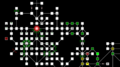
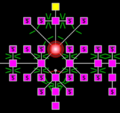
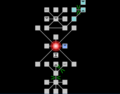
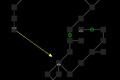

Here is the full image (17160 x 10120 pixel)


Notes
- ↑ MMP allows for an area ID/area names table to be defined, but Mudlet has no means to verify which definition is the correct one if 2 different area names relate to the same area ID.
Advanced Lua
Lua version
Mudlet uses Lua 5.1.
Lua tables
A good overview of tables is available on Lua's wiki in the TablesTutorial. Nick Gammon has also written a nice overview on how to deal with Lua tables.
Creating Tables
Tables can be created manually, by scripting or by a return value from a function (e.g. getRoomExits())
-- create a simple table
local myTable = { value1, value2, value3 }
local exits = { "north", "south", "west" }

-- create a table with keys in uses the following format
local myTable = { key1 = value1, key2 = value2, key3 = value3 }
local stats = { hp = 1234, mana = 321, moves = 678 }
Tables can also be a mixture of the above!
Accessing Tables
There are a number of different ways to access tables and it depends on how they are created.
Here are a few examples from the tables created above.
  print(exits[1])     -- will display north, tables start indexing at position 1
  print(stats["hp"])  -- will display 1234
  print(stats.hp)     -- will display 1234, a shorthand method
  print(stats[1])     -- will return nothing (or nil), there is no key called 1
Assigning Values to Table Elements
Now you know how to access table elements, addressing and assigning values to them works in the same way as normal variables.
stats["hp"] = 2000
-- or -- stats.hp = 2000
exits[1] = "down"

-- create a new entry in the stats table with the key called gold and assign it the value of 35
stats["gold"] = 35
Deleting a Table Element
Assigning an element the value of nil will remove it entirely.
stats["gold"] = nil
-- the stats table now only contains hp, mana and moves
See also: Table Functions API
Example: Enemy Tracker Using Tables
Putting all the above together let's create a real-life example of a table that will hold a list of enemies, their level and the area we found them in. We also want this table to persist over sessions, so we will save and load the table. So we need a way to add to the table, remove from it, display a list of enemies, save and load.
First we initialise the table (called enemies) by creating an empty table, and if a save file exists populate the table with data.
-- a variable to hold the table location so we don't have to keep typing the whole line
-- the file will be stored in your profile
local enemiesFile = getMudletHomeDir() .. "/enemies.lua"

-- create the table if it doesn't already exist
local enemies = enemies or {}

-- if the file exists then load it into the enemies table
if io.exists(enemiesFile) then
  table.load(enemiesFile, enemies)
end
Let's make a few functions to manipulate the table; add, show and save.
-- add data to the enemies table, it accepts name, level and area as arguments
-- we could call this function from the command line, trigger, alias, etc..
-- e.g., addEnemy("ogre", 15, "The Forest Path")
function addEnemy(name, level, area)
  table.insert(enemies, { ['name'] = name, ['level'] = level, ['area'] = area})
  saveEnemies()
end

-- print out the table to the screen
function showEnemies()
  display(enemies)
end

-- save the table for reloading next gaming session
function saveEnemies()
  table.save(enemiesFile, enemies)
end
Every time we add a new enemy the table also gets saved.
Let's add one more function to search the table by name of the enemy.
function getEnemyData(name)
  for k,v in pairs(enemies) do
    if v.name == name then
      return v
    end
  end
end
Now we can retrieve data from the table
e.g., getEnemyData("ogre") will return a small set of data (the name, level and area) from the enemies table.
If we specifically wanted the level, we could call it like so; getEnemyData("ogre").level
This ends the tutorial, but you can see how we can keep building and improving the functions for your specific goal. Other things you might add could be; deleting enemy entries, checking for duplicates (delete followed by add) or improving the show function for a neater look.
How to use multimatches[n][m]
multimatches[n][m] is the complement of matches[n] when matching multi-line triggers. multimatches[n][m] stores its matches by lines, inside each line are the relevant matches to it. The following example can be tested on the game batmud.bat.org:
In the case of a multiline trigger with these 2 Perl regex as conditions:
^You have (\w+) (\w+) (\w+) (\w+)
^You are (\w+).*(\w+).*
The command "score" generates the following output on batMUD:
 You have an almost non-existent ability for avoiding hits.
 You are irreproachably kind.
 You have not completed any quests.
 You are refreshed, hungry, very young and brave.
 Conquer leads the human race.
 Hp:295/295 Sp:132/132 Ep:182/181 Exp:269 >
If you add this script to the trigger:
showMultimatches()
The script, i.e. the call to the function showMultimatches() generates this output:
 -------------------------------------------------------
 The table multimatches[n][m] contains:
 -------------------------------------------------------
 regex 1 captured: (multimatches[1][1-n])
           key=1 value=You have not completed any quests
           key=2 value=not
           key=3 value=completed
           key=4 value=any
           key=5 value=quests
 regex 2 captured: (multimatches[2][1-n])
           key=1 value=You are refreshed, hungry, very young and brave
           key=2 value=refreshed
           key=3 value=young
           key=4 value=and
           key=5 value=brave
 -------------------------------------------------------
The function showMultimatches() prints out the content of the table multimatches[n][m]. You can now see what the table multimatches[][] contains in this case. The first trigger condition (=regex 1) got as the first full match "You have not completed any quests". This is stored in multimatches[1][1] as the value of key=1 in the sub-table matches[1] which, in turn, is the value of key=1 of the table multimatches[n][m].
The structure of the table multimatches:
multimatches {
                1 = {
                       matches[1] of regex 1
                       matches[2] of regex 1
                       matches[3] of regex 1
                              ...
                       matches[m] of regex 1 },
                2 = {
                       matches[1] of regex 2
                       matches[2] of regex 2
                             ...
                       matches[m] of regex 2 },
                 ...         ...
                n = {
                       matches[1] of regex n
                       matches[2] of regex n
                             ...
                       matches[m] of regex n }
}
The sub-table matches[n] is the same table matches[n] you get when you have a standard non-multiline trigger. The value of the first key, i. e. matches[1], holds the first complete match of the regex. Subsequent keys hold the respective capture groups. For example: Let regex = "You have (\d+) gold and (\d+) silver" and the text from the game = "You have 5 gold and 7 silver coins in your bag." Then matches[1] contains "You have 5 gold and 7 silver", matches[2] = "5" and matches[3] = "7". In your script you could do:
myGold = myGold + tonumber( matches[2] )
mySilver = mySilver + tonumber( matches[3] )
However, if you’d like to use this script in the context of a multiline trigger, matches[] would not be defined as there are more than one regex. You need to use multimatches[n][m] in multiline triggers. Above script would look like this if above regex would be the first regex in the multiline trigger:
myGold = myGold + tonumber( multimatches[1][2] )
mySilver = mySilver + tonumber( multimatches[1][3] )
What makes multiline triggers really shine is the ability to react to game output that is spread over multiple lines and only fire the action (=run the script) if all conditions have been fulfilled in the specified amount of lines.
Regex in Lua
Lua has its own, fast and lightweight pattern matching built in - see 20.2 – Patterns. Should you need proper regex however, Mudlet has lrexlib available - which works as a drop-in replacement; replace string. with rex. - for example string.gsub to rex.gsub. See manual for documentation.
-- example: strip out trailing .0's from text using a regex
local stripped = rex.gsub("1.0.0", [[(\.0+)+$]], '')
print(stripped)
The lrexlib manual can be hard to read, so the instructions in this section should provide most of what you need.
lrexlib comes preinstalled in Mudlet and it is automatically bounded to the rex variable, as the rex_pcre version. If you want to test your lua code outside Mudlet, you have to install it yourself. The easiest installation method uses luarocks. There are a few flavors that you can specify, but in this section we will focus on the POSIX and PCRE flavors.
luarocks install --local lrexlib-POSIX
luarocks install --local lrexlib-PCRE
After installation, you can use the library:
local rex = require("rex_posix")
If you set the flavor to rex_pcre, your code should work afterwards in Mudlet.
Keep in mind that precomputing a pattern with the new function has the advantage that objects resulted will be garbage collected and that regexes are greedy by default.
Another thing that may surprise some users is that, when escaping, you need to backslashes:
rex.match("The answer is 42", "(\\d+)")
You can also achieve this using long string literal syntax, where you don't need the double escape:
rex.match("The answer is 42", [[(\d+)]])
There are a few functions that you need to know: gsub, count, split, find, match.
count
The count function counts the matches:
print(rex.count("ab", "."))
--> 2
A single dot here has the same meaning it has in POSIX regexes.
You can also precompute the pattern, using the new function:
print(rex.count("ab", rex.new"."))
--> 2
Remember that regexes are greedy by default:
print(rex.count("aaa", ".*"))
--> 1
split
The split function splits a string according to a regex pattern:
for a in rex.split("aba", "b") do
  print(a)
end
--> a
--> a
for a in rex.split("aba", ",") do
  print(a)
end
--> aba
Be careful though, because while the split consumes all the characters with the same value, if they are adjacent, you will also have the borders between them resulting in an empty string:
for a in rex.split("abba", "b") do
  print(a)
end
--> a
-->
--> a
find
The find function searches for the first match, and returns the offsets where the match starts and ends.
print(rex.find("aaa", "b"))
--> nil

print(rex.find("aba", "b"))
--> 2	2
find also takes an additional parameter, which is the starting position:
print(rex.find("abab", "b"))
--> 2	2
print(rex.find("abab", "b", 3))
--> 4	4
A negative starting position will circle back from the end:
print(rex.find("ababab", "b", -1))
--> 6	6
print(rex.find("ababab", "b", -3))
--> 4	4
match
The match function works similarly to the find function, but returns the matches instead of the indices:
print(rex.match("abcdef", "ab"))
--> ab
print(rex.match("abcdef", ".*"))
--> abcdef
print(rex.match("abcdef", "ab.."))
--> abcd
print(rex.match("abcdef", ".*", 3))
--> cdef
print(rex.match("abcdef", ".*", -3))
--> def
gsub
The gsub function replaces the pattern in the string, with the value in the third parameter:
print(rex.gsub("abcdef", "[abef]+", ""))
--> cd	2	2
This snippet replaces all the "a", "b", "e" or "f" characters with the empty string, so only "c" and "d" remain.
The fourth parameter determines how many replacements are made:
print(rex.gsub("abcdef", "[abef]+", "", 1))
--> cdef	1	1
Because the regex is greedy, the "ab" is a single match, so it gets replaced.
PCRE specific functionality
The case insensitive flag:
rex = require("rex_pcre")
flags = rex.flags()
print(rex.find("ABab", "a", 0, flags.CASELESS))
--> 1	1
Coroutines
Mudlet supports Lua's coroutines starting with 3.2.0, which opens up a whole lot of possibilities for the way you program your scripts. A pretty technical description and a tutorial is available, but for a quick explanation, think of coroutines allowing you to pause and resume running a function. If you're familiar with other clients, it is something like a #wait statement where a script will stop running, except unlike a #wait which auto-resumes the script later, you resume it when it yourself whenever you'd like.
Here's an example - add this code as a new script:
function ritual()
  send("get wood")
  -- think of coroutine.yield as yielding (giving away) control,
  -- so the function will stop here and resume on making fire
  -- when called the next time
  coroutine.yield()
  send("make fire")
  coroutine.yield()
  send("jump around")
  coroutine.yield()
  send("sacrifice goat")
end
Make a ^ritual$ alias - which seems big, but that's just because there's a lot of explanation inside it:
-- create a coroutine that'll be running our ritual function
-- or re-use the one we're already using if there is one
ritualcoroutine = ritualcoroutine or coroutine.create(ritual)

-- run the coroutine until a coroutine.yield() and see
-- if there's any more code to run
local moretocome = coroutine.resume(ritualcoroutine)

-- if there's no more code to run - remove the coroutine,
-- so next time you call the alias - a new one gets made
if not moretocome then
  ritualcoroutine = nil
end
Now try doing the ritual command. You'll see that the send()'s are being sent one at a time, instead of all at once as they would have been without the yields. Cool, huh?
You can also install the demo as a package - paste this into Mudlet:
lua installPackage("http://wiki.mudlet.org/images/3/36/Ritual-coroutine-demo.zip")
Note that if you'll be using coroutines as part of a package you'll give to others, remember about the if mudlet.supports.coroutines then return end bit. Older Mudlets that don't support coroutines might crash, which sucks. Newer ones that do support them are completely fine, however!
Coroutines have many uses: finite state machines, running intensive tasks (yielding every once in a while so Mudlet isn't frozen), and so on.
Batching Processing with Coroutines
Say you want to process large jobs that lock up the user interface for the duration of the job, such as colouring entire maps, deleting rooms or processing large files. You can process these jobs in small amounts and then yield to the main loop where you can display a progress meter.
local function task()

  -- process a large task, like colouring all rooms in a map
  for i = 1, 100 do
    -- setRoomEnv(i, ...)                  -- perform a small part of the job, colour just one room
    echo("processed part of a task.. ")
    coroutine.yield()                      -- now yield to the progress meter function
  end
end

function batch()

  local routine = coroutine.create(task)

  for i = 0, 100 do
    coroutine.resume(routine, i)
    echo(i .. "% complete.\n")
  end
end
All running lua batch() you will see;
processed part of a task.. 0% complete.
processed part of a task.. 1% complete.
processed part of a task.. 2% complete.
processed part of a task.. 3% complete.
processed part of a task.. 4% complete.
processed part of a task.. 5% complete.

...
Introspective facilities
Lua brings a helpful debug.getinfo(function) function, which gets you some information about where a function comes from: whenever it's your own, or one defined by Mudlet (in C++ or Lua). You can also use it to get more information on the Alias## / Trigger## objects you see in the error console:
.png)
If you're working on coding Mudlet itself, use this function to tell where the actual definition of a function is.
Event System
Events in Mudlet allow a paradigm of system-building that is easy to maintain (because if you’d like to restructure something, you’d have to do less work), enables interoperability (making a collection of scripts that work with each other is easier) and enables an event-based way of programming.
The essentials of it are as such: you use Scripts to define which events a function should listen to, and when the event is raised, the said function(s) will be called. Events can also have function parameters with them, which’ll be passed onto the receiving functions.
Registering an event handler via UI
Registering an event handler means that you’ll be telling Mudlet what function it should call for you when an event is raised, so it’s a two step process - you need to tell it both what function you’d like to have called, and on what event it should be called.
To tell it what function should be called, create a new script, and give the script the name of the function you’d like to be called. This is the only time where an items name matters in Mudlet. You can define the function right inside the script as well, if you’d like.
Next, we tell it what event or events this function should be called on - you can add multiple entries. To do that, enter the events name in the Add User Defined Event Handler: field, press enter, and it’ll go into the list - and that is all.

Registering an event from a script
You can also register your event with the registerAnonymousEventHandler(event name, function reference, [one shot]) function inside your scripts:
-- example taken from the God Wars 2 (http://godwars2.org) Mudlet UI - forces the window to keep to a certain size
function keepStaticSize()
  setMainWindowSize(1280,720)
end -- keepStaticSize

registerAnonymousEventHandler("sysWindowResizeEvent", keepStaticSize, false)
Note: : registerNamedEventHandler can also be used. Doing so causes Mudlet to handle saving of the IDs for you.
Note: Mudlet also uses the event system in-game protocols (like GMCP, MSDP and others).
Raising a custom event
To raise an event, you'd use the raiseEvent() function:
raiseEvent(name, [arguments...])
It takes an event name as the first argument, and then any amount of arguments after it which will be passed onto the receiving functions.
Example of registering and raising an event
Add a script to each profile you need the event.
-- This is the function that will be called when the event is raised.
-- "event" is set to the event name.
-- "arg" is the argument(s) provided with raiseEvent/raiseGlobalEvent.
-- "profile" - Is the profile name from where the raiseGlobalEvent was triggered from
--             It is 'nil' if raiseEvent() was used.
function onMyEvent(event, arg, profile)
  echo("Event: " .. event .. "\n")
  echo("Arg  : " .. arg .. "\n")
  -- If the event is not raised with raiseGlobalEvent() profile will be 'nil'
  echo("Profile: " .. (profile or "Local") .. "\n")
end

-- Register the event handler.
registerAnonymousEventHandler("my_event", onMyEvent)
To raise the event you can call:
-- Trigger only in the current profile:
raiseEvent("my_event", "Hello world!")

-- Trigger the event in all OTHER profiles:
raiseGlobalEvent("my_event", "Hello World!")
To review, count and extract from an unknown number of arguments received by an event:
function eventArgs(...)
  local args = {...}
  local amount = #args
  local first = args[1]
  echo("Number of arguments: " .. amount)
  echo("\nTable of all arguments: ")
  display(args)
  echo("First argument: " .. first)
  echo("\n\n")
end
Gamepad functionality
Note: will be removed in 4.18 as this is blocking Mudlet updates and is not used by players.
Gamepad functions are not fully supported with all operating systems and hardware. Windows supports XInput devices like Xbox 360 and Xbox One controllers. DirectInput controllers like a PlayStation 4 controller can be translated to XInput with third party software. Mudlet on Linux can support gamepads but only if you compile it yourself. The automated builds are made using the oldest supported version of Ubuntu, and the Qt5 gamepad module was not available on Ubuntu 18.04 LTS.
Mudlet-raised events
Mudlet itself also creates events for your scripts to hook on. The following events are generated currently:
AdjustableContainerReposition
Raised while a adjustable container is re-positioned.
function repositioningContainer(eventName, containerName, width, height, x, y, mouseAction)
  print(f"{containerName}: {x}x, {y}y, {width}x{height}, using mouse? {mouseAction}")
end

registerAnonymousEventHandler("AdjustableContainerReposition", repositioningContainer)
AdjustableContainerRepositionFinish
Raised when an adjustable container done being re-positioned.
function finishedRepositioning(eventName, containerName, width, height, x, y)
  print(f"{containerName}: {x}x, {y}y, {width}x{height}")
end

registerAnonymousEventHandler("AdjustableContainerRepositionFinish", finishedRepositioning)
channel102Message
Raised when a telnet sub-option 102 message is received (which comprises of two numbers passed in the event). This is of particular use with the Aardwolf MUD who originated this protocol. See this forum topic for more about the Mudlet Aardwolf GUI that makes use of this.
mapModeChangeEvent
Raised when the mapper is switching between "view-only" and "editing" mode of the Visual Map Editor. A value of "editing" or "viewing" will be given as argument to indicate which mode was entered.
mapOpenEvent
Raised when the mapper is opened - either the floating dock or the in-Mudlet widget.
sysAppStyleSheetChange
Raised when setAppStyleSheet is called and a new stylesheet applied to Mudlet.
-- This will respond to a future (as yet unpublished) addition to the Mudlet code that will allow some
-- of a default application style sheet to be supplied with Mudlet to compensate for some text colors
-- that do not show up equally well in both light and dark desktop themes. That, perhaps, might finally
-- allow different colored texts to be uses again for the trigger item types!
function appStyleSheetChangeEvent( event, tag, source )
  if source == "system" then
    colorTable = colorTable or {}
    if tag == "mudlet-dark-theme" then
      colorTable.blue = {64, 64, 255}
      colorTable.green = {0, 255, 0}
    elseif tag == "mudlet-light-theme" then
      colorTable.blue = {0, 0, 255}
      colorTable.green = {64, 255, 64}
    end
  end
end
Available in Mudlet3.19+sysBufferShrinkEvent
Raised when the oldest lines are removed from the back of any console or buffer belonging to a profile because it has reached the limit (either the default or that set by setConsoleBufferSize). The two additional arguments within the event are: the name of the console or buffer and the number of lines removed from the beginning of the buffer. This information will be useful for any situation where a line number is being stored as it will need to be decremented by that number of lines in order to continue to refer to the same line (assuming that it is still present - indicated by the number remaining positive) after the oldest ones have been removed.
Available in Mudlet4.17+sysCommandLineDeleted
Raised when a command line is successfully deleted via deleteCommandLine() or Geyser's CommandLine:delete() method. The event provides the name of the deleted command line as an argument.
Note: This event is raised after the command line has been marked for deletion but before Qt's event loop has completed the deletion. The command line should be considered gone for practical purposes.
Note: The main command line cannot be deleted, so this event will never be raised for it.
Available in Mudlet4.20+- Event arguments
- event: The event name: "sysCommandLineDeleted"
- commandLineName: The name of the command line that was deleted
- Example
-- Register an event handler for command line deletion
function onCommandLineDeleted(event, commandLineName)
  cecho(f"<green>Command line '{commandLineName}' has been deleted.\n")

  -- Clean up any command history or aliases specific to this command line
  if commandLineHistory[commandLineName] then
    commandLineHistory[commandLineName] = nil
  end
end

registerAnonymousEventHandler("sysCommandLineDeleted", onCommandLineDeleted)

-- Now when you delete a command line, the handler will be called
createCommandLine("customInput", 10, 400, 300, 30)
deleteCommandLine("customInput")
-- Output: Command line 'customInput' has been deleted.
sysConnectionEvent
Raised when the profile becomes connected to a MUD.
Note: This is raised the moment the socket opens, before Mudlet and the game have negotiated anything - so GMCP, MSDP, ATCP and MXP are all still unavailable to a handler running here. To act as soon as one of them is usable, handle sysProtocolEnabled instead.
sysConsoleSizeChanged
This event is raised when the (scrollable part of) the main or a sub-console or a user-window changes in size. After the event name as the first argument (as is "standard") additional arguments contain:
- the name (string) of the console involved ("main" for the main console)
- the number of characters (em-space equivalents) wide the new size is
- the number of lines tall the new size is
- the number of characters taken up by a visible time stamp (will be 0 if this detail is not visible).
Available in Mudlet4.20+sysCustomHttpDone
Raised whenever a customHTTP() request completes successfully. Arguments with the event are the URL that the request was sent to and the response body (if it's less than 10k characters) and HTTP method.
See also sysCustomHttpError.
sysCustomHttpError
Raised whenever a customHTTP() request fails. Arguments are the error message and the URL that the request was sent to and HTTP method.
See also sysCustomHttpDone.
sysDataSendRequest
Raised right before a command from the send(), sendAll() functions or the command line is sent to the game - useful for keeping track of what your last command was, manipulating input or even denying the command to be sent if necessary with denyCurrentSend().
sysDataSendRequest will send the event name and the command sent (in string form) to the functions registered to it. IE: commandSent in the example below will be "eat hambuger" if the user entered only that into command line and pressed enter, send("eat hamburger"), sendAll("eat humburger", "eat fish") or sendAll("eat fish", "eat humburger")
Note: if you'll be making use of denyCurrentSend(), you really should notify the user that you denied their command - unexperienced ones might conclude that your script or Mudlet is buggy if they don't see visual feedback. Do not mis-use this and use it as keylogger either.
-- cancels all "eat hambuger" commands
function cancelEatHamburger(eventName, commandSent)
  if commandSent == "eat hamburger" then
    denyCurrentSend() --cancels the command sent.
    cecho("<red>Denied! You can't do "..commandSent.." right now.\n")
  end --if commandSent == eat hamburger
end

registerAnonymousEventHandler("sysDataSendRequest", cancelEatHamburger)
If you wanted to control input you could set a bool after a trigger. This is useful if you want alias like control, do not know what text will be entered, but do know a trigger that WILL occur just before the user enters the command.
function controlInput(_, command)
  if changeCMDInput then
    changeCMDInput = false --set this if check to false to it doesn't occur every input
    --Also set the bool check BEFORE any send() functions within a sysDataSendRequest function
    sendAll(command .. "some target", command .. "some other target", true) --Duplicate and unknown command
    denyCurrentSend() --Deny the original command, not the commands sent with sendAll.
  end
end
registerAnonymousEventHandler("sysDataSendRequest", controlInput)
Take note that functions registered under sysDataSendRequest WILL trigger with ALL commands that are sent.
sysDeleteHttpDone
Raised whenever a deleteHTTP() request completes successfully. Arguments with the event are the URL that the request was sent to and the response body (if it's less than 10k characters).
See also sysDeleteHttpError.
sysDeleteHttpError
Raised whenever a deleteHTTP() request fails. Arguments are the error message and the URL that the request was sent to.
See also sysDeleteHttpDone.
sysDisconnectionEvent
Raised when the profile becomes disconnected, either manually or by the game.
If you'd like to automatically reconnect when you get disconnected, make a new Script and add this inside:
registerAnonymousEventHandler("sysDisconnectionEvent", reconnect)
sysDownloadDone
Raised when Mudlet is finished downloading a file successfully - the location of the downloaded file is passed as a second argument, the file size is passed as the third, and the HTTP response is passed as the fourth.
Example - put it into a new script and save it to run:
-- create a function to parse the downloaded webpage and display a result
function downloaded_file(_, filename)
  -- is the file that downloaded ours?
  if not filename:find("achaea-who-count.html", 1, true) then return end

  -- read the contents of the webpage in
  local f, s, webpage = io.open(filename)
  if f then webpage = f:read("*a"); io.close(f) end
  -- delete the file on disk, don't clutter
  os.remove(filename)

  -- parse our downloaded file for the player count
  local pc = webpage:match([[Total: (%d+) players online]])
  display("Achaea has "..tostring(pc).." players on right now.")
end

-- register our function to run on the event that something was downloaded
registerAnonymousEventHandler("sysDownloadDone", downloaded_file)

-- download a list of fake users for a demo
downloadFile(getMudletHomeDir().."/achaea-who-count.html", "https://www.achaea.com/game/who")
You should see a result like this:

sysDownloadError
Raised when downloading a file failed - the second argument contains the error message, the third the local filename that was to be used and the actual URL used (might not be the same as what was given if redirection took place).
- Example
--if a download fails notify the player.
function downloadErrorEventHandler(event, errorFound, localFilename, usedUrl)
    cecho("fuction downloadErrorEventHandler, "..errorFound)
    debugc("fuction downloadErrorEventHandler, "..errorFound) --display to error screen in editor
end --function downloadErrorEventHandler
registerAnonymousEventHandler("sysDownloadError", downloadErrorEventHandler)
sysDownloadFileProgress
Raised while file is being downloaded to indicate progess of download.
The arguments passed areː: event name, url of download, bytes downloaded, total bytes (if available).
- Example
-- will show progress bar while download file and hide it after file download is complete
local progressBar = Geyser.Gauge:new({
  name="downloadProgressBar",
  x="25%", y="10%",
  width="50%", height="5%",
})
progressBar:setFontSize(13)
progressBar:setAlignment("center")
progressBar:hide()


local fileUrl = "https://www.mudlet.org/download/Mudlet-4.10.1-linux-x64.AppImage.tar"
local targetFile = getMudletHomeDir() .. "/Mudlet.tar"
function handleProgress(_, url, bytesDownloaded, totalBytes)
  if url ~= fileUrl then
    return
  end

  progressBar:show()

  if not totalBytes then
    bytesDownloaded = 0
    totalBytes = 1
  end

  progressBar:setValue(bytesDownloaded, totalBytes, math.floor((bytesDownloaded / totalBytes) * 100) .. "%")
end

registerAnonymousEventHandler("sysDownloadFileProgress", handleProgress)

function hideProgressBar()
  tempTimer(3, function() progressBar:hide() end)
end

registerAnonymousEventHandler("sysDownloadDone", hideProgressBar)
registerAnonymousEventHandler("sysDownloadError", hideProgressBar)

downloadFile(targetFile, fileUrl)
Available in Mudlet4.11+sysDropEvent
Raised when a file is dropped on the Mudlet main window or a userwindow. The arguments passed areː filepath, suffix, xpos, ypos, and consolename - "main" for the main window and otherwise of the userwindow/miniconsole name.
Available in Mudlet4.8+function onDragAndDrop(_, filepath, suffix, xpos, ypos, consolename)
print(string.format("Dropped new file into %s: %s (suffix: %s)", consolename, filepath, suffix))
end
registerAnonymousEventHandler("sysDropEvent", onDragAndDrop)
sysDropUrlEvent
Raised when a url is dropped on the Mudlet main window or a userwindow. As an url at the moment Mudlet understands The arguments passed areː url, schema, xpos, ypos, and consolename - "main" for the main window and otherwise of the userwindow/miniconsole name.
Available in Mudlet4.11+function onDragAndDropUrl(_, url, schema, xpos, ypos, consolename)
print(string.format("Dropped new url into %s: %s (suffix: %s)", consolename, filepath, suffix))
if schema == "http" or schema == "https" then
print("\nOh boy... this might be a link to some website")
end
end
registerAnonymousEventHandler("sysDropUrlEvent", onDragAndDropUrl)
sysExitEvent
Raised when Mudlet is shutting down the profile - a good event to hook onto for saving all of your data.
sysGetHttpDone
Raised whenever a getHTTP() request completes successfully. Arguments with the event are the URL that the request was sent to and the response body (if it's less than 10k characters).
This event is also raised when a post/put/delete request redirects to a GET.
See also sysGetHttpError.
Available in Mudlet4.10+sysGetHttpError
Raised whenever a getHTTP() request fails. Arguments are the error message and the URL that the request was sent to.
See also sysGetHttpDone.
Available in Mudlet4.10+sysInstall
Raised right after a module or package is installed by any means. This can be used to display post-installation information or setup things.
Event handlers receive the name of the installed package or module as additional argument.
Note: Installed modules will raise this event handler each time the synced profile is opened. sysInstallModule and sysInstallPackage are not raised by opening profiles.
Available in Mudlet3.1+function myScriptInstalled(_, name)
-- stop if what got installed isn't my thing
if name ~= "my script name here" then return end
print("Hey, thanks for installing my thing!")
end
registerAnonymousEventHandler("sysInstallPackage", myScriptInstalled)
sysInstallModule
Raised right after a module is installed through the module dialog. This can be used to display post-installation information or setup things.
See also sysLuaInstallModule for when a module is installed via Lua.
Event handlers receive the name of the installed module as well as the file name as additional arguments.
Available in Mudlet3.1+sysInstallPackage
Raised right after a package is installed by any means. This can be used to display post-installation information or setup things.
Event handlers receive the name of the installed package as well as the file name as additional arguments.
Available in Mudlet3.1+sysIrcMessage
Raised when the IRC client receives an IRC message. The sender's name, channel name, and their message are passed as arguments to this event.
Starting with Mudlet 3.3, this event changes slightly to provide more information from IRC network messages. Data such as status codes, command responses, or error messages sent by the IRC Server may be formatted as plain text by the client and posted to lua via this event.
- sender: may be the nick name of an IRC user or the name of the IRC server host, as retrievable by getIrcConnectedHost()
- channel: may not always contain a channel name, but will be the name of the target/recipient of a message or action. In some networks the name may be that of a service (like "Auth" for example)
- Example
function onIrcMessage(_, sender, target, message)
  echo(string.format('(%s) %s says, "%s"\n', target, sender, message))
end

registerAnonymousEventHandler("sysIrcMessage", onIrcMessage)
To send a message, see sendIrc().
sysLabelDeleted
Raised when a label is successfully deleted via deleteLabel() or Geyser's Label:delete() method. The event provides the name of the deleted label as an argument.
Note: This event is raised after the label has been marked for deletion but before Qt's event loop has completed the deletion. The label should be considered gone for practical purposes.
Available in Mudlet4.20+- Event arguments
- event: The event name: "sysLabelDeleted"
- labelName: The name of the label that was deleted
- Example
-- Register an event handler for label deletion
function onLabelDeleted(event, labelName)
  cecho(f"<green>Label '{labelName}' has been deleted.\n")

  -- Clean up any references or related data
  if myLabelReferences[labelName] then
    myLabelReferences[labelName] = nil
  end
end

registerAnonymousEventHandler("sysLabelDeleted", onLabelDeleted)

-- Now when you delete a label, the handler will be called
createLabel("tempLabel", 50, 50, 100, 30, 1)
deleteLabel("tempLabel")
-- Output: Label 'tempLabel' has been deleted.
sysLoadEvent
Raised after Mudlet is done loading the profile, after all of the scripts, packages, and modules are installed. Note that when it does so, it also compiles and runs all scripts - which could be a good idea to initialize everything at once, but beware - scripts are also run when saved. Hence, hooking only on the sysLoadEvent would prevent multiple re-loads as you’re editing the script.
In 4.20.0 an extra boolean argument was provided which indicates whether the event is from loading a new profile (true) or after a call of the resetProfile() function (false).
sysLuaInstallModule
Raised right after a module is installed through the Lua installModule() command. This can be used to display post-installation information or setup things.
Event handlers receive the name of the installed module as well as the file name as additional arguments.
Available in Mudlet3.1+sysLuaUninstallModule
Raised right before a module is removed through the lua uninstallModule command. This can be used to display post-removal information or for cleanup.
Event handlers receive the name of the removed module as additional argument.
Available in Mudlet3.1+sysManualLocationSetEvent
Raised whenever the "set location" command (on the 2D mapper context menu) is used to reposition the current "player room". It provides the room ID of the new room ID that the player has been moved to.
Available in Mudlet3.0+sysMapAreaChanged
Raised whenever the area being viewed in the mapper changes, it returns two additional arguments being the areaID numbers being changed to and the previously viewed area.
Available in Mudlet4.17.0+sysMapDownloadEvent
Raised whenever an MMP map is downloaded and loaded in.
sysMapWindowMousePressEvent
Raised when the mouse is left-clicked on the mapper window.
Available in Mudlet4.20+sysMiniConsoleDeleted
Raised when a miniconsole is successfully deleted via deleteMiniConsole() or Geyser's MiniConsole:delete() method. The event provides the name of the deleted miniconsole as an argument.
Note: This event is raised after the miniconsole has been marked for deletion but before Qt's event loop has completed the deletion. The miniconsole should be considered gone for practical purposes.
Available in Mudlet4.20+- Event arguments
- event: The event name: "sysMiniConsoleDeleted"
- miniConsoleName: The name of the miniconsole that was deleted
- Example
-- Register an event handler for miniconsole deletion
function onMiniConsoleDeleted(event, miniConsoleName)
  cecho(f"<green>MiniConsole '{miniConsoleName}' has been deleted.\n")

  -- Stop any timers or processes that were sending data to this console
  if chatTimers[miniConsoleName] then
    killTimer(chatTimers[miniConsoleName])
    chatTimers[miniConsoleName] = nil
  end
end

registerAnonymousEventHandler("sysMiniConsoleDeleted", onMiniConsoleDeleted)

-- Now when you delete a miniconsole, the handler will be called
createMiniConsole("chatWindow", 10, 10, 300, 200)
deleteMiniConsole("chatWindow")
-- Output: MiniConsole 'chatWindow' has been deleted.
sysMediaFinished
Raised when media finishes playing. This can be used in a music player for example to start the next song.
Event handlers receive the media file name and the file path as additional arguments.
Available in Mudlet4.15+sysMMCPChatMessage
Raised for every MMCP chat message shown to you, so you can route chat into a miniconsole of your own instead of the main window.
Your own outgoing chat raises the event too. Messages you send with mmcp.chatAll() or mmcp.emoteAll(), and any status message from the chat system itself, arrive with a peer name of "System"; a message you send with mmcp.chatTo() arrives under the name of the peer you addressed.
Note: The message still carries the ANSI colour codes it was displayed with, so pass it to decho() or cecho() rather than echo() if you want it to look the same.
Available in Mudlet4.21+- Event arguments
- event: The event name: "sysMMCPChatMessage"
- peerName: The chat name of the peer the message is from, or "System" for your own broadcasts and for chat system messages
- message: The message as it was displayed, including its colour codes
- Example
-- put chat in its own window instead of the main one
function onChatMessage(event, peerName, message)
  if not chatWindowMade then
    createMiniConsole("chat", 0, 0, 400, 200)
    chatWindowMade = true
  end
  decho("chat", message .. "\n")
end

registerAnonymousEventHandler("sysMMCPChatMessage", onChatMessage)
sysMMCPIncomingSnoopMessage
Raised when a peer you are snooping with mmcp.snoop() sends you a line of what their game is sending them.
The line is also printed to your main window unless you turn off Show snoop data in main console in Settings, Chat. Turning that off and handling this event is how you put a snoop into a window of its own.
Available in Mudlet4.21+- Event arguments
- event: The event name: "sysMMCPIncomingSnoopMessage"
- peerName: The chat name of the peer being snooped
- message: The snooped line, including any colour codes the peer's game sent
- Example
function onSnoop(event, peerName, message)
  if not snoopWindows[peerName] then
    createMiniConsole(peerName, 0, 0, 400, 300)
    snoopWindows[peerName] = true
  end
  decho(peerName, message .. "\n")
end

snoopWindows = snoopWindows or {}
registerAnonymousEventHandler("sysMMCPIncomingSnoopMessage", onSnoop)
sysMMCPPeerUpdateEvent
Raised whenever an MMCP chat peer joins or leaves, so you can keep a list of who is reachable up to date.
The event does not say which of the two happened. Call mmcp.getClientList() when it fires - the peer list has already been updated by then, so the peer is either in it or not.
Available in Mudlet4.21+- Event arguments
- event: The event name: "sysMMCPPeerUpdateEvent"
- peerName: The chat name of the peer that joined or left
- Example
function onPeerUpdate(event, peerName)
  local stillHere = false
  for _, peer in ipairs(mmcp.getClientList() or {}) do
    if peer.name == peerName then stillHere = true end
  end

  if stillHere then
    cecho(f"<green>{peerName} joined the chat.\n")
  else
    cecho(f"<red>{peerName} left the chat.\n")
  end
end

registerAnonymousEventHandler("sysMMCPPeerUpdateEvent", onPeerUpdate)
sysMMCPSideChannelMessage
Raised when a peer sends you data with mmcp.sendSideChannel(). Nothing is printed to the screen - this event is the only way to see it, which is what makes side channels useful for scripts that share data between clients.
Available in Mudlet4.21+- Event arguments
- event: The event name: "sysMMCPSideChannelMessage"
- peerName: The chat name of the peer that sent the data
- channel: The channel name the sender chose
- message: Everything after the first comma of what the sender passed
- Example
-- show the health of everyone in the group, as they report it
function onSideChannel(event, peerName, channel, message)
  if channel ~= "stats" then return end

  local hp, maxhp = message:match("(%d+)|(%d+)")
  if hp then
    cecho(f"<cyan>{peerName}<white> is at {hp}/{maxhp} health.\n")
  end
end

registerAnonymousEventHandler("sysMMCPSideChannelMessage", onSideChannel)
sysPathChanged
Raised whenever file or directory added through addFileWatch() is modified.
For directories this event is emitted when the directory at a specified path is modified (e.g., when a file is added or deleted) or removed from disk. Note that if there are several changes during a short period of time, some of the changes might not emit this signal. However, the last change in the sequence of changes will always generate this signal.
For files this event is emitted when the file at the specified path is modified, renamed or removed from disk.
Available in Mudlet4.12+- Example
herbs = {}
local herbsPath = getMudletHomeDir() .. "/herbs.lua"
function herbsChangedHandler(_, path)
  if path == herbsPath then
    table.load(herbsPath, herbs)
    removeFileWatch(herbsPath)
  end
end

addFileWatch(herbsPath)
registerAnonymousEventHandler("sysPathChanged", herbsChangedHandler)
sysPostHttpDone
Raised whenever a postHTTP() request completes successfully. Arguments with the event are the URL that the request was sent to and the response body (if it's less than 10k characters).
See also sysPostHttpError.
sysPostHttpError
Raised whenever a postHTTP() request fails. Arguments are the error message and the URL that the request was sent to.
See also sysPostHttpDone.
sysProfileFocusChangeEvent
- Raised whenever a profile becomes or stops being the foreground one when multi-playing, whether multi-view (show all profiles side-by-side) is active or not. The event comes with a second boolean argument which is true if the profile is now the one that has the focus, i.e. will receive keystrokes entered from the keyboard, or false if the focus has just switched from it to another profile.
Available in Mudlet4.17.0+sysProtocolDisabled
Raised whenever a communications protocol is disabled, with the protocol name passed as an argument. Current values Mudlet will use for this are: GMCP, MSDP, ATCP, MXP, and channel102.
sysProtocolEnabled
Raised whenever a communications protocol is enabled, with the protocol name passed as an argument. Current values Mudlet will use for this are: GMCP, MSDP, ATCP, MXP, and channel102.
This is where a package should subscribe to the data it wants. sysConnectionEvent is raised before negotiation, so nothing is available yet at that point.
function onProtocolEnabled(_, protocol)
  if protocol == "GMCP" then
    print("GMCP enabled! Now we can use GMCP data.")
  elseif protocol == "MSDP" then
    sendMSDP("REPORT", "HEALTH")
  end
end
sysPutHttpDone
Raised whenever a putHTTP() request completes successfully. Arguments with the event are the URL that the request was sent to and the response body (if it's less than 10k characters).
See also sysPutHttpError.
sysPutHttpError
Raised whenever a putHTTP() request fails. Arguments are the error message and the URL that the request was sent to.
See also sysPutHttpDone.
sysScrollBoxDeleted
Raised when a scrollbox is successfully deleted via deleteScrollBox() or Geyser's ScrollBox:delete() method. The event provides the name of the deleted scrollbox as an argument.
Note: This event is raised after the scrollbox has been marked for deletion but before Qt's event loop has completed the deletion. The scrollbox should be considered gone for practical purposes.
Available in Mudlet4.20+- Event arguments
- event: The event name: "sysScrollBoxDeleted"
- scrollBoxName: The name of the scrollbox that was deleted
- Example
-- Register an event handler for scrollbox deletion
function onScrollBoxDeleted(event, scrollBoxName)
  cecho(f"<green>ScrollBox '{scrollBoxName}' has been deleted.\n")

  -- Clean up any content tables or buffers
  if scrollBoxContent[scrollBoxName] then
    scrollBoxContent[scrollBoxName] = nil
  end
end

registerAnonymousEventHandler("sysScrollBoxDeleted", onScrollBoxDeleted)

-- Now when you delete a scrollbox, the handler will be called
createScrollBox("messageBox", 10, 10, 300, 400)
deleteScrollBox("messageBox")
-- Output: ScrollBox 'messageBox' has been deleted.
sysServerGuiInstalled
Raised right after a GUI package supplied by the game (via the GMCP or ATCP Client.GUI mechanism) has finished installing. A version upgrade raises it again once the new version is in place.
Event handlers receive the name of the installed package as an additional argument.
Mudlet's pre-installed starter UI uses this event to quietly stand aside when a game brings its own interface.
Available in Mudlet5.0+function gameUiInstalled(_, packageName)
print("The game installed its own UI package: " .. packageName)
end
registerAnonymousEventHandler("sysServerGuiInstalled", gameUiInstalled)
sysSettingChanged
This event is raised when a Preferences or Mudlet setting has changed. The first argument contains the setting that was changed, further arguments detail the change.
Currently implemented sysSettingChanged events are;
- "main window font" - raised when the main window/console font has changed via API or Preferences window. Returns two additional arguments, the font family and the font size. e.g. {"main window font", "Times New Roman", 12 }
Available in Mudlet4.20+sysSoundFinished
This event is obsolete in Mudlet 4.15. Please replace this with sysMediaFinished()
Available in Mudlet3.1+sysSpeedwalkFinished
Raised when a speedwalk finishes, either one started by speedwalk() or the generic mapping script
sysSpeedwalkPaused
Raised when a speedwalk is paused, either via pauseSpeedwalk() or the generic mapping script.
sysSpeedwalkResumed
Raised when a speedwalk is resumed after pausing, whether it's the generic mapping script or the resumeSpeedwalk() function
sysSpeedwalkStarted
Raised when a speedwalk is started, either by the speedwalk() function or the generic mapping script
sysSpeedwalkStopped
Raised when a speedwalk is stopped prematurely by stopSpeedwalk() or the generic mapping script
sysSyncInstallModule
Raised right after a module is installed through the "sync" mechanism. This can be used to display post-installation information or setup things.
Event handlers receive the name of the installed module as well as the file name as additional arguments.
Available in Mudlet3.1+sysSyncUninstallModule
Raised right before a module is removed through the "sync" mechanism. This can be used to display post-removal information or for cleanup.
Event handlers receive the name of the removed module as additional argument.
Available in Mudlet3.1+sysTelnetEvent
Raised whenever an unsupported telnet option is encountered, allowing you to handle it yourself. The arguments that get passed with the event are type, telnet option, and the message.
sysTextEditDeleted
Raised when a text edit is deleted with deleteTextEdit() or Geyser's TextEdit:type_delete() method, which calls it. The name of the deleted text edit comes through as an argument.
Note: Like the other deletion events, this fires once the text edit has been marked for deletion rather than after Qt has finished tearing it down. Treat it as gone.
Available in Mudlet4.21+- Event arguments
- event: The event name: "sysTextEditDeleted"
- textEditName: The name of the text edit that was deleted
- Example
function onTextEditDeleted(_, name)
  cecho(f"<green>Text edit '{name}' has been deleted.\n")
  -- forget any draft we were keeping for it
  drafts[name] = nil
end

registerAnonymousEventHandler("sysTextEditDeleted", onTextEditDeleted)
sysUninstall
Raised right before a module or package is uninstalled by any means. This can be used to display post-removal information or for cleanup.
Event handlers receive the name of the removed package or module as additional argument.
Available in Mudlet3.1+sysUninstallModule
Raised right before a module is removed through the module dialog. This can be used to display post-removal information or for cleanup.
Event handlers receive the name of the removed module as additional argument.
Available in Mudlet3.1+sysUninstallPackage
Raised right before a package is removed by any means. This can be used to display post-removal information or for cleanup.
Event handlers receive the name of the removed package as additional argument.
Available in Mudlet3.1+sysUnzipDone
Raised when a zip file is successfully unzipped using unzipAsync()
Event handlers receive the zip file name and the unzip path as additional arguments.
Available in Mudlet4.6+sysUnzipError
Raised when a zip file fails to unzip using unzipAsync()
Event handlers receive the zip file name and the unzip path as additional arguments.
Available in Mudlet4.6+sysUserWindowResizeEvent
Raised when a userwindow is resized, with the new height and width coordinates and the windowname passed to the event. A common usecase for this event is to move/resize your UI elements according to the new dimensions.
See alsoː sysWindowResizeEvent
Example
This sample code will echo whenever a resize happened with the new dimensions:
function resizeEvent( event, x, y, windowname )
  echo("RESIZE EVENT: event="..event.." x="..x.." y="..y.." windowname="..windowname.."\n")
end
sysWindowMousePressEvent
Raised when a mouse button is pressed down anywhere on the main window (note that a click is composed of a mouse press and mouse release). The button number, the x,y coordinates of the click and the windowname are reported.
Note: Windowname reported in Mudlet 4.9+
See alsoː sysWindowMouseReleaseEvent
Example
function onClickHandler( event, button, x, y, windowname )
  echo("CLICK event:"..event.." button="..button.." x="..x.." y="..y.." windowname="..windowname.."\n")
end
sysWindowMouseReleaseEvent
Raised when a mouse button is released after being pressed down anywhere on the main window (note that a click is composed of a mouse press and mouse release).
See sysWindowMousePressEvent for example use.
sysWindowOverflowEvent
Raised when the content in a mini-console/user window that has been set to be non-scrolling (see: enableScrolling(...) and disableScrolling(...)) overflows - i.e. fills the visible window and overflows off the bottom. Returns two additional arguments being the window's name as a string and the number of lines that have gone past that which can be shown on the current size of the window.
Available in Mudlet 4.18.0+sysWindowResizeEvent
Raised when the main window is resized, or when one of the borders is resized, with the new height and width coordinates passed to the event. A common usecase for this event is to move/resize your UI elements according to the new dimensions.
See alsoː sysUserWindowResizeEvent
Example
This sample code will echo whenever a resize happened with the new dimensions:
function resizeEvent( event, x, y )
  echo("RESIZE EVENT: event="..event.." x="..x.." y="..y.."\n")
end
ttsPitchChanged
Raised when text-to-speech function ttsSetPitch(...) has been called.
See also: Manual:Text-to-Speech
ttsRateChanged
Raised when text-to-speech function ttsSetRate(...) has been called.
See also: Manual:Text-to-Speech
ttsSpeechError
Raised when a text-to-speech function encountered an error while changing states (eg. from stopped to playing to pausing). Usually indicated when the operating system TTS engine is not working correctly.
See also: Manual:Text-to-Speech
ttsSpeechPaused
Raised when text-to-speech function ttsPause(...) has been called.
See also: Manual:Text-to-Speech
ttsSpeechQueued
Raised when text-to-speech function ttsQueue(...) has been called.
See also: Manual:Text-to-Speech
ttsSpeechReady
Raised when the text-to-speech engine is ready to beginning processing text.
See also: Manual:Text-to-Speech
ttsSpeechStarted
Raised when text-to-speech functions ttsSpeak(...) or ttsResume(...) have been called.
See also: Manual:Text-to-Speech
ttsVoiceChanged
Raised when text-to-speech functions ttsSetVoiceByIndex(...) or ttsSetVoiceByName(...) have been called.
See also: Manual:Text-to-Speech
ttsVolumeChanged
Raised when text-to-speech function ttsSetVolume(...) has been called.
See also: Manual:Text-to-Speech
Supported Protocols
Mudlet negotiates and supports the following telnet based protocols:
- CHARSET Telnet Option
- ECHO Telnet Option
- GMCP - Generic Mud Communication Protocol
- MNES - Mud New-Environ Standard
- MSDP - Mud Server Data Protocol
- MSP - Mud Sound Protocol
- MSSP - Mud Server Status Protocol
- MTTS - Mud Terminal-Type Standard
- MXP - Mud eXtension Protocol
- NAWS - Negotiate About Window Size
- NEW-ENVIRON Telnet Option
- OSC 8 - Hyperlink Protocol via Operating System Command 8
- TLS Transport Layer Security
Mudlet also supports MMCP - the MudMaster Chat Protocol. MMCP is listed separately because it is not negotiated over telnet and is not part of your game connection at all: it connects your client directly to another player's client.
Default Protocol Settings
CHARSET, GMCP, MSP, MSSP, MTTS, MXP, NAWS, and NEW-ENVIRON are enabled by default. MSDP and MNES may be enabled in the Settings menu. OSC 8 is enabled by default. TLS is enabled from the Connections dialog for supported games.

CHARSET (Encoding)
More and more game servers are looking beyond ASCII encoding to support extended character sets, like UTF-8 encoding, to meet demand for localization of language and the use of emoji characters.
Encoding in Mudlet
Reference our manual page on Unicode for more information on Unicode updating, scripting and trigger support in Mudlet.
Manual Encoding Updates
Mudlet supports manual selection of a server data encoding. Mudlet users may update the server data encoding for a profile by choosing Settings, General and selecting a server data encoding from the corresponding drop-down menu. The server data encoding defaults to ASCII. When the setting is changed, the selected encoding saves with the user's profile information.
Automated Encoding Updates
Negotiating the CHARSET telnet option provides game servers the capability to automatically request a preferred character set with Mudlet per RFC 2066. Game servers may send a telopt WILL CHARSET (42), Mudlet responds with a DO CHARSET (42), then the game server may send SB CHARSET (42) REQUEST (1) <separator_character> <charset>. Mudlet will respond with SB CHARSET (42) ACCEPTED (2) <charset> if it supports that character set. Mudlet will respond with SB CHARSET (42) REJECTED (3) if it refuses the requested character set(s). When Mudlet accepts a requested character set, it automatically updates the server data encoding viewable in the Settings menu. It is possible to send a list of requested character sets to Mudlet by appending additional "<separator_character> <charset>" byte groups to a SB CHARSET (42) REQUEST (1).
Success example:
| Server | Mudlet |
|---|---|
| IAC WILL CHARSET (42) | IAC DO CHARSET (42) |
| IAC SB CHARSET (42) REQUEST (1) <space> UTF-8 IAC SE | IAC SB CHARSET (42) ACCEPTED (2) UTF-8 IAC SE |
The following is an example of an attempted negotiation where the encoding was not available with Mudlet:
| Server | Mudlet |
|---|---|
| IAC WILL CHARSET (42) | IAC DO CHARSET (42) |
| IAC SB CHARSET (42) REQUEST (1) <space> DEEP-6 IAC SE | IAC SB CHARSET (42) REJECTED (3) IAC SE |
If a Mudlet user does not want to negotiate character set, they may choose the Settings, Special Options menu item in Mudlet and enable "Force CHARSET negotiation off". The following is an example of an attempted negotiation where "Force CHARSET negotiation off" is enabled.
| Server | Mudlet |
|---|---|
| IAC WILL CHARSET (42) | IAC DONT CHARSET (42) |
CHARSET negotiation is available in Mudlet 4.10+.
ECHO (Password Masking)
The ECHO telnet option enables automatic password masking in Mudlet, hiding sensitive input from the screen with asterisks (****) during password entry.
For Game Server Administrators
How It Works
When your game needs a password from a player:
- Send IAC WILL ECHO - This tells Mudlet "I will handle echoing characters"
- The player's typed password is masked with asterisks automatically
- After password entry, send IAC WONT ECHO - This tells Mudlet "I won't handle echoing anymore"
- Normal text echoing resumes
Implementation
When to send ECHO:
- At login prompts
- When creating new passwords
- During password change sequences
- Any time you ask for sensitive input
Basic sequence:
| Server Action | Telnet Sequence | Effect |
|---|---|---|
| Ask for password | IAC WILL ECHO | Mudlet starts masking input |
| Player types password | (player input masked) | Shows ******* on screen |
| Password received | IAC WONT ECHO | Mudlet stops masking, normal display resumes |
Example Implementation
Pseudocode for login:
# At login prompt
send_to_client("Password: ")
send_telnet_option(IAC, WILL, ECHO)  # Start masking

# Read password (Mudlet displays asterisks)
password = read_input_from_client()

# Password received
send_telnet_option(IAC, WONT, ECHO)  # Stop masking
send_to_client("\n")

# Verify password and continue...
Important Notes
- Always turn ECHO off after password entry - forgetting this will mask all subsequent player input
- Use for passwords only - don't leave ECHO on for normal gameplay
- Test thoroughly - ensure ECHO toggles work at all password prompts
- Handle reconnects - reset ECHO state when players reconnect or timeout
Telnet Byte Values
For low-level implementation:
| Command | Decimal | Hexadecimal |
|---|---|---|
| IAC (Interpret As Command) | 255 | 0xFF |
| WILL | 251 | 0xFB |
| WONT | 252 | 0xFC |
| ECHO | 1 | 0x01 |
Byte sequence to start masking: 255 251 1 (IAC WILL ECHO)
Byte sequence to stop masking: 255 252 1 (IAC WONT ECHO)
Testing
To verify ECHO works correctly:
- Connect to your game with Mudlet 4.20+
- Reach a password prompt
- Type characters - you should see asterisks (*) instead of your text
- After entering the password, normal echoing should resume
If masking doesn't work, check:
- Is your server sending IAC WILL ECHO before the password prompt?
- Is your server sending IAC WONT ECHO after receiving the password?
- Are the telnet bytes correct (255 251 1 and 255 252 1)?
User Settings
Players can disable password masking if desired via Settings → Special Options → Disable password masking. However, proper ECHO implementation still benefits players who keep masking enabled (the default).
See Also
GMCP
Generic Mud Communication Protocol, or GMCP, is a protocol for game servers to communicate information with game clients in a separate channel from the one which carries all of the text that makes up the game itself. Enabling the Debug window will show you GMCP events as they are coming in, and to get an idea of what information is currently stored, hit the Statistics button.
When working with GMCP on IRE games, this GMCP reference is a useful tool.
Using GMCP
Receiving GMCP data
To "trigger" on GMCP messages, you'll need to create an event handler - Mudlet will call it for you whenever relevant GMCP data is received.
As an example, create a new script and give it a name of the function you'd like to be called when the relevant GMCP message is received. Then, add the GMCP event you'd like the function to fire on under the registered event handlers left. Lastly, define the function - either in this or any other script - and you'll be done. The GMCP data received will be stored in the corresponding field of the gmcp table, which your function will read from.
Example:

The test_gmcp() function will be called whenever Char.Vitals is received from the game, and it'll echo the latest data on the screen.
Sending GMCP data
Certain modules will only send data when a request is made by your client. In Mudlet, you can make such a request using the command sendGMCP("command"). Read your game's relevant documentation, such as the IRE document on GMCP, for information about specific modules.
- See Also: sendGMCP
Managing GMCP modules
While some GMCP modules are enabled by Mudlet by default when you connect with a GMCP enabled game, others may not be 'standard' modules and are instead specific to the game itself. In order to provide a way to manage GMCP modules without scripts causing modules in use by other scripts to be disabled.
Registering user
While this step is no longer strictly required, you can register your 'user' with gmod using
gmod.registerUser("MyUser")
Where MyUser is your plugin/addon/whatever name. However, your user will be automatically registered if you enable or disable any modules using it. Which leads us to...
Enabling modules
Enabling a GMCP module is as easy as:
gmod.enableModule("MyUser", "Module.Name")
If MyUser has not been registered previously, then they will be automatically registered when you call this function. An example of a module which would need to be enabled this way is the IRE.Rift module provided by IRE MUDs.
-- add this to a login trigger, or anything that will get done just once per login
gmod.enableModule("<character name>", "IRE.Rift")
Another example would be the Combat module in Lithmeria, which isn't enabled by default:
-- add this to a login trigger, or anything that will get done just once per login
gmod.enableModule("<character name>", "Combat")
Disabling modules
Disabling a GMCP module is just as easy as enabling it:
gmod.disableModule("MyUser", "Module.Name")
The main difference being that the module will be turned on as soon as you enable it if it is not already enabled. If you disable it, it will not be disabled with the server until every user of that module has disabled it. This prevents script A from disabling modules that script B may still be using.
Thorough GMCP tutorial
A good GMCP tutorial that walks you through receiving and sending GMCP data is available here - take a read!
GMCP extensions
Some things Mudlet does over GMCP go beyond what the base protocol describes. They are documented separately:
- Automatic package installation - a game can offer its own interface package, which Mudlet installs and keeps up to date.
- Automatic map download - a game can point Mudlet at a map file to download.
- Client authentication - a game can ask Mudlet to handle signing in, so players are not typing their password into the game window.
MMCP
MMCP, the MudMaster Chat Protocol, lets you chat with other players client to client. It began with the MudMaster client and is supported by TinTin++, MUSHclient, zMUD and others, so the people you talk to do not have to be using Mudlet.
Unlike every other protocol on this page, MMCP has nothing to do with the game you are connected to. Your client opens a direct connection to another player's client, over the internet, on port 4050 by default. The game never sees any of it, which means chat keeps working when the game goes down, and works between players on different games entirely.
Besides plain chat, MMCP can carry emotes, group chats, snooping (watching what another player's game is sending them, with their permission) and arbitrary data on named side channels for your own scripts to use.
Setting up MMCP
Open Settings and go to the Chat tab. Set a Chat Name for yourself - this is what other clients will list you as, and it starts out as MudletUser. Tildes and commas are not allowed in it, since the protocol uses them as separators.
The rest of the tab is cosmetic: the Chat Message Prefix put in front of every chat line (<CHAT> by default), whether to add a blank line before each message, whether to prefix your own emotes, and whether snooped text is shown in the main window.
To reach someone, you need the address their client is listening on. Then call them:
mmcp.call("1.2.3.4", 4050)
Once they accept, they show up in mmcp.displayClientList() and you can chat.
Note: Mudlet places calls but does not answer them - there is no setting or function to start listening for incoming ones. So a Mudlet user has to be the one who calls, and the person on the other end has to be running a client that accepts calls.
MMCP in scripts
The chat functions all live in the mmcp table and are documented under Networking Functions. The ones you are most likely to want are mmcp.call(), mmcp.chatAll(), mmcp.chatTo() and mmcp.getClientList().
Four events let you react to chat as it happens, so you can put it in a window of your own or build something on top of it:
- sysMMCPChatMessage - a chat message was shown
- sysMMCPIncomingSnoopMessage - a line arrived from a peer you are snooping
- sysMMCPPeerUpdateEvent - someone joined or left
- sysMMCPSideChannelMessage - a peer sent data on a side channel
Side channels are worth a look if you play with a group: mmcp.sendSideChannel() sends whatever you like straight to the other players' clients, so a shared party display needs no help from the game.
More on MMCP
Available in Mudlet4.21+MSDP
MSDP (Mud Server Data Protocol) is a protocol for game servers to communicate information with game clients in a separate channel from the one which carries all of the text that makes up the game itself. Mudlet can be configured to use MSDP by clicking on the Settings button (or Options->Preferences in the menu, or <alt>p). The option is on the General tab.
Once MSDP is enabled, you will need to reconnect to the game so that Mudlet can inform the server it is ready to receive MSDP information. Please note that some servers don't both send MSDP and GMCP at the same time, so even if you enable both in Mudlet, the server will choose to send only one of them.
Enabling the Debug window will show you MSDP events as they are coming in, and to get an idea of what information is currently stored, hit the Statistics button. Also see MSDP reference for some of the commands and values your server might support.
Using MSDP
Receiving MSDP data
To "trigger" on MSDP messages, you'll need to create an event handler - Mudlet will call it for you whenever relevant MSDP data is received.
As an example, lets create a script that'll track whenever we move - that is, the room number changes. To begin with, we need to ask the game to be sending us updates whenever we move - so do:
lua sendMSDP("REPORT", "ROOM_VNUM")
in the command-line first to enable reporting of the room number and name. Then, create a new script and give it a name of the function you'd like to be called when the relevant MSDP message is received. Add the MSDP event you'd like the function to fire on under the registered event handlers - in our case, msdp.ROOM_VNUM. Lastly, define the function - either in this or any other script - and you'll be done. The MSDP data received will be stored in the corresponding field of the msdp table, which your function will read from.
Example:

The test_msdp() function will be called whenever ROOM_VNUM is received from the game, and it'll echo the latest data on the screen.
Sending MSDP data
You can use sendMSDP to send information via MSDP back to the game. The first parameter to the function is the MSDP variable, and all the subsequent ones are values. See the MSDP documentation for some examples of data that you can send:
-- ask the server to report your health changes to you. Result will be stored in msdp.HEALTH in Mudlet
sendMSDP("REPORT", "HEALTH")

-- client - IAC SB MSDP MSDP_VAR "SEND" MSDP_VAL "AREA NAME" MSDP_VAL "ROOM NAME" IAC SE in the documentation translates to the following in Mudlet:
sendMSDP("SEND", "AREA NAME", "ROOM NAME")
- See Also: sendMSDP
MSP
Want to add accessibility and excitement into your game? How about implementing sound and music triggers?
Mud Sound Protocol, or MSP, provides a way for games to send sound and music triggers to clients. Clients have the option to implement a framework where the corresponding triggers play. MSP triggers are sent in one direction to game clients and not to game servers. Sounds may be downloaded manually or automatically if conditions are met.
Games could use telnet option negotiation to signal clients support for MSP (WILL, WONT), and toggling MSP processing on and off (DO, DONT). This is communicated using TELOPT 90, which is reserved (unofficially) for the MSP protocol by our community. Games that do not support telnet option negotiation for MSP should provide a means for their players to toggle this feature on and off.
The latest specification for MSP is located here and available in PDF here.
MSP in Mudlet
Mudlet processes MSP sound and music triggers in three ways:
- MSP over OOB - Mudlet is capable of receiving hidden, out-of-band telnet sound and music triggers from game servers via messaging with TELOPT 90.
- MSP for Lua - Mudlet triggers may capture and invoke the receiveMSP function available through the Lua interpreter of Mudlet to process MSP.
- MSP over GMCP - Mudlet may receive GMCP events from game servers sent with the Client.Media package.
Sound or music triggers that contain a media file name will be searched for in the media folder of the corresponding Mudlet profile that matches the host for the game. If the media folder and the file are found by Mudlet, it will be played, given the host's operating system supports playing that type of media file. If the file is not found, Mudlet could initiate a download of the media file when provided a URL to find the file. Alternatively, game administrators may instruct players on other ways to transfer media files by 1) creating a media folder in their game's Mudlet profile and 2) copying files or extracting them from an archive (zip).
Available in Mudlet5.0+Mudlet keeps the "_profile" and "_absolute" folders inside the "media" folder for copies of files that the player's own scripts play by their full path. A sound or music name that begins with either folder, in any letter case, is refused.
MSP is available in Mudlet 4.4+
Receiving MSP Data
Processing of MSP is enabled by default on new game profiles. Control whether the processing is on or off through the Settings menu in Mudlet.
MSP over OOB
Game administrators may send sound and music triggers over the out-of-bounds (hidden) telnet channel encoded with TELOPT 90 after performing telnet negotiation with Mudlet. The advantage to this is that all of the communication is behind the scenes with no additional trigger requirements for the player (see MSP over Lua). Games will send the bytes of out-of-band messages to Mudlet in a format like this:
IAC SB TELOPT_MSP !!SOUND(cow.wav L=2 V=100) IAC SE
Note: Game admins: This option does require a TELOPT 90 WILL message.
MSP for Lua
Check for MSP support with your game and enable any options that allow sound and music triggers to be sent to your screen.
You can download the package from Media:MSP.zip or follow the instructions below.
Create a sound trigger to invoke the Lua interpreter:
| Name | Text | Type | Script |
|---|---|---|---|
| Sound Trigger | ^!!SOUND\((\S+?)(?: (.+))?\)$ | perl regex |
|
Create a music trigger to invoke the Lua interpreter:
| Name | Text | Type | Script |
|---|---|---|---|
| Music Trigger | ^!!MUSIC\((\S+?)(?: (.+))?\)$ | perl regex |
|
Note: Game admins: Best practice is to implement a TELOPT 90 WILL message as a signal to the client that MSP is supported. This is not required.
If your game does not negotiate MSP, you can download Media:MSP-Alternate.zip or you can use this script in your trigger instead of receiveMSP for MSP Sound:
deleteLine()
local mspFile = nil
local mspVolume = 100
local mspLength = 1
local mspPriority = 50
local mspType = nil
local mspURL = nil
-- Strip !!SOUND() from the line
local line = matches[1]:sub(9, -2)
-- Break up the line into tokens
local tokens = line:split(" ")
-- Iterate through the tokens to discover MSP values
for index, value in ipairs(tokens) do
  if index == 1 then
    mspFile = value
  elseif value:find("V=", 1, true) == 1 or value:find("v=", 1, true) == 1 then
    mspVolume = tonumber(value:sub(3))
  elseif value:find("L=", 1, true) == 1 or value:find("l=", 1, true) == 1 then
    mspLength = tonumber(value:sub(3))
  elseif value:find("P=", 1, true) == 1 or value:find("p=", 1, true) == 1 then
    mspPriority = tonumber(value:sub(3))
  elseif value:find("T=", 1, true) == 1 or value:find("t=", 1, true) == 1 then
    mspType = value:sub(3)
  elseif value:find("U=", 1, true) == 1 or value:find("u=", 1, true) == 1 then
    mspURL = value:sub(3)
  end
end
if mspFile == "Off" and mspURL == nil then
  stopSounds()
else
  playSoundFile(
    {
      name = mspFile,
      volume = mspVolume,
      loops = mspLength,
      priority = mspPriority,
      tag = mspType,
      url = mspURL,
    }
  )
end
If your game does not negotiate MSP, you can use this script in your trigger instead of receiveMSP for MSP Music:
deleteLine()
local mspFile = nil
local mspVolume = 100
local mspLength = 1
local mspContinue = true
local mspType = nil
local mspURL = nil
-- Strip !!MUSIC() from the line
local line = matches[1]:sub(9, -2)
-- Break up the line into tokens
local tokens = line:split(" ")
-- Iterate through the tokens to discover MSP values
for index, value in ipairs(tokens) do
  if index == 1 then
    mspFile = value
  elseif value:find("V=", 1, true) == 1 or value:find("v=", 1, true) == 1 then
    mspVolume = tonumber(value:sub(3))
  elseif value:find("L=", 1, true) == 1 or value:find("l=", 1, true) == 1 then
    mspLength = tonumber(value:sub(3))
  elseif value:find("C=", 1, true) == 1 or value:find("c=", 1, true) == 1 then
    if tonumber(value:sub(3)) == 0 then
      mspContinue = false
    else
      mspContinue = true
    end
  elseif value:find("T=", 1, true) == 1 or value:find("t=", 1, true) == 1 then
    mspType = value:sub(3)
  elseif value:find("U=", 1, true) == 1 or value:find("u=", 1, true) == 1 then
    mspURL = value:sub(3)
  end
end
if mspFile == "Off" and mspURL == nil then
  stopMusic()
else
  playMusicFile(
    {
      name = mspFile,
      volume = mspVolume,
      loops = mspLength,
      continue = mspContinue,
      tag = mspType,
      url = mspURL,
    }
  )
end
MSP over GMCP
Reference Mudlet's documentation on the MUD Client Media Protocol specification for more information.
Note: Game admins: Do not implement a TELOPT 90 WILL message exchange when exclusively using this option.
MSP Troubleshooting
- Wildcards ? or * within the file name do not trigger automatic sound or music downloads. Ensure the sound was downloaded previously prior to using a wildcard.
- Mudlet < 4.11 would not play the MSP sound if it had unknown elements, Mudlet 4.12+ will ignore the unknown elements and do the best it can to play the sound.
MSP Specification
For more insight into the syntax of sound and music triggers, please reference the specification.
Sound packs
As most games have been around for a long time, they often use Mud Sound Protocol (MSP) to play sounds. We often find that the game administrators have documented a downloadable soundpack on their website, or that a 3rd party has made one. In Mudlet, a profile is created for each game, and you can manually create a media folder inside of it and drop in the media files (sound, music). For games using MSP, you can create simple triggers to play them which are documented above.
MSSP
Mud Server Status Protocol, or MSSP, provides a way for game crawlers (i.e. MSSP Mud Crawler) and game listing sites (search for Listings here) to gather detailed information about a game, including dynamic information like boot time and the current amount of online players. It also makes submitting a new game entry very simple on game listing sites. A player or administrator is only required to fill in the hostname and port and other information is gathered from behind the scenes.
MSSP in Mudlet
The MSSP data presented in Mudlet will enable MSSP standard data fields to be made accessible for scripting. Some useful fields include the game name, number of players, uptime, game hostname, game port, codebase, admin contact, Discord invite URL, year created, link to an icon, ip address, primary language, game location, website and several others may be available. It is up to the game in question to populate the data, so don't expect all fields to be filled in.
MSSP is available in Mudlet 4.1+.
Receiving MSSP Data
To receive MSSP data in Mudlet, these conditions must be met:
- The Enable MSSP box in the Settings window of Mudlet must be checked (default on).
- The game must negotiate MSSP with clients like Mudlet at its login screen. Details here.
To see whether your game supports MSSP, after connecting, type lua mssp. If the game does not support MSSP, you will see an empty table mssp = {}. If it does you will see information similar to the example below. The data may be accessed in a similar way to the instructions for GMCP listed above. Typically, MSSP data is only sent once per connection.
mssp = {
  HOSTNAME = "stickmud.com",
  VT100 = "1",
  UPTIME = "1565657220",
  MSDP = "0",
  MCP = "0",
  GMCP = "1",
  PORT = "7680",
  ["MINIMUM AGE"] = "13",
  PUEBLO = "0",
  INTERMUD = "-1",
  SKILLS = "100",
  ["HIRING BUILDERS"] = "0",
  PLAYERS = "6",
  CONTACT = "[email protected]",
  CODEBASE = "LDMud 3.5.0 (3.5.1)",
  ["HIRING CODERS"] = "0",
  ["PAY FOR PERKS"] = "0",
  LOCATION = "Canada",
  GAMESYSTEM = "Custom",
  MCCP = "0",
  SUBGENRE = "Medieval Fantasy",
  ROOMS = "10000",
  STATUS = "Live",
  FAMILY = "LPMud",
  LEVELS = "150",
  CREATED = "1991",
  ["PAY TO PLAY"] = "0",
  IP = "24.138.28.11",
  MOBILES = "-1",
  GAMEPLAY = "Hack and Slash",
  CLASSES = "8",
  NAME = "StickMUD",
  SSL = "7670", -- legacy key, use TLS now please!
  TLS = "7670",
  ANSI = "1",
  ICON = "https://www.stickmud.com/favicon.ico",
  RACES = "12",
  UTF-8 = "0",
  AREAS = "-1",
  MXP = "0",
  HELPFILES = "-1",
  ["XTERM 256 COLORS"] = "0",
  MSP = "1",
  OBJECTS = "9780",
  WEBSITE = "https://www.stickmud.com",
  GENRE = "Fantasy",
  DISCORD = "https://discord.gg/erBBxt",
  LANGUAGE = "English"
}
MTTS
MUD servers frequently seek information about the capabilities of a MUD Client. Despite the availability of various methods, achieving consistency and reliability in this endeavor has proven challenging. The Mud Terminal Type Standard (MTTS) aims to alleviate these issues by introducing a transparent and straightforward standard for MUD Clients to communicate their terminal capabilities. This standard builds upon and formalizes RFC 1091, which outlines the Telnet Terminal-Type Option.
MTTS in Mudlet
By incorporating the Mud Terminal-Type Standard (MTTS), Mudlet will communicate with interested servers that it possesses the following capabilities:
- Support for ANSI Color Codes: The client supports all common ANSI color codes.
- UTF-8 Character Encoding: The client utilizes UTF-8 character encoding.
- Support for 256 Color Codes: Mudlet is equipped to handle all 256 color codes.
- OSC Color Palette: Mudlet acknowledges support for the OSC color palette.
- Screen Reader Support: Mudlet offers support for screen readers, with opt-in functionality (not advertised by default).
- Truecolor Codes: Mudlet supports truecolor codes using semicolon notation.
- Mud New Environment Standard (MNES) Support: The client adheres to the Mud New Environment Standard for information exchange.
- TLS Encryption: The client supports Transport Layer Security for data encryption.
Screen Reader Opt-In
Users can find on the Accessibility tab under the Settings menu a checkbox identified as "Advertise screen reader use via protocols supporting this notice" which when checked will notify interested game servers. This information may be used to optimize the gaming experience.

Available MTTS Information
Through a Telnet TERMINAL-TYPE Option negotiation, Mudlet transfers a bitvector to game servers, (i.e., 2349) for processing. A bitvector, also known as a bitmap, is a data structure that represents a fixed-size sequence of binary digits or bits. In a bitvector, each bit corresponds to a specific position or index in the sequence, and its value can be either 0 or 1. The MTTS bitvector represents is a set of flags and boolean values, where each bit can represent the state of a particular boolean condition or flag. For example, if the third bit is set to 1, it indicates that the client is using UTF-8 character encoding. A 0 indicator would indicate that UTF-8 was not supported.
| Bit | Property | Meaning |
|---|---|---|
| 1 | ANSI | Client supports all common ANSI color codes. |
| 2 | VT100 | Client supports all common VT100 codes. |
| 4 | UTF-8 | Client is using UTF-8 character encoding. |
| 8 | 256 COLORS | Client supports all 256 color codes. |
| 16 | MOUSE TRACKING | Client supports xterm mouse tracking. |
| 32 | OSC COLOR PALETTE | Client supports OSC and the OSC color palette. |
| 64 | SCREEN READER | Client is using a screen reader. |
| 128 | PROXY | Client is a proxy allowing different users to connect from the same IP address. |
| 256 | TRUECOLOR | Client supports truecolor codes using semicolon notation. |
| 512 | MNES | Client supports the Mud New Environment Standard for information exchange. |
| 1024 | MSLP | Client supports the Mud Server Link Protocol for clickable link handling. |
| 2048 | TLS | Client supports Transport Layer Security for data encryption. |
Negotiating MTTS
Per the MTTS guidance, game servers should initiate up to 4 TTYPE requests to complete the TTYPE cycling routine within a given connection. If the connection is reset, negotiate TTYPE again. Reference the MTTS website for more information.
| Server | Mudlet |
|---|---|
| IAC DO TTYPE (24) IAC SE | IAC WILL TTYPE (24) IAC SE |
| IAC SB TTYPE (24) SEND (1) IAC SE | IAC SB TTYPE (24) IS (0) MUDLET IAC SE |
| IAC SB TTYPE (24) SEND (1) IAC SE | IAC SB TTYPE (24) IS (0) ANSI-TRUECOLOR IAC SE |
| IAC SB TTYPE (24) SEND (1) IAC SE | IAC SB TTYPE (24) IS (0) MTTS 2349 IAC SE |
| IAC SB TTYPE (24) SEND (1) IAC SE | IAC SB TTYPE (24) IS (0) MTTS 2349 IAC SE |
If a Mudlet user does not want to enable Mud Terminal Type Standard, they may choose the Settings, General menu item in Mudlet and toggle off the "Enable MTTS" checkbox.
MTTS is available in Mudlet 4.18+.
MXP
MXP is based loosely on the HTML and XML standards supported by modern web browsers. It is only "loosely" based upon these standards because games require dynamic, streaming text, rather than the page-oriented view of web browsers. Also, the existing standards are needlessly verbose for use on a game where text efficiency is important.
In addition, there are additional security concerns to worry about with MXP. While support for HTML tags within a line is desired, players on a game can exploit this power and cause problems. Certain HTML functions need to be restricted so that players cannot abuse them. For example, while it might be desirable to allow players to change the font or color of their chat messages, you would not want to allow them to display a large graphics image, or execute script commands on the client of other users. MXP handles this by grouping the various tags and commands into secure and open categories, and preventing the secure tags from being used by players.
Mudlet implements a subset of MXP features - the most popular ones that are actually in use. Mudlet supports MXP links (including send to prompt and open in browser in Mudlet 3.17+), pop-up menus, creation of custom elements, and line modes. As a game admin, you can ask what features are supported with the <SUPPORT> command.
MXP in Mudlet
Just like GMCP, MXP data is available in the mxp. namespace and events are raised. To see all MXP events, turn on Debug mode.

function testmxpsend()
  print("Text for the link is: ".. mxp.send.href)
  print("Commands to do are: ")
  display(mxp.send.actions)
  print("\n")
end

registerAnonymousEventHandler("mxp.send", "testmxpsend")
Note: Available in Mudlet 4.8+
Since Mudlet 4.20+ you can also display a different text to the player with the mxp.send.text variable.
e.g. in a shop you might like a click to purchase interface
mxp.send = {
actions = { "send([[buy apple]])" },
href = "buy apple", -- command sent when clicked
text = "a big apple", -- text shown to the player
}
Receiving MXP Data

Processing of MXP is enabled by default on new game profiles. Control whether the processing is on or off through the Settings menu in Mudlet.
Simple example of receiving MXP Data (Server owners)
<SEND href=\"&text;\"> go north... </SEND>"
This creates a clickable link that will enable the player to navigate without typing the directions into Mudlet. MXP sends the data immediately when clicked.
Advanced example of receiving MXP Data (Server owners)
<send href='examine "&name;"|get "&name;"' hint='Right mouse click to act on this item|Get &desc;|Examine &desc;|Look in &desc;' expire=get>\" ATT='name desc'>
This creates a clickable link that will 'examine' an item. It also enables a right-click function wherein the player can select to either examine or get the item (in this case &name; is the item and &desc; is the item's description ).
Multi-window layouts with FRAME and DEST
Mudlet supports the MXP <FRAME> and <DEST> tags, which let a game lay its output out across several panels instead of one scrolling window - a chat panel down one side, a status bar along the bottom, and so on. <FRAME> creates a panel, and <DEST> sends the text that follows into it.
Both tags need MXP processing to be enabled, which it is by default on new profiles. A profile can hold up to 20 frames at a time, and frames are reset every time the profile connects, so the game should send its <FRAME> tags again after each login rather than expecting them to survive.
Available in Mudlet4.21+The FRAME tag
<FRAME name="chat" title="Chat" align="left" width="25%" height="100%">
A frame name is required, and may only contain letters, digits, underscores and hyphens. Names are case-sensitive. A <FRAME> tag with a missing or invalid name is not acted on, and is shown to the player as literal text instead - so it is worth getting right.
| Attribute | Required | Description | Default |
|---|---|---|---|
| NAME | Yes | Unique identifier for the frame. May also be given as the first positional argument. | - |
| TITLE | No | Title shown on the frame | Same as NAME |
| INTERNAL | No | Flag - the frame is docked inside the main window | on, unless EXTERNAL is given |
| EXTERNAL | No | Flag - the frame is a separate floating window | off |
| FLOATING | No | Flag - the frame has no title bar (borderless) | off |
| ALIGN | No | Where the frame sits: left, right, top, bottom, or client | left |
| LEFT | No | Absolute horizontal position | - |
| TOP | No | Absolute vertical position | - |
| WIDTH | No | Frame width | 25% |
| HEIGHT | No | Frame height | 25% |
| SCROLLING | No | Whether the frame scrolls (YES/NO) | YES |
| ACTION | No | open (create or show), close (remove), or focus | open |
Note: INTERNAL, EXTERNAL and FLOATING are flags: it is their presence that counts, so FLOATING and FLOATING="yes" do the same thing.
Sizes and positions
WIDTH, HEIGHT, LEFT and TOP all accept the same three forms:
- Pixels:
300or300px - Percentage:
25%of the available space (1% to 100%) - Characters:
40cfor 40 characters' worth, measured with the profile's display font
Opening, closing and focusing
Sending <FRAME name="chat"> for a frame that already exists just shows it again - Mudlet deliberately does not move or resize it, so that any size or position the player has adjusted is kept. Use action="close" to remove a frame, and action="focus" to bring it to the front. Closing a frame that does not exist is quietly treated as success.
<!-- a chat panel down the left -->
<FRAME name="chat" title="Chat" align="left" width="30%">

<!-- a status bar three lines tall along the bottom -->
<FRAME name="status" align="bottom" height="3c">

<!-- a borderless floating minimap -->
<FRAME name="minimap" FLOATING width="200" height="200" LEFT="10" TOP="10">

<!-- show it again later, then close it -->
<FRAME name="chat" action="open">
<FRAME name="chat" action="close">
CMUD extension: DOCK
Note: The DOCK attribute is a CMUD extension, not part of the official MXP 1.0 specification.
<FRAME name="tab2" INTERNAL align="client" DOCK="parentFrame">
Combined with align="client", DOCK adds the new frame as a tab inside an existing frame.
The DEST tag
<DEST> sends the text that follows it into a frame. The closing </DEST> tag sends output back to the main window again.
| Attribute | Required | Description |
|---|---|---|
| NAME | Yes | The frame to send output to. May also be given as the first positional argument. |
| EOF | No | Flag - clear everything already in the frame before writing |
| EOL | No | Flag - clear the frame's current line before writing. If both EOF and EOL are given, EOF wins |
Note: An empty name, as in <DEST name="">, does not work as a way back to the main window - the tag is not acted on and is shown to the player as literal text. Use the closing </DEST> tag instead. Naming a frame that does not exist does nothing at all: output carries on going wherever it was already going.
<!-- put a line into the chat frame and come back -->
<DEST name="chat">Player says: Hello!</DEST>

<!-- replace everything in the status frame -->
<DEST name="status" EOF>HP: 100/100  MP: 50/50</DEST>
A complete example
<!-- create the frames -->
<FRAME name="chat" title="Chat" align="left" width="25%">
<FRAME name="status" title="Status" align="bottom" height="3c">

<!-- send a couple of lines to the chat frame -->
<DEST name="chat">
[Guild] Bob: Anyone want to group?
[Guild] Alice: Sure!
</DEST>

<!-- refresh the status frame, clearing what was there -->
<DEST name="status" EOF>HP: 100/100 | MP: 75/100 | XP: 45%</DEST>

<!-- regular game output carries on in the main window -->
You are standing in the town square.
Things to know
- Frames are reset whenever the profile connects, so they do not carry over between sessions.
- Frame names are case-sensitive, and limited to letters, digits, underscores and hyphens.
- A profile can hold up to 20 frames at once.
- Text sent with
<DEST>is formatted by the frame it lands in. - Closing a frame that output is currently being sent to puts output back in the main window.
- createMiniConsole() is the Lua equivalent for scripts that want to build their own sub-windows.
MXP Specification
MXP was originally developed and supported by the Zuggsoft team. For more insight into the syntax, reference the specification or the PDF here. Mudlet has a partial implementation version 1.0 of the MXP spec - to see what is supported, ask Mudlet with the <SUPPORT> tag.
NEW-ENVIRON
To enhance the player experience through sharing more client-supported details, the Telnet New-Environ Option may be used to transfer client environment variables from Mudlet to game servers. Sharing supporting information on information such as encoding, terminal emulation, and accessibility options aims to improve initial player setup and increase the retention rate for new gaming community members.
NEW-ENVIRON in Mudlet
Mudlet supports two methods of information exchange via NEW-ENVIRON, the first via RFC 1572: Telnet New-Environ Option (on by default), and the second is MNES: Mud New-Environ Standard (off by default), which shares a standardized set of client information across multiple clients.
Client Environment Variable Updates
Mudlet provides a user-friendly interface for managing environmental variables through its Settings menu. For certain environmental variables, manual selections made in the Settings menus can dynamically notify servers that have expressed interest in the client's environmental variables through the negotiation of the NEW-ENVIRON option. For instance, when a Mudlet user updates the data encoding for a server profile by navigating to Settings, General, and choosing a specific data encoding from the drop-down menu, this information becomes available for transmission via both the RFC (default) and MNES (requires user enabling) options.
Screen Reader Opt-In
Users can find on the Accessibility tab under the Settings menu a checkbox identified as "Advertise screen reader use via protocols supporting this notice" which when checked will notify interested game servers. This information may be used to optimize the gaming experience.
Available Client Environment Variables RFC 1572
Two types of variables are used per RFC 152, well-known variables defined with VAR (0) and for less common variables, USERVAR (3). Currently, per the RFC, Mudlet shares its variables via the USERVAR (3) type.
Some client variables updates may be reported ad-hoc with an INFO (2) message. If there is no value for a defined variable, a VAL (1) will be sent without a value following it.
| Type | Variable | Example Values | Mudlet Default | OPT-IN | INFO | Purpose | Available |
|---|---|---|---|---|---|---|---|
| USERVAR | 256_COLORS | 1, 0 | 1 | Client supports all 256 color codes. 1 = Yes/True/ACK. | 4.18 | ||
| USERVAR | ANSI | 1, 0 | 1 | Client supports all common ANSI color codes. 1 = Yes/True/ACK. | 4.18 | ||
| USERVAR | BOLD_IS_BRIGHT | 2, 1, 0 | Yes | Use bright colors always (2), sometimes (1), or never (0). | future | ||
| USERVAR | CHARSET | UTF-8, ASCII | Yes | Encoding set in the client | 4.18 | ||
| USERVAR | CLIENT_NAME | MUDLET | MUDLET | Name of the client. | 4.18 | ||
| USERVAR | CLIENT_VERSION | 4/18, 4/17/2-DEV | Version of the client. | 4.18 | |||
| USERVAR | MTTS | 2349 | Yes | Bitvector defined in the Mud Terminal Type Standard (MTTS). | 4.18 | ||
| USERVAR | OSC_COLOR_PALETTE | 1, 0 | Client supports OSC and the OSC color palette. 1 = Yes/True/ACK. | 4.18 | |||
| USERVAR | OSC_HYPERLINKS | 1, 0 | 1 | Client supports OSC 8 hyperlinks per the standard specification with Mudlet extensions for enhanced styling and interactivity. 1 = Yes/True/ACK. | 4.20 | ||
| USERVAR | OSC_HYPERLINKS_COMPACT | 1, 0 | 1 | Client supports compact/shorthand JSON syntax for OSC 8 hyperlink configuration (e.g., s for style, c for color). 1 = Yes/True/ACK.
|
4.21 | ||
| USERVAR | OSC_HYPERLINKS_DISABLED | 1, 0 | 1 | Client supports the disabled parameter to create non-interactive hyperlinks that block clicks and context menus while preserving tooltips. 1 = Yes/True/ACK.
|
4.21 | ||
| USERVAR | OSC_HYPERLINKS_MENU | 1, 0 | 1 | Client supports the menu parameter for interactive right-click context menus on OSC 8 hyperlinks. 1 = Yes/True/ACK.
|
4.20 | ||
| USERVAR | OSC_HYPERLINKS_PRESETS | 1, 0 | 1 | Client supports the preset: URI scheme for defining reusable styling configurations that can be referenced by name. 1 = Yes/True/ACK.
|
4.21 | ||
| USERVAR | OSC_HYPERLINKS_PROMPT | 1, 0 | 1 | Client supports the prompt: URI scheme for pre-filling the command line. 1 = Yes/True/ACK.
|
4.20 | ||
| USERVAR | OSC_HYPERLINKS_SELECTION | 1, 0 | 1 | Client supports the selection parameter for stateful toggle behavior with radio-button (exclusive) and checkbox (multi-select) group support, including the :selected pseudo-class. 1 = Yes/True/ACK.
|
4.21 | ||
| USERVAR | OSC_HYPERLINKS_SEND | 1, 0 | 1 | Client supports the send: URI scheme for immediately executing commands. 1 = Yes/True/ACK.
|
4.20 | ||
| USERVAR | OSC_HYPERLINKS_SPOILER | 1, 0 | 1 | Client supports the spoiler parameter for click-to-reveal hidden content with redacted display until interaction. 1 = Yes/True/ACK.
|
4.21 | ||
| USERVAR | OSC_HYPERLINKS_STYLE_BASIC | 1, 0 | 1 | Client supports basic styling for OSC 8 hyperlinks including colors (foreground, background), text formatting (bold, italic), and simple text decorations (underline, strikeout, overline). 1 = Yes/True/ACK. | 4.20 | ||
| USERVAR | OSC_HYPERLINKS_STYLE_STATES | 1, 0 | 1 | Client supports interactive pseudo-class states for OSC 8 hyperlinks (:hover, :active, :visited, :focus, :focus-visible, :link, :any-link, :selected, :disabled) with state-specific styling and accessibility enhancements. 1 = Yes/True/ACK. | 4.21 | ||
| USERVAR | OSC_HYPERLINKS_TOOLTIP | 1, 0 | 1 | Client supports the tooltip parameter for displaying contextual help text when hovering over OSC 8 hyperlinks. 1 = Yes/True/ACK.
|
4.20 | ||
| USERVAR | OSC_HYPERLINKS_VISIBILITY | 1, 0 | 1 | Client supports the visibility parameter for automatic hide/reveal behavior including timed concealment, expiration triggers, and delayed reveal. 1 = Yes/True/ACK.
|
4.21 | ||
| USERVAR | SCREEN_READER | 1, 0 | 0 | Yes | Yes | Client is using a screen reader. 1 = Yes/True/ACK. | 4.18 |
| USERVAR | TERMINAL_TYPE | ANSI-TRUECOLOR, ANSI-256COLOR, ANSI, XTERM, VT100, DUMB | ANSI-TRUECOLOR | Terminal type of the client | 4.18 | ||
| USERVAR | TLS | 1, 0 | Client supports Transport Layer Security for data encryption. 1 = Yes/True/ACK. | 4.18 | |||
| USERVAR | TRUECOLOR | 1, 0 | Client supports truecolor codes using semicolon notation. 1 = Yes/True/ACK. | 4.18 | |||
| USERVAR | UTF-8 | 1, 0 | Yes | Client is using UTF-8 character encoding. 1 = Yes/True/ACK. | 4.18 | ||
| USERVAR | VT100 | 1, 0 | 0 | Client supports all common VT100 codes. 1 = Yes/True/ACK. This is not applicable for Mudlet and while defined, is not used. | 4.18 | ||
| USERVAR | WORD_WRAP | 100 | Yes | Client wraps text at this value | 4.18 |
Negotiating NEW-ENVIRON
Negotiating the NEW-ENVIRON Telnet option empowers game servers to request one, multiple, or all client environment variables configured within Mudlet. The process unfolds with the game server sending a Telopt DO NEW-ENVIRON (39), prompting Mudlet to respond with a WILL NEW-ENVIRON (39). Subsequently, the game server can send SB NEW-ENVIRON (39) SEND to receive all available environment variables. Mudlet responds with SB NEW-ENVIRON (39) IS (0) < VAR (0) | USERVAR (3) > "<variable>" [VAL (1)] ["<value>"] [ .. [ VAR (0) | USERVAR (3) ] "<variable>" VAL (1) "<value>"] containing the list of environmental variables.
Once an environmental variable is transmitted to a server within the ongoing connection, Mudlet replies with SB NEW-ENVIRON (39) INFO (2) < VAR (0) | USERVAR (3) > "<variable>" [VAL (1)] ["<value>"] messages for select variables. Importantly, no reply from the server is required in this context. If there is a need to specify a particular list of requested environmental variables to Mudlet, the format SB NEW-ENVIRON (39) SEND < VAR (0) | USERVAR (3) > "<variable>" [ .. < VAR (0) | USERVAR (3) > "<variable>" ] can be employed.
Success example #1 (one environmental variable):
| Server | Mudlet |
|---|---|
| IAC DO NEW-ENVIRON (39) IAC SE | IAC WILL NEW-ENVIRON (39) IAC SE |
| IAC SB NEW-ENVIRON (39) SEND (1) USERVAR (3) CHARSET IAC SE | IAC SB NEW-ENVIRON (39) IS (0) USERVAR (3) CHARSET VAL (1) UTF-8 IAC SE |
Success example #2 (all environmental variables):
| Server | Mudlet |
|---|---|
| IAC DO NEW-ENVIRON (39) IAC SE | IAC WILL NEW-ENVIRON (39) IAC SE |
| IAC SB NEW-ENVIRON (39) SEND (1) IAC SE | IAC SB NEW-ENVIRON (39) IS (0) USERVAR (3) 256_COLORS VAL (1) 1 USERVAR (3) ANSI VAL (1) 1 USERVAR (3) CHARSET VAL (1) UTF-8 USERVAR (3) CLIENT_NAME VAL (1) MUDLET USERVAR (3) CLIENT_VERSION VAL (1) 4/17/2-DEV USERVAR (3) USERVAR (3) MTTS VAL (1) 2349 USERVAR (3) OSC_COLOR_PALETTE VAL (1) 1 USERVAR (3) SCREEN_READER VAL (1) USERVAR (3) TERMINAL_TYPE VAL (1) ANSI-TRUECOLOR USERVAR (3) TLS VAL (1) 1 USERVAR (3) TRUECOLOR VAL (1) 1 USERVAR (3) UTF-8 VAL (1) 1 USERVAR (3) VT100 VAL (1) 0 USERVAR (3) WORD_WRAP VAL (1) 100 IAC SE |
| [ As updates occur in the client the following are possible... ] | |
| IAC SB NEW-ENVIRON (39) INFO (2) USERVAR (3) CHARSET VAL (1) UTF-8 IAC SE
IAC SB NEW-ENVIRON (39) INFO (2) USERVAR (3) MTTS VAL (1) 2349 IAC SE IAC SB NEW-ENVIRON (39) INFO (2) USERVAR (3) SCREEN_READER VAL (1) IAC SE IAC SB NEW-ENVIRON (39) INFO (2) USERVAR (3) UTF-8 VAL (1) 1 IAC SE IAC SB NEW-ENVIRON (39) INFO (2) USERVAR (3) WORD_WRAP VAL (1) 100 IAC SE |
If a Mudlet user does not want to negotiate environmental variables, they may choose the Settings, Special Options menu item in Mudlet and enable "Force NEW_ENVIRON negotiation off". The following is an example of an attempted negotiation where "Force NEW-ENVIRON negotiation off" is enabled.
| Server | Mudlet |
|---|---|
| IAC DO NEW-ENVIRON (39) IAC SE | IAC WONT NEW-ENVIRON (39) IAC SE |
NEW-ENVIRON negotiation is available in Mudlet 4.18+.
MNES
The Mud New-Environment Standard is an alternative way to share client-supported details between Mudlet to game servers. MNES is a variant of NEW-ENVIRON, not based on the RFC.
Activating MNES
If your game supports MNES, instruct users to toggle on the `Enable MNES` menu option on the General tab in Mudlet.

Mud New-Environ Standard Client Environment Variables MNES
MNES leverages VAR (0) to transfer up to five client environment variables. Some client variables updates may be reported ad-hoc with an INFO message. If there is no value for a defined variable, a VAL (1) will be sent without a value following it.
| Type | Variable | Example Values | Mudlet Default | INFO | Purpose |
|---|---|---|---|---|---|
| VAR | CHARSET | UTF-8, ASCII | Yes | Encoding set in the client | |
| VAR | CLIENT_NAME | MUDLET | MUDLET | Name of the client. | |
| VAR | CLIENT_VERSION | 4/18, 4/17/2-DEV | Version of the client. | ||
| VAR | MTTS | 2349 | Yes | Bitvector defined in the Mud Terminal Type Standard (MTTS). | |
| VAR | TERMINAL_TYPE | ANSI-TRUECOLOR, ANSI-256COLOR, ANSI, XTERM, VT100, DUMB | ANSI-TRUECOLOR | Terminal type of the client |
Negotiating MNES
The primary differences between MNES and the out-of-the-box RFC 152 NEW-ENVIRON implementation is that MNES sends no more than 5 client environment variables ("IPADDRESS" will not be implemented in Mudlet), it uses a VAR (0) for the SEND (1), IS (0), and INFO (2) messages, and returns a multiple client variable response in multiple IS (0) messages.
| Server | Mudlet |
|---|---|
| IAC DO NEW-ENVIRON (39) IAC SE | IAC WILL NEW-ENVIRON (39) IAC SE |
| IAC SB NEW-ENVIRON (39) SEND IAC SE | IAC SB NEW-ENVIRON (39) IS (0) VAR (0) CHARSET VAL (1) UTF-8 IAC SE
IAC SB NEW-ENVIRON (39) IS (0) VAR (0) CLIENT_NAME VAL (1) MUDLET IAC SE IAC SB NEW-ENVIRON (39) IS (0) VAR (0) CLIENT_VERSION VAL (1) 4/17/2-DEV IAC SE IAC SB NEW-ENVIRON (39) IS (0) VAR (0) MTTS VAL (1) 2349 IAC SE IAC SB NEW-ENVIRON (39) IS (0) VAR (0) TERMINAL_TYPE VAL (1) ANSI-TRUECOLOR IAC SE |
| [ As updates occur in the client the following are possible... ] | |
| IAC SB NEW-ENVIRON (39) INFO (2) VAR (0) CHARSET VAL (1) ASCII IAC SE
IAC SB NEW-ENVIRON (39) INFO (2) VAR (0) MTTS VAL (1) 2345 IAC SE |
MNES negotiation is available in Mudlet 4.18+.
NAWS
The NAWS (Negotiate About Window Size) protocol allows the client to inform the server of the current dimensions of the terminal window. This is useful for servers to adjust their output formatting dynamically based on the client's terminal size.
Activation
NAWS is automatically negotiated during the Telnet session if the server supports it. Mudlet will respond to the server's DO NAWS request with WILL NAWS and send the current terminal dimensions.
Negotiation
When NAWS is enabled, Mudlet sends the terminal dimensions (width and height) to the server using the following format:
IAC SB NAWS <width high byte> <width low byte> <height high byte> <height low byte> IAC SE
- Width: The width of the terminal in characters, sent as two bytes (high byte first).
- Height: The height of the terminal in characters, sent as two bytes (high byte first).
- IAC: Interpret As Command (0xFF).
- SB: Subnegotiation Begin (0xFA).
- SE: Subnegotiation End (0xF0).
Example
If the terminal size is 80x24, Mudlet will send the following sequence:
IAC SB NAWS 0x00 0x50 0x00 0x18 IAC SE
0x00 0x50represents the width (80 in decimal).0x00 0x18represents the height (24 in decimal).
Implementation in Mudlet
Mudlet calculates the terminal dimensions dynamically and sends updates when the window size changes.
Notes
- NAWS is supported by most modern MUD servers.
- Mudlet ensures compliance with the Telnet protocol by doubling any
IACbytes in the width or height values to avoid confusion with actual Telnet commands.
Troubleshooting
If NAWS does not appear to work:
- Ensure the server supports NAWS and requests it during the Telnet negotiation.
- Verify that the terminal dimensions are correctly set in Mudlet.
- Check for any network issues that might interfere with Telnet sub-negotiations.
References
- RFC 1073 - Telnet Window Size Option
OSC 8: Hyperlink Protocol
OSC 8 is a standardized terminal escape sequence that enables clickable hyperlinks in terminal output. Mudlet extends it with styling and interactivity, as an alternative to MXP that restricts links to an allowlist of schemes.
Available in Mudlet4.20+Two new kinds of link are proposed, open for discussion.
- Everything on this page outside the boxes marked Proposed describes OSC 8 in Mudlet today, and is unchanged.
- GMCP Actions: a
gmcp:link sends one GMCP message when the player clicks it, instead of a command. - Local Links: a
local:link does nothing outside the client when clicked. It carries tooltips, spoilers, menus and checklists that need no action. - Each has its own capability variable, so a game sends them only to clients that report it. Mudlet up to 5.0 shows the text of a link whose scheme it does not recognise as plain text.
- They grow out of proposals by Sammer of PetriaMud (gmcp:, info:) and w's gmcp: design.
- Please join the discussion in the MUDstandards channel of the MUD Discord server, and see the open questions below.
Quick Start
Send this command in Mudlet to see working examples:
say !osc8-docs

Feature Overview
| Feature | Description | Version |
|---|---|---|
| Basic Links | Send commands, pre-fill input, open URLs | Available in Mudlet4.20+ |
| Visual Styling | Colors, weight, decorations | Available in Mudlet4.20+ |
| Interactive States | Hover, active, visited effects | Available in Mudlet4.20+ |
| Tooltips | Custom hover text | Available in Mudlet4.20+ |
| Context Menus | Right-click menus | Available in Mudlet4.20+ |
| Visibility | Auto-hide/reveal links | Available in Mudlet4.21+ |
| Spoilers | Click-to-reveal hidden text | Available in Mudlet4.21+ |
| Disabled Links | Non-clickable display links | Available in Mudlet4.21+ |
| Selection | Stateful toggle links | Available in Mudlet4.21+ |
| Accessibility | Keyboard navigation, screen reader support | Available in Mudlet4.21+ |
| Compact Syntax | Shorthand property names | Available in Mudlet4.21+ |
| Presets | Reusable style templates | Available in Mudlet4.21+ |
| Display Sanitization | Invisible characters shown, not rendered | Available in Mudlet5.0+ |
Proposed: two more features
| Feature | Description | Version |
|---|---|---|
| GMCP Actions | Send a GMCP message instead of a command | Proposed |
| Local Links | Tooltips, spoilers, menus and checklists with no action | Proposed |
Tier 1: Fundamentals
Understanding OSC Sequences
OSC (Operating System Command) sequences are part of the ANSI escape sequence family. They allow terminals to receive structured commands from servers, including hyperlink definitions.
How It Works
- Server sends an escape sequence starting with
ESC ](escape + right bracket) - The sequence contains command data (like a URL)
- The sequence ends with a String Terminator:
ESC \(escape + backslash) - The terminal processes the command and renders the result
Key Characters
| Character | ASCII | Hex | Description |
|---|---|---|---|
| ESC | 27 | 0x1B | Escape character - starts all ANSI sequences |
| ] | 93 | 0x5D | Right bracket - identifies OSC sequences |
| \ | 92 | 0x5C | Backslash - with ESC forms String Terminator |
| ; | 59 | 0x3B | Semicolon - separates parameters |
Note: A sequence must be terminated by either a String Terminator, ESC \, or a BEL (0x07), whichever arrives first. Both have been accepted since Mudlet version 4.20. If neither arrives before the end of the line the sequence started on, Mudlet abandons it and logs a warning, so a stray introducer cannot black out the rest of the session. A sequence longer than 4096 characters has its command ignored, also with a warning.
Basic Links
Create clickable text that sends a command to the game, pre-fills the input line, or opens a web page.
Available in Mudlet4.20+How It Works
OSC 8 hyperlinks work like HTML tags with opening and closing sequences:
- Opening sequence defines the link target:
ESC ] 8 ; ; URI ESC \ - Link text appears between sequences (can include ANSI formatting)
- Closing sequence ends the clickable region:
ESC ] 8 ; ; ESC \
Structure
ESC ] 8 ; params ; URI ESC \ visible text ESC ] 8 ; ; ESC \
      │    │       │                              │
      │    │       └── Link target (URL/command)  │
      │    └── Optional parameters (unused)       │
      └── OSC 8 identifier                        └── Empty = close link
URI Schemes
| Scheme | Action | Example | Capability Variable |
|---|---|---|---|
send: |
Immediately sends command to game | send:look |
OSC_HYPERLINKS_SEND |
prompt: |
Places command in input line for editing | prompt:cast fireball |
OSC_HYPERLINKS_PROMPT |
http: / https: |
Opens in default web browser | https://mudlet.org |
OSC_HYPERLINKS |
ftp: |
Opens in default handler | ftp://files.example.com |
OSC_HYPERLINKS |
Proposed: two more schemes
| Scheme | Action | Example | Capability Variable |
|---|---|---|---|
gmcp: |
Sends one GMCP message to the game | gmcp:IRE.Target.Set "rat" |
OSC_HYPERLINKS_GMCP |
local: |
Nothing outside the client: no command, input line, browser or GMCP | local:?config=... |
OSC_HYPERLINKS_LOCAL |
See GMCP Actions and Local Links.
Examples
Send a command:
ESC ] 8 ; ; send:look ESC \ Look ESC ] 8 ; ; ESC \
Pre-fill input:
ESC ] 8 ; ; prompt:cast%20fireball ESC \ Cast Fireball ESC ] 8 ; ; ESC \
Open webpage:
ESC ] 8 ; ; https://www.mudlet.org ESC \ Visit Mudlet ESC ] 8 ; ; ESC \
Capability Detection
USERVAR OSC_HYPERLINKS = "1"
USERVAR OSC_HYPERLINKS_SEND = "1"
USERVAR OSC_HYPERLINKS_PROMPT = "1"
Percent Encoding
JSON configuration is passed as a URL parameter, so special characters must be percent-encoded per RFC 3986.
How It Works
- Special characters are replaced with
%XXwhere XX is the hex value - The entire JSON config object must be encoded
- Spaces in commands use
%20
Common Encodings
| Character | Encoded | When to Encode |
|---|---|---|
| Space | %20 |
In commands: cast%20fireball
|
" |
%22 |
In JSON strings |
{ |
%7B |
JSON object start |
} |
%7D |
JSON object end |
: |
%3A |
JSON key-value separator |
, |
%2C |
JSON element separator |
& |
%26 |
In web URL query strings |
# |
%23 |
In web URL fragments |
What to Encode
Must be encoded, always:
&as%26and#as%23, anywhere inside aconfigvalue. These two are what separate one parameter from the next; leaving them raw corrupts the URL for Mudlet or for a stricter client.- Spaces in a bare command URI, such as
prompt:cast%20fireball.
Recommended:
- Percent-encode the whole JSON object. It is what every URL-encoding helper produces by default, and it is the only form guaranteed to survive a strict client.
Tolerated by Mudlet:
- Raw, unencoded JSON in a
configvalue, as shown in the preset examples below. Mudlet finds the end of the object by counting braces. Do not rely on this if other clients will read your output.
Never encode:
- The URI scheme (
send:,https://). - The parameter structure itself (
?,=, and the&that separates parameters).
Example
Human-readable:
{"style": {"color": "red"}}
Percent-encoded:
%7B%22style%22%3A%7B%22color%22%3A%22red%22%7D%7D
Complete URI:
send:attack?config=%7B%22style%22%3A%7B%22color%22%3A%22red%22%7D%7D
Encoding Tools
- JavaScript:
encodeURIComponent() - Python:
urllib.parse.quote() - Lua:
socket.url.escape()or custom implementation
GMCP Actions
Proposed: a gmcp: scheme
A gmcp: link sends one GMCP message when the player activates it, instead of a command. Nothing is typed at the game, so there is no command echo and no prompt in reply. Use it for actions in the game's interface whose result the game shows some other way, such as setting a target, turning a channel on or saving a preference.
How it works:
- Write the GMCP message as it would be sent: the package and message name, then, if it has one, a space and a JSON value
- Percent-encode the message and put
gmcp:in front of it - When the player clicks the link, or presses Enter on it, the client sends that message over GMCP
Structure:
gmcp:Package.Message
gmcp:Package.Message%20PERCENT_ENCODED_JSON
gmcp:Package.Message%20PERCENT_ENCODED_JSON?config=PERCENT_ENCODED_JSON
Examples:
| Click to | GMCP message | Link |
|---|---|---|
| Target a creature | IRE.Target.Set "rat" |
gmcp:IRE.Target.Set%20%22rat%22
|
| List what is in a container | Char.Items.Contents 12345 |
gmcp:Char.Items.Contents%2012345
|
| Turn a channel on | Comm.Channel.Enable "newbie" |
gmcp:Comm.Channel.Enable%20%22newbie%22
|
| Look up a group of skills | Char.Skills.Get {"group":"Perception"} |
gmcp:Char.Skills.Get%20%7B%22group%22%3A%22Perception%22%7D
|
| Close a window in the game's own interface | Game.UI.Close |
gmcp:Game.UI.Close
|
The first four are Iron Realms' own client-to-server messages, so a game that already handles them can offer these links without changing its GMCP handlers. The complete sequence for the first:
ESC ] 8 ; ; gmcp:IRE.Target.Set%20%22rat%22 ESC \ a rat ESC ] 8 ; ; ESC \
What makes a valid link:
- The name is the package and message, such as
IRE.Target.Set: two or more parts separated by dots, each a letter followed by letters, digits or underscores, at most 128 characters in all. - Everything up to the first unencoded
?is percent-decoded once. The name ends at the first space. Anything after that space must be a single JSON value: an object, array, string, number,true,falseornull. - Inside the JSON,
?,&,#,%and any character outside printable ASCII must be percent-encoded. Encoding the whole message, asencodeURIComponent()does, takes care of this. configandpresetwork as on any other link.gmcp:reserves no other parameter names.- A link with an invalid name or JSON is not a link: its text shows as plain text.
- Messages in the
CoreandChar.Loginpackages are refused in any letter case, since GMCP names are not case sensitive.Coreis the connection's own negotiation andChar.Logincarries passwords, so no link may send either.
What a click does:
- Only the player's own action sends: a click, or Enter or Space on a focused link. Printing the link or hovering over it never sends.
- One activation sends exactly one message.
- If GMCP is not enabled when the player activates the link, nothing is sent. The link is never typed at the game instead.
- The default tooltip says what will be sent, such as Send GMCP: IRE.Target.Set "rat".
For game servers:
- Check that the client reports
OSC_HYPERLINKS_GMCP, and that GMCP is enabled on the connection, before sendinggmcp:links. For menu items, see Context Menus. - Treat the message as the player's own input. A game cannot tell a clicked link from a message the player's scripts sent, such as with Mudlet's
sendGMCP(), and any player can send any GMCP message. So a handler must allow no more than the player could do by typing. - Many games handle GMCP outside the command queue. A handler that performs a game action must apply the same lag, wait states and permission checks as the command it stands for, or the link becomes a way around them.
- Keep actions whose text in the output is part of the game, such as movement and combat, on
send:.gmcp:is for the game's interface. - A held Enter key repeats, so rate-limit handlers that do real work.
Capability Detection:
USERVAR OSC_HYPERLINKS_GMCP = "1"
Tier 2: Visual Styling
JSON Configuration
Mudlet extends OSC 8 with JSON configuration for styling and behavior. A client that does not understand the configuration still sees a working link.
Available in Mudlet4.20+How It Works
- Append
?config=to your URI - Follow with percent-encoded JSON
- Mudlet parses the JSON and applies styling/behavior
Structure
SCHEME:COMMAND?config=PERCENT_ENCODED_JSON
Configuration Object
{
  "style": { },      // Visual appearance
  "tooltip": "",     // Hover text
  "menu": [ ],       // Right-click options
  "title": "",       // Menu header (string or {text, style})
  "visibility": { }, // Auto-hide/reveal
  "selection": { },  // Toggle state
  "spoiler": false,  // Hidden text
  "disabled": false  // Non-clickable
}
Style Properties
Control the appearance of hyperlink text: colors, weight, and decorations.
Properties
| Property | Type | Description | Example Values |
|---|---|---|---|
color |
String | Text foreground color | "red", "#ff0000", "rgb(255,0,0)"
|
bg |
String | Background color | "blue", "#000080"
|
bold |
Boolean | Bold weight | true, false
|
italic |
Boolean | Italic style | true, false
|
underline |
Boolean/String | Underline style | true, "wavy", "dotted", "dashed"
|
overline |
Boolean/String | Overline style | true, "wavy", "dotted", "dashed"
|
strikethrough |
Boolean/String | Strikethrough style | true, "wavy", "dotted", "dashed"
|
text-decoration-color |
String | Color for underline/overline/strikethrough | "red", "#ff0000"
|
Note: OSC 8 links are not underlined by default (unlike traditional hyperlinks). Add "underline": true explicitly if desired.
Color Formats
Mudlet supports all standard color formats via Qt's QColor parser:
Named colors (147+ CSS3/X11 names):
"color": "red"
"color": "dodgerblue"
"color": "darkslategray"
Hexadecimal:
"color": "#ff0000"     // 6-digit
"color": "#f00"        // 3-digit shorthand
RGB function:
"color": "rgb(255, 0, 0)"      // Integer 0-255
"color": "rgb(100%, 0%, 0%)"   // Percentage
Examples
Red bold text:
{"style": {"color": "red", "bold": true}}
Blue background with white text:
{"style": {"color": "white", "bg": "blue"}}
Wavy green underline:
{"style": {"underline": "wavy", "text-decoration-color": "green"}}
Capability Detection
USERVAR OSC_HYPERLINKS_STYLE_BASIC = "1"
Interactive States
Add visual feedback with pseudo-class states, similar to CSS hover effects in web browsers.
Available in Mudlet4.20+How It Works
- Define base style properties at the top level of
style - Add state-specific overrides as nested objects
- When a state activates, its properties override the base
- Multiple states can be active; higher priority wins
Available States
| State | Trigger | Priority | Use Case |
|---|---|---|---|
active |
Mouse button pressed | 1 (highest) | Click feedback |
hover |
Mouse cursor over link | 2 | Highlight on mouseover |
focus-visible |
Keyboard focus indicator | 3 | Accessibility |
focus |
Any focus (keyboard/mouse) | 4 | Focus ring |
visited |
Link clicked previously | 5 | Show history |
selected |
Selection state active | 6 | Toggle indicators |
disabled |
Link is disabled | 7 | Unavailable options |
link |
Unvisited link | 8 | Distinct unvisited style |
any-link |
Always applies | 9 (lowest) | Universal styling |
Note: The visited state resets when Mudlet restarts (session-scoped).
Examples
Hover color change:
{
  "style": {
    "color": "blue",
    "hover": {"color": "red"}
  }
}
Button-like press effect:
{
  "style": {
    "bg": "green",
    "color": "white",
    "hover": {"bg": "lightgreen"},
    "active": {"bg": "darkgreen"}
  }
}
Link vs visited states:
{
  "style": {
    "link": {"color": "blue", "underline": true},
    "visited": {"color": "purple", "strikethrough": true}
  }
}
Capability Detection
USERVAR OSC_HYPERLINKS_STYLE_STATES = "1"
Tier 3: Enhanced Interactivity
Tooltips
Show custom text when the player hovers a link.
Available in Mudlet4.20+How It Works
- Add
"tooltip"property to JSON configuration - Text appears when user hovers over the link
- Replaces default system tooltip
Configuration
| Property | Type | Description | Default |
|---|---|---|---|
tooltip |
String | Custom hover text | Auto-generated based on link type |
Examples
Simple tooltip:
{"tooltip": "Click to attack the enemy"}
Tooltip with styling:
{
  "style": {"color": "red", "bold": true},
  "tooltip": "Warning: This action cannot be undone!"
}
Note:
Available in Mudlet5.0+ Tooltips are rendered as plain text. HTML in a tooltip value is displayed literally rather than interpreted. Emoji, including multi-part sequences such as 👨🍳 and 🏳️🌈, display normally.
Capability Detection
USERVAR OSC_HYPERLINKS_TOOLTIP = "1"
Context Menus
Offer several actions from one link through a right-click menu, so a line does not need a separate link per action.
Available in Mudlet4.20+
How It Works
- Left-click, or Enter on a focused link, runs the first menu item
- Right-click displays the context menu
- Each menu item can have its own command
- Use
"-"to create visual separators
Note: Once a link has a menu, Mudlet does not use the link's own URI. Make it the same action as the first menu item: a client that does not support menus runs the URI instead, so the link does the same thing in both.
Proposed: menus with gmcp: and local:
- A menu item may be a gmcp: action, such as
{"Target it": "gmcp:IRE.Target.Set%20%22rat%22"}. - Send one only to clients that report
OSC_HYPERLINKS_GMCP. Mudlet up to 5.0 types a menu item it does not recognise at the game as a command, so it would send the textgmcp:IRE.Target.Set.... - On a
local:link, a left-click or Enter opens the menu instead of running its first item, since the link has no action of its own. See Local Links.
Configuration
| Property | Type | Description |
|---|---|---|
menu |
Array | Array of menu items |
title |
String/Object | Non-clickable header label above menu items |

Menu item format:
{"Label Text": "scheme:command"}
Separator:
"-"
Title (simple):
{"title": "Lamb and Barley Stew", "menu": [...]}
Available in Mudlet4.21+Title with styling:
{
  "title": {
    "text": "Lamb and Barley Stew",
    "style": {"color": "#5fbdaf", "bold": true}
  },
  "menu": [...]
}
Available in Mudlet4.21+ Note: For Mudlet, title defaults to teal (#5fbdaf) when no style is specified. title has no effect if menu is not configured.
Examples
Basic combat menu:
{
  "menu": [
    {"Attack": "send:attack"},
    {"Defend": "send:defend"},
    "-",
    {"Flee": "send:flee"}
  ]
}
Menu with tooltip:
{
  "menu": [
    {"Fireball": "send:cast fireball"},
    {"Ice Bolt": "send:cast ice bolt"},
    "-",
    {"Heal": "send:cast heal"}
  ],
  "tooltip": "Right-click for spell options"
}
Note: Links with menus automatically show a "Right-click for menu" tooltip if no custom tooltip is provided.
Note:
Available in Mudlet5.0+ Menu labels and title text are rendered as plain text. Styling a title uses the style object, not markup in the text.

Capability Detection
USERVAR OSC_HYPERLINKS_MENU = "1"
Tier 4: Dynamic Behavior
Visibility
Hide or reveal hyperlink text automatically, on a time delay or a trigger. Use it for temporary hints, dismissible prompts, and progressive disclosure.
Available in Mudlet4.21+
How It Works
Conceal action:
- Link appears normally when printed
- User clicks the link (starts delay timer if set) OR expire trigger fires
- After delay/trigger, link text is replaced with spaces
Reveal action:
- Link text replaced with spaces when printed (starts hidden)
- Delay timer starts immediately OR expire trigger fires
- Link text becomes visible
Reveal-then-conceal:
- Link starts hidden
- Reveals via delay or expire trigger
- After revealed, clicking hides it
Configuration
| Property | Type | Description | Default |
|---|---|---|---|
action |
String/Array | Required. "conceal", "reveal", or ["reveal", "conceal"] |
— |
delay |
Number | Milliseconds before action (1000 = 1 second) | — |
expire |
Object | Triggers that immediately perform the action | — |
wholeline |
Boolean | Conceal entire line, not just link text (primarily for deletion) | false
|
Expire triggers:
| Property | Type | Description | Default |
|---|---|---|---|
input |
Boolean | Trigger when user sends any command | false
|
prompt |
Boolean | Trigger on GA/EOR prompt from server | false
|
output |
Boolean | Trigger when new output arrives after idle gap | false
|
outputDelay |
Number | Milliseconds of silence defining idle gap | 500
|
Examples
Click to dismiss after delay:
{"visibility": {"action": "conceal", "delay": 500}}
Hide on next server prompt:
{"visibility": {"action": "conceal", "expire": {"prompt": true}}}
Hide when user sends a command:
{"visibility": {"action": "conceal", "expire": {"input": true}}}
Delayed hint (reveal after 5 seconds):
{"visibility": {"action": "reveal", "delay": 5000}}
Appear then click to dismiss:
{"visibility": {"action": ["reveal", "conceal"], "delay": 3000}}
Delete entire line on click:
{"visibility": {"action": "conceal", "delay": 0, "wholeline": true}}

Capability Detection
USERVAR OSC_HYPERLINKS_VISIBILITY = "1"
Spoilers
Hide text content until clicked, with automatic styling and tooltip generation. A simpler alternative to visibility-based concealment for hints, secrets, and puzzle answers.
Available in Mudlet4.21+
How It Works
- Link appears with background color matching text (invisible)
- Automatic "Click to reveal" tooltip guides the user
- First click reveals the hidden text
- Subsequent clicks execute the link function (unless disabled)
- Tooltip clears after reveal
Configuration
| Property | Type | Description | Default |
|---|---|---|---|
spoiler |
Boolean | Enable spoiler behavior | false
|
disabled |
Boolean | Prevent function execution after reveal | false
|
Automatic Styling
Spoiler background is automatically generated based on the original background's luminance:
Formula: Y = 0.2126×R + 0.7152×G + 0.0722×B
| Luminance | Background Generation |
|---|---|
| < 0.1 (very dark) | Fixed rgb(40, 40, 40)
|
| < 0.5 (dark) | Console background, brightened by a factor of 1.4 |
| ≥ 0.5 (light) | Console background, darkened by a factor of 1.4 |
Examples
Basic spoiler:
{"spoiler": true}
Reveal-only spoiler (no function execution):
{"spoiler": true, "disabled": true}
Spoiler with custom revealed styling:
{
  "spoiler": true,
  "style": {"color": "yellow", "italic": true}
}
Spoiler with menu:
{
  "spoiler": true,
  "menu": [
    {"Show Again": "send:hint"},
    {"Disable Hints": "send:hints off"}
  ]
}
Spoilers vs Visibility
| Feature | Spoilers | Visibility |
|---|---|---|
| Automatic background | Yes (color-matched) | No (manual styling) |
| Automatic tooltip | Yes ("Click to reveal") | No (manual config) |
| First-click behavior | Reveal only | Execute function |
| State persistence | Per-instance | N/A |
| Best for | Hints, answers, secrets | Temporary UI elements |
Capability Detection
USERVAR OSC_HYPERLINKS_SPOILER = "1"
Disabled Links
Display links that cannot execute their function when clicked. Useful for locked content, unavailable options, or reveal-only spoilers.
Available in Mudlet4.21+How It Works
- Link displays with optional disabled styling
- Left-click does nothing (no function execution)
- Right-click menus are blocked (completely non-interactive)
- Can combine with spoilers for reveal-only behavior
Note: Disabled state is permanent. To re-enable, the server must send a new link.
Configuration
| Property | Type | Description | Default |
|---|---|---|---|
disabled |
Boolean | Prevent link function execution | false
|
Styling
Use the disabled pseudo-class for visual feedback:
{
  "disabled": true,
  "style": {
    "color": "gray",
    "disabled": {
      "color": "darkgray",
      "strikethrough": true
    }
  }
}
Examples
Basic disabled link:
{"disabled": true}
Disabled with menu defined (menu blocked):
{
  "disabled": true,
  "menu": [
    {"Why locked?": "send:help locked"},
    {"Requirements": "send:requirements"}
  ],
  "tooltip": "Requires level 10 - menu blocked"
}
Note: Even though a menu is defined, it will not appear because the link is disabled. Use this pattern when you want to prepare menu options for when the link becomes enabled.
Disabled spoiler (reveal-only):
{"spoiler": true, "disabled": true}
Common Use Cases
- Locked content - Options requiring prerequisites (completely non-interactive)
- Unavailable actions - Choices that can't be taken currently
- Cooldowns - Temporarily disabled abilities
- Information display - Show options without any interaction
- Reveal-only spoilers - Allow text reveal without triggering commands
- Future-proofing - Define menus that will work when link is re-enabled
Capability Detection
USERVAR OSC_HYPERLINKS_DISABLED = "1"
Tier 5: Stateful Links
Selection
Create toggleable links that keep state: radio buttons, checkboxes, reaction buttons, voting systems.
Available in Mudlet4.21+
How It Works
- Links are organized into named groups
- Clicking toggles the selection state
- Visual style updates immediately via
selectedpseudo-class - Server receives callback with
&selected=trueor&selected=false - In exclusive mode, selecting one deselects others in the group
Selection Modes
Radio Button Mode ("exclusive": true, default):
- Only one link per group can be selected
- Selecting a new link deselects others
- Use for: difficulty settings, class selection, single-choice options
Checkbox Mode ("exclusive": false):
- Multiple links per group can be selected
- Each toggles independently
- Use for: reactions, multi-select filters, feature toggles
Configuration
| Property | Type | Description | Default |
|---|---|---|---|
group |
String | Required. Group identifier for related links | — |
value |
String | Required. Unique identifier within group | — |
toggle |
Boolean | Allow deselecting by clicking again | true
|
selected |
Boolean | Initial selection state | false
|
exclusive |
Boolean | Radio (true) vs checkbox (false) mode | true
|
disabled |
Boolean | Prevent selection changes | false
|
Note: Selection state is per-console. Different windows maintain independent states.
Server Callback
When clicked, the URI is modified to include selection state:
- Selecting:
send:react?type=like&selected=true - Deselecting:
send:react?type=like&selected=false
Note: These URIs are shown unencoded for readability. In the link itself, a ? that is part of the command must be sent as %3F, as in send:react%3Ftype=like?config=.... An unencoded ? begins the link's parameters, and Mudlet keeps none of a send: or prompt: link's parameters in the command, so type=like would not reach the game. In the callback, characters such as spaces after the command's ? arrive percent-encoded, so decode that part as a query string.
Note:
Available in Mudlet5.0+ A link that combines menu with selection receives no selected= callback. Its commands come from the menu items rather than the base URI, so there is no single payload to append the state to. Selection state is still tracked and styled. If you need the callback, put the selection on a link without a menu.
Proposed: callbacks from gmcp: and local: links
- A gmcp: link with selection sends its message with
"selected": trueor"selected": falseadded to the JSON object, replacing anyselectedalready in it. A link with no JSON sends{"selected": true}or{"selected": false}. - Its JSON must therefore be an object, or absent. A selection link with any other JSON is invalid.
- As with
send:, only the link the player activated sends. Other links in a radio group that lose their selection send nothing, and a link that also has a menu sends no callback.
A checkbox for a preference, shown unencoded for readability:
Link:      gmcp:Game.Preference.Set {"preference":"combatHints"}?config={"selection":{"group":"prefs","value":"combatHints","exclusive":false}}
Checked:   Game.Preference.Set {"preference":"combatHints","selected":true}
Cleared:   Game.Preference.Set {"preference":"combatHints","selected":false}
- A local: link sends no callback. Its selection is kept and styled in the client only, as for a checklist the player ticks off.
Styling
Use selected and disabled pseudo-classes:
{
  "selection": {"group": "reactions", "value": "like"},
  "style": {
    "color": "gray",
    "selected": {"color": "blue", "bold": true},
    "disabled": {"color": "darkgray", "strikethrough": true},
    "hover": {"color": "lightblue"}
  }
}
Examples
Social reactions (checkbox mode):
{
  "selection": {
    "group": "post_123_reactions",
    "value": "thumbs_up",
    "exclusive": false
  },
  "style": {
    "color": "gray",
    "selected": {"color": "blue", "bold": true}
  }
}
Difficulty selection (radio mode):
{
  "selection": {
    "group": "difficulty",
    "value": "hard",
    "exclusive": true
  },
  "style": {
    "bg": "gray",
    "selected": {"bg": "red", "bold": true}
  }
}
Pre-selected option:
{
  "selection": {
    "group": "combat_mode",
    "value": "aggressive",
    "selected": true
  }
}
Non-toggleable (must select different option):
{
  "selection": {
    "group": "thread_following",
    "value": "thread_456",
    "toggle": false
  }
}
Disabled option:
{
  "selection": {
    "group": "poll",
    "value": "sold_out",
    "disabled": true
  },
  "style": {
    "disabled": {"strikethrough": true}
  }
}

Capability Detection
USERVAR OSC_HYPERLINKS_SELECTION = "1"
Local Links
Proposed: a local: scheme
A local: link does nothing outside the client when the player activates it: it sends no command, fills no input line, opens nothing and sends no GMCP. Use it to put a tooltip, styling, a spoiler, a menu or a checklist on text when there is nothing for a click to do.
How it works:
- Write
local:with nothing after it but the parameters - Add a configuration as on any other link: tooltip, style, spoiler, visibility, selection or menu
- Activating the link does only what happens in the client: a spoiler reveals, the link hides, a selection toggles or the menu opens
Structure:
local:?config=PERCENT_ENCODED_JSON
local:?preset=NAME
Anything between local: and ? is reserved for later versions, and ignored.
Examples (configurations shown unencoded for readability, as elsewhere on this page):
A tooltip on a word:
ESC ] 8 ; ; local:?config={"tooltip":"It needs a silver key"} ESC \ sealed door ESC ] 8 ; ; ESC \
A spoiler that only reveals, with no disabled needed:
{"spoiler": true}
A hint that disappears when clicked:
{"tooltip": "Click to dismiss", "visibility": {"action": "conceal", "delay": 0}}
A checklist the player ticks off:
{
  "selection": {"group": "recipe", "value": "flour", "exclusive": false},
  "style": {"selected": {"strikethrough": true}}
}
A word with a menu and no action of its own:
{"menu": [{"Look": "send:look sword"}, {"Wield": "send:wield sword"}]}
Clicking the word opens the menu. Nothing is sent until the player chooses an item.
What a click does:
- Nothing leaves the client: no command, input line, browser or GMCP.
- A spoiler reveals and a visibility action runs, as on other links.
- A selection toggles and is styled, but sends no callback.
- With a menu, a left-click, Enter or Space opens the menu rather than running its first item. Each menu item keeps its own scheme, so choosing one does what that item says.
local:is not used for menu items. A client leaves out a menu item that uses it.
Accessibility: a local: link with nothing for a click to do (no spoiler, menu, selection, or visibility that a click hides) is a note rather than a control: it is not a Tab stop, and its tooltip is read when the caret reaches it. See Accessibility.
For game servers:
- Send
local:only to clients that reportOSC_HYPERLINKS_LOCAL. - Otherwise, if the client reports
OSC_HYPERLINKS_DISABLED, a disabled link gives a tooltip with no action, such assend:x?config={"disabled":true,"tooltip":"It needs a silver key"}. Screen readers announce it as a disabled link. - Otherwise send plain text.
Why not info:? PetriaMud's draft named this scheme info:. That name is already a registered URI scheme (RFC 4452), and Linux desktops open info: links in a help viewer. A client that hands schemes it does not know to the system would open that viewer, and this scheme promises never to open anything.
Capability Detection:
USERVAR OSC_HYPERLINKS_LOCAL = "1"
Tier 6: Optimization
Accessibility
Enable screen reader users and keyboard-only users to discover, navigate, and activate OSC 8 hyperlinks without a mouse.
Available in Mudlet4.21+How It Works
- Caret mode enables keyboard navigation of game output
- Tab / Shift+Tab moves between links (wraps around at buffer boundaries)
- Enter or Space activates the focused link
- Menu key or Shift+F10 opens context menus
- Screen readers announce link tooltip, state, and available actions on focus
What Servers Should Know
Links work with keyboard and screen readers with no extra configuration. A few authoring choices make them better:
Write descriptive tooltips. The tooltip is the first thing a screen reader announces when a user navigates to a link. Without one, the raw command (e.g. send:look) is read aloud instead.
{"tooltip": "Examine the iron gate"}
Use meaningful selection group and value names. Group names are exposed to assistive technology. A group named "combat_stance" is more useful than "g1".
Spoilers are keyboard-safe. The first Enter/Space reveals hidden text; a second press activates the link function. No changes needed.
Disabled and visited states are announced. Screen readers append "disabled", "visited", or "selected" to the link announcement automatically.
Links with menus announce "has menu." Users hear this cue and can press Menu or Shift+F10 to open the context menu at the caret position.
Proposed: links announced by what they do
A screen reader announces each link by what it does. The tooltip is still read first, so the advice above holds for every kind of link.
| Link | Announced as | Tab stop |
|---|---|---|
send:, prompt:, gmcp: and web links |
link | Yes |
| A spoiler, until it is revealed | button | Yes |
A selection with "exclusive": true |
radio button, checked or not checked | Yes |
A selection with "exclusive": false |
checkbox, checked or not checked | Yes |
A local: link with nothing for a click to do |
note | No: read when the caret reaches it |
Compact Syntax
Reduce JSON size by roughly 15-25% using single-letter property abbreviations, more when a config is mostly property names. Combine with presets for larger savings.
Available in Mudlet4.21+How It Works
- Replace verbose property names with abbreviations
- Mudlet recognizes both forms
- Can mix shorthand and full names in same config
- No functionality difference; this is purely a size optimization
Shorthand Mappings
| Category | Full Name | Shorthand |
|---|---|---|
| Top-level | style | s |
| menu | m | |
| tooltip | t | |
| title | ti | |
| visibility | v | |
| selection | sel | |
| disabled | d | |
| spoiler | sp | |
| Style | color | c |
| bg | bg | |
| bold | b | |
| italic | i | |
| underline | u | |
| overline | o | |
| strikethrough | st | |
| text-decoration-color | tdc | |
| Pseudo-class | hover | h |
| active | a | |
| visited | vi | |
| focus | f | |
| focus-visible | fv | |
| link | l | |
| any-link | al | |
| selected | sl | |
| disabled | d |
Note: The disabled property appears in two categories:
- Top-level (
d): Controls interactivity.{"d":true}prevents clicks. - Pseudo-class (
d): Controls appearance.{"s":{"d":{"c":"gray"}}}
Examples
Full syntax (71 characters):
{"style": {"color": "red", "bold": true, "hover": {"color": "yellow"}}}
Shorthand syntax (52 characters):
{"s": {"c": "red", "b": true, "h": {"c": "yellow"}}}
Mixing formats:
{"s": {"c": "red"}, "tooltip": "Full name works too"}
When to Use
Use shorthand when:
- Generating 10+ links per line
- Network bandwidth constrained
- Links generated programmatically
Use full names when:
- One-off custom links
- Readability is priority
- Debugging configurations
Capability Detection
USERVAR OSC_HYPERLINKS_COMPACT = "1"
Presets
Define commonly-used styles once, then reference them by name.
Available in Mudlet4.21+How It Works
- Define preset at connection time using
preset:URI scheme - Reference preset in links with
?preset=NAME - Override preset properties with additional
&config= - Presets are session-scoped (cleared on disconnect)
Defining Presets
ESC ] 8 ; ; preset:NAME?config=JSON ESC \ ESC ] 8 ; ; ESC \
Note: Preset definitions have empty text between sequences; they only register the style.
Example definitions:
ESC ] 8 ; ; preset:btn?config={"s":{"bg":"green","c":"white","b":true}} ESC \ ESC ] 8 ; ; ESC \
ESC ] 8 ; ; preset:danger?config={"s":{"c":"red","b":true}} ESC \ ESC ] 8 ; ; ESC \
Using Presets
Simple usage:
send:attack?preset=danger
With property overrides:
send:attack?preset=btn&config=%7B%22t%22%3A%22Attack%22%7D
Deep Merge Behavior
Override config is deep-merged with preset (override wins):
| Preset | Override | Result |
|---|---|---|
{"s":{"c":"red","b":true}} |
{"s":{"c":"blue"}} |
{"s":{"c":"blue","b":true}}
|
{"s":{"c":"red"}} |
{"t":"Tooltip"} |
{"s":{"c":"red"},"t":"Tooltip"}
|
Size Comparison
| Format | Example | Encoded Size | Reduction |
|---|---|---|---|
| Full JSON | ?config= + {"style":{"color":"red","bold":true}} |
77 chars | Baseline |
| Shorthand | ?config= + {"s":{"c":"red","b":true}} |
66 chars | 14% |
| Preset | ?preset=danger |
14 chars | 82% |
Note: Presets require initial definition overhead but pay off after 2-3 uses.
Capability Detection
USERVAR OSC_HYPERLINKS_PRESETS = "1"
Reference
Quick Reference: JSON Structure
{
  "style": {
    "color": "value",
    "bg": "value",
    "bold": true,
    "italic": true,
    "underline": true,
    "overline": true,
    "strikethrough": true,
    "text-decoration-color": "value",
    "hover": { /* same properties */ },
    "active": { /* same properties */ },
    "visited": { /* same properties */ },
    "selected": { /* same properties */ },
    "disabled": { /* same properties */ }
  },
  "tooltip": "Hover text",
  "menu": [
    {"Label": "scheme:command"},
    "-",
    {"Label2": "scheme:command2"}
  ],
  "title": "Header text",      // or {"text": "...", "style": {...}}
  "visibility": {
    "action": "conceal",
    "delay": 5000,
    "expire": {
      "input": true,
      "prompt": true,
      "output": true,
      "outputDelay": 500
    },
    "wholeline": false
  },
  "selection": {
    "group": "group_name",
    "value": "unique_value",
    "toggle": true,
    "selected": false,
    "exclusive": true,
    "disabled": false
  },
  "spoiler": false,
  "disabled": false
}
Quick Reference: NEW-ENVIRON Variables
| Tier | Variable | Feature |
|---|---|---|
| 1 | OSC_HYPERLINKS | Basic protocol support |
| OSC_HYPERLINKS_SEND | send: scheme
| |
| OSC_HYPERLINKS_PROMPT | prompt: scheme
| |
| 2 | OSC_HYPERLINKS_STYLE_BASIC | Colors, bold, italic, decorations |
| OSC_HYPERLINKS_STYLE_STATES | Hover, active, visited states | |
| 3 | OSC_HYPERLINKS_TOOLTIP | Custom tooltips |
| OSC_HYPERLINKS_MENU | Context menus | |
| 4 | OSC_HYPERLINKS_VISIBILITY | Auto-hide/reveal |
| OSC_HYPERLINKS_SPOILER | Spoiler text | |
| OSC_HYPERLINKS_DISABLED | Non-clickable links | |
| 5 | OSC_HYPERLINKS_SELECTION | Stateful selection |
| 6 | OSC_HYPERLINKS_COMPACT | Shorthand syntax |
| OSC_HYPERLINKS_PRESETS | Style presets |
Note:
Available in Mudlet5.0+ These variables report 0 when the player has turned OSC 8 off. See Turning OSC 8 Off.
Proposed: two more variables
| Tier | Variable | Feature |
|---|---|---|
| 1 | OSC_HYPERLINKS_GMCP | gmcp: scheme
|
| OSC_HYPERLINKS_LOCAL | local: scheme
|
Like the others, they report 0 when the player has turned OSC 8 off, and are part of the INFO message sent when that changes. OSC_HYPERLINKS_GMCP says only that the client understands gmcp: links; whether GMCP itself is enabled is negotiated as usual.
Quick Reference: Shorthand Mappings
| Full | Short | Full | Short | Full | Short |
|---|---|---|---|---|---|
| style | s | color | c | hover | h |
| menu | m | bg | bg | active | a |
| tooltip | t | bold | b | visited | vi |
| title | ti | italic | i | focus | f |
| visibility | v | underline | u | focus-visible | fv |
| selection | sel | overline | o | link | l |
| spoiler | sp | strikethrough | st | any-link | al |
| disabled | d | text-decoration-color | tdc | selected | sl |
Note: sel is selection (the top-level object that defines group membership) and sl is selected (the pseudo-class that styles it). Mixing the two is the most common authoring mistake in compact syntax. Note also that d means disabled in both positions: at the top level it blocks interaction, inside style it selects the disabled appearance.
Security & Limitations
Threat Model
Unlike a terminal emulator, where hyperlinks come from a program you chose to run, an OSC 8 sequence in Mudlet arrives from the game server, and often from another player, whose say, tell or channel text the server relays. Mudlet therefore treats every OSC 8 sequence as untrusted input.
Server authors carry one obligation the client cannot discharge for them: strip the ESC character (0x1B) from player-supplied text before echoing it to other players. Otherwise one player can author links that another player sees, and every client-side protection below is defending your players from each other rather than from you.
Proposed: gmcp: links
A gmcp: link sends a GMCP message as the player who clicks it. In a game that does not strip ESC from player text, one player could make another's client send GMCP messages as them. That is the same risk send: carries for commands, but aimed at handlers often written with only the client's own scripts in mind. Strip ESC, and treat every GMCP message as the player's input.
Trusted URI Schemes
Only these schemes are supported (others are rejected):
send:,prompt:http:,https:,ftp:preset:(for definitions only)
Only allowlisted http:, https: and ftp: targets reach the operating system's URL handler. Custom schemes and file: targets are rejected and cannot be used to launch a local application.
Proposed: gmcp: and local: join the allowlist. Neither ever reaches the operating system's URL handler: gmcp: becomes a GMCP message, and local: stays in the client.
Limits
- URL length: Maximum 4096 characters
- Invalid JSON: Silently ignored (link still works without styling)
- Multi-line visibility: Only single-line links support visibility management
Display Sanitization
Available in Mudlet5.0+Invisible and direction-reordering characters are shown as a visible \u{202E} escape rather than being rendered, so link text cannot claim one destination while the link carries another. Two policies apply:
| Text | Policy |
|---|---|
| The command or URL shown in the default hint | Everything invisible is escaped |
tooltip, menu labels, title |
Same, except the zero-width joiner, zero-width non-joiner and tag characters |
The exceptions exist because those characters are load-bearing in text meant to be read. The zero-width joiner assembles multi-part emoji such as 👨🍳 and 🏳️🌈, tag characters assemble subdivision flags such as 🏴, and the zero-width non-joiner is required for correct Persian, Arabic and Indic shaping. Emoji in tooltips and menus work normally.
Tooltips, menu labels and title text are rendered as plain text; HTML in them is displayed literally.
Turning OSC 8 Off
Available in Mudlet5.0+Players can disable OSC 8 with Settings → General → Game protocols → Enable OSC 8 hyperlinks from the server (on by default). When off, Mudlet ignores OSC 8 sequences and reports 0 for every OSC_HYPERLINKS* variable, so a well-behaved server falls back to MXP or plain text.
Changing the setting mid-session sends an ad-hoc INFO (2) message covering every OSC_HYPERLINKS* variable the server previously requested, in one subnegotiation. Servers that track these capabilities should honor it without waiting for a reconnect:
IAC SB NEW-ENVIRON (39) INFO (2) USERVAR (3) OSC_HYPERLINKS VAL (1) 0 USERVAR (3) OSC_HYPERLINKS_SEND VAL (1) 0 [ .. ] IAC SE
Reserved Parameters
The following parameter names are reserved for Mudlet's OSC 8 extensions and cannot be used in web URLs without percent-encoding:
config– JSON configuration for link styling and behaviorpreset– Named style preset reference
config or preset was still consumed as styling. Servers that must support older clients should avoid these parameter names in web URLs entirely rather than relying on the escape.When Parameters Become Reserved
These parameters only need encoding when the client advertises the corresponding capabilities:
| Parameter | Reserved When Client Advertises |
|---|---|
config |
Any of: OSC_HYPERLINKS_STYLE_BASIC, OSC_HYPERLINKS_STYLE_STATES, OSC_HYPERLINKS_TOOLTIP, OSC_HYPERLINKS_MENU, OSC_HYPERLINKS_VISIBILITY, OSC_HYPERLINKS_SPOILER, OSC_HYPERLINKS_DISABLED, OSC_HYPERLINKS_SELECTION, OSC_HYPERLINKS_COMPACT |
preset |
OSC_HYPERLINKS_PRESETS |
Impact on Web URLs
If your web URL contains these parameter names, they must be percent-encoded to avoid conflicts:
| Original URL | Corrected URL |
|---|---|
https://example.com/?config=value
|
https://example.com/?%63%6F%6E%66%69%67=value
|
https://api.game.com/?preset=normal
|
https://api.game.com/?%70%72%65%73%65%74=normal
|
Percent-Encoding Reference
| Parameter | Encoded Form |
|---|---|
| config | %63%6F%6E%66%69%67 |
| preset | %70%72%65%73%65%74 |
config or preset. RFC 3986 §6.2.2.2 would permit normalizing %63%6F%6E%66%69%67 to config before comparison; Mudlet deliberately does not, and a client implementing this protocol must not either. Percent-decoding happens after the query is split into parameters, per RFC 3986 §2.4.config value on an http:, https: or ftp: URL, an unencoded & must be sent as %26. Mudlet's style parser tolerates a raw & inside JSON, but the code that builds the URL to open does not, and the remainder of the JSON is left on the opened URL. This does not affect send: or prompt: links, whose query is discarded entirely.For server-side convenience, the Cryosphere-MUD/mudlet-url-munger C++ library can automatically percent-encode reserved parameter names in URLs before sending them via OSC 8.
Implementation Guidance
For Game Servers
Progressive Enhancement Strategy
Level 1: Basic Links
- Detect
OSC_HYPERLINKS=1 - Use simple
send:/prompt:schemes - Provide plain text fallbacks
Proposed for Level 1
- Use
local:for tooltips, spoilers, menus and checklists with no action, once the client reportsOSC_HYPERLINKS_LOCAL=1. - Use
gmcp:for actions in the game's interface, once the client reportsOSC_HYPERLINKS_GMCP=1and GMCP is enabled.
Level 2: Visual Enhancement
- Check
OSC_HYPERLINKS_STYLE_BASIC=1 - Add colors, bold, italic formatting
- Use full JSON property names
Level 3: Interactive Features
- Verify
OSC_HYPERLINKS_STYLE_STATES=1 - Add hover, active, visited effects
Level 4: Advanced Interactions
- Check for MENU, TOOLTIP, TITLE, VISIBILITY, SELECTION support
- Implement context menus and dynamic visibility
Accessibility tip: Descriptive tooltip values double as screen reader announcements. Without one, keyboard users hear the raw command.
Level 5: Optimization
- Verify COMPACT and PRESETS support
- Define presets at connection time
- Use shorthand syntax for high-volume links
Decision Tree
OSC_HYPERLINKS support?
├─ NO → Use MXP, ANSI, or plain text
└─ YES → Which schemes are advertised?
    ├─ OSC_HYPERLINKS_SEND? → send: links may fire commands on click
    ├─ OSC_HYPERLINKS_PROMPT? → prompt: links may pre-fill the input line
    └─ Neither → http:/https:/ftp: only
        Then, for payload size:
        ├─ PRESETS? → Define presets, use ?preset=name
        ├─ COMPACT? → Use shorthand (s, c, m, etc.)
        └─ Otherwise → Use full JSON property names
Proposed: two more branches
OSC_HYPERLINKS support? → YES
    ├─ OSC_HYPERLINKS_GMCP, and GMCP enabled? → gmcp: links and menu items may send GMCP messages on click
    └─ OSC_HYPERLINKS_LOCAL? → local: links may carry tooltips, spoilers, menus and checklists with no action
Server-Side Safety Checklist
Available in Mudlet5.0+- Strip ESC (0x1B) from anything a player typed before echoing it to another player.
- Do not put irreversible actions behind a bare
send:link. It fires on one left-click with no confirmation, by design. Use a confirmation step of your own. - Re-read capability variables on INFO. A player can turn OSC 8 off mid-session.
- Treat capabilities as a floor, not a promise. Always have a plain-text fallback.
Proposed: for gmcp:
- Treat a
gmcp:message as the player's own input. You cannot tell a click from the player's own scripts, so allow no more than typing could. - Apply the same lag, wait states and permission checks as the command the message stands for.
- Check
OSC_HYPERLINKS_GMCPbefore puttinggmcp:in a menu, where an older client would type it at the game.
For Client Developers
Mudlet's OSC 8 extensions are documented here so other clients can implement the same protocol. If you are building a compatible implementation, read the Hardening section below as well as the level list; the security properties are part of the protocol, not an implementation detail of Mudlet.
Implementation Levels
Level 1: Parse OSC 8 sequences, support send:/prompt:/http: schemes
Level 2: Parse JSON config, implement basic styling
Level 3: Implement pseudo-class states with priority
Level 4: Add menus, tooltips, title, visibility, selection managers
Level 5: Add shorthand expansion table
Level 6: Implement preset storage and deep merge
Level 7: Implement keyboard accessibility for links
Proposed: Level 1 also recognises local:, which never acts outside the client, and gmcp:, which sends one GMCP message.
Hardening
Available in Mudlet5.0+Every item below comes from a defect found in a real implementation. A client that renders OSC 8 links is executing decisions made by a remote party, so treat these as requirements rather than suggestions.
Never interpolate a link payload into an interpreted language. If clicking a link runs generated script source, a payload that terminates the string literal it sits in becomes code. Quoting must account for the closing delimiter being appended after the payload: a payload ending in the delimiter's first character can complete it early. Prefer passing the payload as structured data to a function rather than building source text at all.
Allowlist schemes, and reject everything else. Do not hand an arbitrary scheme to the platform URL opener; that is how a link becomes an application launch. Mudlet accepts only send:, prompt:, http:, https:, ftp: and preset:.
Sanitize what you display, with two policies. Escape invisible and direction-reordering characters in any text that states where a link goes. Use a more permissive set for author-written prose, or you will break multi-part emoji and Persian, Arabic and Indic text. The joiners and tag characters are the difference.
Render server text as plain text. Toolkits that auto-detect rich text will render server markup if you let them. Set the text format explicitly on tooltips, menu labels and titles.
Do not let a disable switch break the parser state machine. If a user can turn the feature off mid-stream, an already-open link must still be allowed to close. Dropping the terminator leaves the link open and marks the rest of the session clickable, the opposite of what the user asked for.
Cap sequence length and enforce it where the sequence is scanned. Mudlet's limit is 4096 characters.
Tell the server when capabilities change. If the user toggles support at runtime, send NEW-ENVIRON INFO for the affected variables rather than waiting for a reconnect. RFC 1572 gives INFO the same syntax as IS, so one subnegotiation can carry them all.
Keep the selection callback attached to the command that actually runs. If a link has a menu, its commands come from the menu items; rebuilding the callback from the base URI sends something the user did not choose.
Proposed: gmcp: and local:
Validate a gmcp: link when it arrives, and send exactly what was validated. Check the name and the JSON, refuse Core and Char.Login messages in any letter case, and send the message built from those checked parts. The first rule above, on script source, applies to it as to any payload.
Never fall back. If GMCP is not enabled when a gmcp: link is activated, send nothing; never type the link at the game. A local: link never sends anything, whatever its configuration.
Send only on the player's action. Printing a link, hovering over it, focusing it, a visibility timer and a radio button losing its selection to another must not send.
Show what a click sends. A gmcp: link's default tooltip names the message it sends, so the player can see what a click will do before making it.
Key Accessibility Notes
- Keyboard navigation: Tab / Shift+Tab should cycle between links with wrap-around. Override your framework's default Tab handling (Qt:
focusNextPrevChild) to prevent it from intercepting Tab for widget focus traversal. - Keyboard activation: Enter / Space activates the focused link. Respect the spoiler flow: first activation reveals, second activates. Handle selection group state the same as mouse clicks.
- Context menu keys: Menu key and Shift+F10 should open context menus at the caret position rather than the mouse position.
- IAccessible2 text attributes: Expose link semantics using these attributes per character span:
text-link:— the link command (escape;:\per IAccessible2 spec)text-link-visited:true;— link has been activated beforetext-link-disabled:true;— link is non-interactivetext-link-selected:true;— link is in selected statetext-link-group:— selection group name (escaped)
- Screen reader announcements: On link focus, announce: tooltip (or command fallback), then append state suffixes: ", visited", ", disabled", ", selected", ", has menu". Announce "Wrapping to first/last link" when Tab cycles past the buffer boundary.
- Hidden link announcements: When the visibility manager conceals links, announce the count (debounced to batch rapid removals).
Proposed: Announce the role that matches what a link does, as in the table under Accessibility: button, radio button or checkbox with its checked state, or note. Leave notes out of Tab and link navigation, and read their tooltip when the caret reaches them.
Key Implementation Notes
- Presets are session-scoped (clear on disconnect)
- Selection state is per-console (independent windows)
- Visibility only works on single-line links
- Spoiler background uses luminance formula: Y = 0.2126R + 0.7152G + 0.0722B
Open Questions
Proposed: questions for discussion
- The form of a
gmcp:link. PetriaMud's draft carries the data in adataparameter and allows only a JSON object. This proposal writes the message as it is sent, so it also carries the strings and numbers games already use, such asIRE.Target.Set "rat". Is there a case thedataparameter covers that this does not? - Which messages a link may never send. This proposal refuses
CoreandChar.Login. Should other messages a client sends on its own behalf be refused too, such asExternal.Discord? - Notes and the Tab key. Should a
local:note be a Tab stop after all, so that a player who moves only by Tab still finds its tooltip? - Registering the schemes. Should
send,prompt,gmcpandlocalbe registered with IANA as provisional URI schemes, so that no one else takes them? Registration is first come, first served (RFC 7595). - Other out-of-band protocols. Should MSDP get a link scheme on the same pattern, such as
msdp:REPORT%20HEALTHadvertised withOSC_HYPERLINKS_MSDP? MSDP's client messages are mostly requests for data rather than actions, so this proposal leaves it out unless MSDP games want it.
See Also
- MXP Protocol - Alternative hyperlink protocol
References
- OSC 8 Specification - Egmont Koblinger
- ANSI Escape Codes - Wikipedia
- RFC 3986 - URI Generic Syntax
- CSS Text Decoration Level 3 - W3C
- RFC 1572 - Telnet Environment Option
Proposed: sources for the new link types
- A gmcp: URI for out-of-band OSC 8 actions - Sammer, PetriaMud
- An info: URI for client-local OSC 8 content - Sammer, PetriaMud
- gmcp: schemed URLs - w
- GMCP - Iron Realms Nexus documentation, for the client-to-server messages in the examples
- RFC 4452 - The "info" URI scheme
- RFC 7595 - Guidelines and registration procedures for URI schemes
TLS (Secure Connections)
To connect to a game using Transport Layer Security (TLS) for more security, tick the 'Secure' box in the profile connection settings:

Note that the game must support a secure (TLS) connection in order for this to work, and this feature is available in Mudlet 3.17+.
If you are a games admin/developer, check out this or this example on how to setup a secure connection to your game, as well as MSSP data in order to let Mudlet know that you do have a secure connection available.
Secure connection prompt
Available in Mudlet4.17+To encourage enhanced data transfer protection and privacy, Mudlet will respond to the detection of the TLS (or SSL legacy) key of MSSP (Mud Server Status Protocol) and prompt a user not on a TLS (Transport Layer Security) connection with a choice to reconnect with the advertised TLS port from MSSP.

If the user selects Yes, Mudlet automatically updates the port with the TLS value gathered from MSSP, check-marks the Secure checkbox on the connection dialog, then reconnects. If the user selects No, Mudlet automatically updates a profile preference so they are not asked again for the current profile, then reconnects. This preference may be controlled on the Settings->Connection menu. This preference is enabled by default.

Supported Protocols for Specific Games
Mudlet includes support for the legacy, game specific ATCP and channel 102 protocols. Please use standards based protocols in the future (i.e., GMCP) vs. requesting to add a new game specific one.
ATCP
Mudlet includes support for ATCP. This is primarily available on IRE-based MUDs, but Mudlet's implementation is generic enough such that any it should work on others.
Note: ATCP has been overtaken by GMCP, prefer to use that instead.
The latest ATCP data is stored in the atcp table. Whenever new data arrives, the previous is overwritten. An event is also raised for each ATCP message that arrives. To find out the available messages available in the atcp table and the event names, you can use display(atcp).
Note that while the typical message comes in the format of Module.Submodule, ie Char.Vitals or Room.Exits, in Mudlet the dot is removed - so it becomes CharVitals and RoomExits.
- Example
room_number = tonumber(atcp.RoomNum)
echo(room_number)
Triggering on ATCP events
If you’d like to trigger on ATCP messages, then you need to create scripts to attach handlers to the ATCP messages. The ATCP handler names follow the same format as the atcp table - RoomNum, RoomExits, CharVitals and so on.
While the concept of handlers for events is to be explained elsewhere in the manual, the quick rundown is this - place the event name you’d like your script to listen to into the Add User Defined Event Handler: field and press the + button to register it. Next, because scripts in Mudlet can have multiple functions, you need to tell Mudlet which function should it call for you when your handler receives a message. You do that by setting the Script name: to the function name in the script you’d like to be called.
For example, if you’d like to listen to the RoomExits event and have it call the process_exits() function - register RoomExits as the event handler, make the script name be process_exits, and use this in the script:
function process_exits(event, args)
    echo("Called event: " .. event .. "\nWith args: " .. args)
end
Feel free to experiment with this to achieve the desired results. A ATCP demo package is also available on the forums for using event handlers and parsing its messages into Lua datastructures.
Mudlet-specific ATCP
See ATCP Extensions for ATCP extensions that have been added to Mudlet.
Aardwolf’s 102 subchannel
Similar to ATCP, Aardwolf includes a hidden channel of information that you can access in Mudlet. Mudlet deals with it in the same way as with ATCP, so for full usage instructions see the ATCP section. All data is stored in the channel102 table, such that you can do:
display(channel102)
... to see all the latest information that has been received. The event to create handlers on is titled channel102Message, and you can use the sendTelnetChannel102(msg) function to send text via the 102 channel back to Aardwolf.
-- Function for detecting AFK status on Aardwolf mud.
function amIafk()
   for k,v in pairs(channel102) do
      if k==100 and v==4 then
         return true
      end
   end
   return false
end
Adding support for a telnet protocol
In addition to supporting ATCP, GMCP, Aardwolf's 102 and MXP, Mudlet has open telnet support - meaning that for any telnet protocol it doesn't support, it has the tools you can use to build the support for. This does not mean Mudlet supports other protocols "out of the box" - you will either have to get code that adds the support, or you could create it yourself.
The basic tools that you need are addSupportedTelnetOption(), sendSocket() and the sysTelnetEvent.
Create an event handler that goes off on sysTelnetEvent - which is raised whenever an unsupported telnet option is encountered. Your logic handling will start in this event handler. Once you decide what you'd like to send to the game, use sendSocket() to send raw data as-is. Finally, when your logic is done, use addSupportedTelnetOption() to register your telnet option with Mudlet, so it will respond with telnet DO on a query from the game server. See this MSDP snippet for a barebones example.
API philosophy
Adding a support for a new telnet protocol will involve adding the user-facing API. It best for users if it was in the same style as Mudlets handling of other protocols. To see how it's done exactly, check out GMCP, ATCP or Aardwolf 102 examples - but the gist of it is provided below.
Mudlet has a built-in event system, which is used to broadcast messages in an independent way. With it, people can "trigger" on 102, ATCP or GMCP events with Lua functions that get called whenever an event they're interested in is raised. Use the event system to provide your users with a way to react to new protocol data.
Events have names, and optionally, any amount of data with them. For protocol support, Mudlet prefixes the relevant message received name with the protocol name in lowercase. For example, an ATCP Char.Vitals getting updated would raise an event titled "atcp.Char.Vitals". A GMCP Room.Info message would raise a "gmcp.Room.Info" message.
Additionally, Mudlet also allows catch-all event - in case the user wants to use one event handler for a variety of sub-events (it's not uncommon for games to use Main.Sub.Add, Main.Sub.Remove, Main.Sub.List to keep track of a list, for example, while conserving data). To accomplish this, it raises events for every relevant namespace - that is, a Main.Sub.Add event will raise protocol.Main.Sub and protocol.Main.Sub.Add events. While it is entirely possible for one event handler to react to multiple events, this is provided for convenience.
For storing protocol data, Mudlet uses an aptly named global table - gmcp for GMCP data, atcp for ATCP data. Data is stored in the same way it is received and the event is raised for - so a Char.Vitals message's contents will be stored in gmcp.Char.Vitals, a Room.Info's contents in gmcp.Room.Info. If there were was any nested data within the message, it is stored as a table within the proper namespace - ie, a "details" JSON array of a GMCP Room.Info message would be stored in gmcp.Room.Info.details. Use a global table with the protocol name in lowerspace for storing permanent data that your users will read from.
That's it! If you'll need any Mudlet-related help, feel free to post on our forums. Once you're done, package your work for distribution which you can optionally post in the finished scripts section.
telnet:// and telnets:// URI Schemes
Mudlet registers as a system handler for telnet:// and telnets:// URI schemes on Windows, Linux, and macOS. Links follow the format telnet://[user@]host[:port] per RFC 4248, with telnets:// as the TLS-encrypted variant.
- Default port: 23 (
telnet://), 992 (telnets://) - Optional username in the URI is stored in the profile's auto-login field
- Existing profiles matching the host and port are reused automatically
See Connecting via telnet:// links for usage details.
What is a Mudlet Package?
A Mudlet package is a collection of triggers, aliases, timers, etc that are bundled together in one file to perform a particular goal. This might be a Graphical User Interface for a particular MUD, or an automated bot that hunts down zombies. Packaging them all into one file allows them to be shared around to other players and Mudlet users. Mudlet packages contain XML files and other resources (images, sounds, etc), are in ZIP format, and commonly end with .mpackage but can also end in .zip. Upon installation the package is extracted and any scripts are assigned to the specific section in the Script Editor. Scripts installed from a package are highlight in brown in the Script Editor.
Where to find Mudlet Packages?
via the Mudlet Package Repository
The Mudlet packages is a collection of packages submitted by game developers, players and Mudlet fans alike. It is designed to be a central system for finding useful packages and scripts to enhance your gaming pleasure. While there is a vast array of packages available here, some scripters choose not to submit their work in which case you can find them somewhere else, see below.
via the Web
Check out the Scripts & Packages section on Mudlet forums for an excellent selection of (sometimes) older Mudlet packages. Those listings are also being transferred over to the Mudlet Package Listing and the Mudlet Package Repository.
Some Mudlet packages may also be exclusively available on your own game-specific website or forums, so make sure to check out what your game has to offer as well.
Our Discord server also has a Package channel where people can showcase their talents. Join our server, get assistance and talk all things Mudlet.
Installing a Mudlet Package
Packages must be installed into a chosen open profile. If you want to install a package in all your profiles you will need to do this for each profile separately (or use Modules - see below).
via URL
Note: since 4.11+
If you have a web link to a package you can drag and drop that link onto an open profile and the package will get merged into that particular profile only.
via Package Manager
Note: since 4.8+
If you have a file on your computer you can drag and drop this onto an open profile as above. Alternatively, you can manage your packages via the Package Manager (Alt+O) from the toolbar. The Package Manager show details about installed packages on your system, and you can install and remove with the buttons at the bottom. The original download does not need to be kept as Mudlet has a copy of it once installed.

via MPKG
If the package you require is available in the Mudlet Package Repository you can use the command line tool called MPKG to install (and perform various other handy tasks like updates).
mpkg install package-name
If MPKG is not installed on your system, use one of the other methods to install it first, i.e. drag and drop this link onto your profile. That link points to the latest version of the MPKG package.
via Command Line
Packages can also be installed via the command line using Mudlet's API.
lua installPackage("https://<online package location>")
e.g. to install MPKG, Mudlet's command line package manager
lua installPackage("https://mudlet.github.io/mudlet-package-repository/packages/mpkg.mpackage")
via Game Server
Packages can also be auto-installed from the MUD server (see ATCP extensions or GMCP extensions for more). You must have allowed the server to do this for your profile (turned on by default) from the profile Preferences (Alt+P).

What is a Mudlet Module?
A Mudlet module is very similar to a Mudlet package - the only difference is how you import it: via the Module Manager (Alt+I) instead of the Package Manager (Alt+O), and what happens after: Mudlet will save the module back to the original file instead of the profile save file. This means the original XML or mpackage (in Mudlet 4.14+) will automatically get updated. Really useful if you're writing Mudlet code to share with others - you won't have to ever manually export it again, Mudlet will do it automatically for you! You can version your modules using Git using this way.
You can also share a module across several profiles and automatically keep it in sync by installing the module in the relevant profiles and ticking the "sync" option in all of them.
If you'd like your module to be loaded before all the scripts in a Mudlet profile, you can do that with the -1 module priority.
Installing Modules
via Command Line API
Modules can also be installed via the command line using Mudlet's API.
lua installModule("https://<online package location>")
via Module Manager
If you have a module on your computer use the Module Manager (Alt+I) from the toolbar to install it. Modules can be uninstalled from the same interface.
Package Development
Have you made an awesome set of triggers or scripts for your game? Wish to share it with your fellow players and Mudlet users? Read on for information on how to create a package and get it distributed.
The Package Exporter
Mudlet provides the Package Exporter, found in the toolbar, for saving a selection of a profile's scripts to a file (mpackage). You can use this dialog to select the various scripts (and triggers, aliases, etc) that will become the basis of your new package.
Exported settings are saved into an mpackage that can be imported using any of the supported installation methods (see Installing a Mudlet Package).


Each package requires some metadata to explain what the package is all about. Choose a name (or if updating a package, select it from the dropdown list and it will populate the dialog). When selecting a name, try to ensure if is unique if possible. This helps players differentiate between two packages.
Select the various triggers and scripts you wish to add to the package.

Now add further detail by pressing the Describe your package button to define additional metadata and provide information to Mudlet users that choose to import your package.

The details allow setting:
- author information,
- an icon, 512x512 recommended,
- a short description; a one-liner for describing your package
- a description highlighting features, command usage and perhaps a screenshot,
- a version number.
This information is essential if you wish to be included in the Mudlet Package Repository.
You can use Github-flavoured markdown in the package description to give a nice presentation for the player. Try following the guidelines as mentioned in the pre-populated text.
If your package requires other Mudlet packages, add them under the Required packages dropdown. For example you might be creating a set of custom triggers for a game to use with generic_mapper, this would be considered a dependency otherwise your triggers won't work if another player does not have generic_mapper installed.
Note: To remove a dependency that has already been selected and added, use CTRL+Delete (Linux/Windows) or FN+Backspace (MacOS).

Packages that reference local files such as images, sounds, fonts (.otf, .ttf) since Mudlet 3.0, will need to be declared in the final Assets section. Without these files the package may work locally but not on another players computer. These files will be copied into getMudletHomeDir().."/"..packagename upon installation, so your scripts can use them.
For example, if your package is called "sipper" and you have health.png that has an image in it, you can place on a label like so:
-- you don't have to worry about \ versus / for file paths - use / everywhere, Lua will make it work on Windows fine

setBackgroundImage("my health label", getMudletHomeDir().."/sipper/health.png")
{note} To remove an included asset, select it from the list and use backspace (fn + delete on macOS) to remove it.
Click Export to write the mpackage, which will be saved to your desktop by default. Use Select export location to pick a different destination.

Creating A Package by Hand
While technically a package can be crafted by hand, we recommend you make use of the various unofficial tooling available. This will allow you to develop in your preferred IDE and create better diffs (eg. for use in Github).
- see Muddler, a tool for creating Mudlet packages,
- see DeMuddler, a tool for deconstructing Mudlet packages,
Note: mpackages can be opened in any archive manager.

Package and Module Best Practices
Best practices for Mudlet packages has its own page here.
MPKG and The Mudlet Package Repository
The Mudlet Package Repository is a collection of user-submitted packages centralized in one location. Packages like mappers, GUI's, tutorials and helpful functions, all created by Mudlet users. Think of it as a software manager for Mudlet.
mpkg is the command line package manager for Mudlet which allows you to install, remove, update and search for packages in this repository. mpkg links in to the Mudlet Package Repository which provides users with a central location to find packages they would like to install without having to leave the Mudlet interface.
Submitting A Package
Mudlet Package Repository is served via Github. Please check the repository for instructions on how to get your package uploaded.
Migrating from GMCP to Mudlet Package Repository
If your game currently serves up the a package via GMCP but you would prefer the package was hosted on the Mudlet Package Repository you will need a hook package to send via GMCP instead to tell Mudlet where to find your game package on the repository.
e.g.
-- define your MUD package
local myMudPackage = "my-mud-package"

-- function to install or update your MUD package
local function installServerPackage()
  local installedVersion = mpkg.getInstalledVersion(myMudPackage)
  local repoVersion = mpkg.getRepositoryVersion(myMudPackage)

  if not installedVersion then
    mpkg.install(myMudPackage)
    return
  end

  if semver(installedVersion) < semver(repoVersion) then
    mpkg.upgrade(myMudPackage)
  end
end

-- install mpkg if not already
local mpkgVersion = getPackageInfo("mpkg", "version")

if mpkgVersion == "" then
  installPackage("https://mudlet.github.io/mudlet-package-repository/packages/mpkg.mpackage")
  -- wait a few seconds until mpkg is installed then check MUD package
  tempTimer(5, function() installServerPackage() end)
else
  installServerPackage()
end
Self-hosting and Mudlet Package Repository
If you still wish to self-host your package served up via GMCP, but want to be listed in the Mudlet Package Repository (for game visibility or other reasons) then you will need an installer package. This would be as simple as creating a package with the Package Exporter and utilizing the API such that the package would simply install your self-hosted package;
installPackage("https://<my game package location>")
The cons of this method means that any updates to your package and notifying your users is up to you, as it will not be shared with the repository's update system.
What is a screen reader
The term, "Screen reader", refers to a piece of software on a computing device that is capable of examining the screen of the device and relaying that information to someone who is blind or visually impaired through the use of synthetic speech. Screen readers exist on desktops, laptops, mobile devices, and even gaming consoles.
Screen reader agnostic tips
Quick Accessibility Configuration
Mudlet comes with a command that works with every new profile you create. The purpose of this command is to perform certain operations on Mudlet itself, not the MUD you're connected to.
The two commands that are relevant to screen reader users are:
mudlet access onmudlet access reader
Typing in the first command will set a few things up that'll make the experience better for screen reader users, among which is setting Ctrl+Tab as the shortcut to change focus between the input line and the main window.
The second command will install an optional package called Reader which was initially designed to improve the state of accessibility on Mac OSX, but offers some additional features for Windows and Linux as well.
Holding Alt to open the menubar currently does not work. As a workaround, Alt+P opens preferences and Alt+E opens the script editor.
Input line
Sent commands are selected and kept in the input line by default, which is useful for sighted users. To make it easier for screen readers, go to preferences - Input line tab - and Set the following options as indicated:
- "Auto clear the input line after you sent text", should be checked
- "Show the text you sent", should be unchecked
Main Window
To switch between the input line and the main window, please first select a hotkey under the, "Special Options" tab. Your choices are:
TabCTRL+TabF6
Note: If you choose Tab as your pane-switcher, it will also be used to step between hyperlinks in the main window. Pick Ctrl+Tab or F6 if you'd prefer plain Tab to keep cycling through links only.
Once a hotkey has been selected, it will allow you to review text and navigate hyperlinks (OSC 8, MXP, echoLink, cechoLink, etc.) using the following shortcuts. Screen readers announce each focused link's tooltip, visited/disabled/selected state, and whether a context menu is available.
| Output review and hyperlink shortcuts | |
|---|---|
| Left, Right, Up, Down | Navigate letter by letter |
| Ctrl+Left, Ctrl+Right | Navigate word by word |
| Shift+Left, Right, Up, Down | Select text letter by letter |
| Ctrl+Shift+Left, Right, Up, Down | Select text word by word |
| Home | Go to the beginning of the line |
| Ctrl+Home | Go to the beginning of the window (first line, first letter); announces "Jumped to start of buffer" |
| End | Go to the end of the line |
| Ctrl+End | Go to the end of the window (last line, last letter); announces "Jumped to latest content" |
| PageUp | Jump a visual window's height up |
| PageDown | Jump a visual window's height down |
| Ctrl+C | Copy selection |
| Ctrl+Shift+C | Copy selection as HTML |
| Tab, Shift+Tab | Move focus to the next / previous hyperlink |
| Ctrl+], Ctrl+[ | Move focus to the next / previous hyperlink (does not conflict with the pane-switcher) |
| Enter, Space | Activate the focused hyperlink |
| Menu, Shift+F10 | Open the focused hyperlink's context menu |
See also: OSC 8 accessibility.
Special Options
Briefly touched on in the section above, there are a few options in this tab of the preferences dialog designed to aid screen reader users.
Announce incoming text in screen reader
Speaks out text coming from the game using the screen reader, on by default. Turning this option off is relevant to macOS and Linux.
Blank Lines
When the game sends blank lines:
- Show them
- Hide them
- Replace with a space
It may be advantageous to select either of the latter two options, as having blank lines can be problematic on Windows specifically.
Switch To Reviewing Main Window
Switch between input line and main window using:
TabCTRL+TabF6
When a key is selected from this dropdown list, it will toggle between placing focus in the main window so that normal cursor commands can be used to review it as well as selecting text and copying it. Note that this should be configured, as it is set to, "No key", by default.
While the main window has focus, hyperlinks (OSC 8, MXP, echoLink, cechoLink, etc.) can also be navigated from the keyboard: Tab / Shift+Tab (or Ctrl+] / Ctrl+[) move between links, Enter or Space activates the focused link, and Menu or Shift+F10 opens its context menu. Ctrl+Home and Ctrl+End jump to the start of the buffer or the latest content with audible announcements for screen-reader users. The dropdown's tooltip and accessible description list these shortcuts, and screen readers announce them when the key is changed.
Note: When the Tab key is set, the autotab completion functionality will be lost, and Tab will additionally be shared with hyperlink navigation in the main window — selecting it triggers a one-time screen-reader announcement noting the conflict and recommending Ctrl+Tab or F6 if you'd prefer plain Tab to keep cycling through links only.
Nested triggers
In Mudlet, triggers can have a parent/child relationship. But for those new to creating triggers, this may not be what you want. At this time, this relationship is not indicated by screen readers. To ensure that you are not creating a child trigger, arrow up to the top of the list. You'll hear the announcement, "Triggers". When you do so, and you click the, "Add Item" button, you are guaranteed to create a trigger that is not grouped under one of your previous ones.
To quickly navigate between the triggers list, trigger name, patterns list, and the code editor, use Ctrl+Tab. It'll cycle between those elements in exactly that order, allowing you to jump around the screen to the most important parts.
Screen Reader and Operating System Specific Information
The pages linked below will serve to detail how to use Mudlet with a screen reader. As Mudlet is a cross-platform client, hints and tips to get the most out of using it will be given for each of the platforms it's available on.
Screen reader tips for game admins
The following are tips that can help MUD owners/administrators make their games more accessible to screen reader users.
Auto-detection
Auto-detection of visually impaired players is frowned upon, as it could lead to 'fingerprinting' certain users without their consent. Instead, the best practice is to provide a command for the players that enables a screenreader-friendly mode instead - see StickMUD as an example.
Sounds
Sounds are a great way of letting a blind or visually impaired user know that something has happened. Especially during fast-paced activities such as combat. They can be as simple as alerts, such as chats or tells, to a full on experience complete with combat sounds, music, and ambiances.
Sounds can either be sent by the server and downloaded to the client, or can be made using triggers by the player. MSP, GMCP, and MSDP can all be used to accomplish this.
Avoid ASCII Art
ASCII art can be a major hindrance to screen reader users. If your MUD has a lot of ASCII art, please consider creating a blind mode, or screen reader mode that can be switched on at any time. Optionally, asking new accounts/characters whether or not they're using a screen reader during character generation and then setting a flag or series of flags to tailor the display is wonderful, because screen reader users do not have to remember a list of options to toggle on and off. ASCII art on the start screen isn't a huge problem, as most often, a blind or visually impaired player will read through it once and then not need to again. The goal here is not to take away anything from sighted players.
MUD developers wishing to know how their ascii art, tables, columnated lists, minimaps, bordered score sheets, and more can use this tool created by Andruid of the Writing Games blog. The tool is complete with usage instructions and an FAQ, and while no one tool can accurately represent how text is presented across multiple screen readers, this one is accurate enough to drive the point home.
Tables
Presenting information in tabular format can be a great way to visualize data for a sighted user, but when a screen reader user tries to read this table, they do not have the ability to walk through the cells. This is because, while screen readers do in fact provide table navigation commands, they require markup which isn't present in plain text. Please consider breaking up the information into lines with commas or colons which will make things much clearer. Tables in MUDs can often appear as streams of indecipherable data.
more tips?
I'd recommend checking out legends of the Jedi as they have done a good effort when it comes to making their mud accessible, just as an example. also you could reach out and talk to us in Mudlet's accessibility channel in discord, we'd be happy to help.
Third party packages
Here are some third party packages which we think are useful for Mudlet.
Mudlet Reader package
This package provides shortcuts for reading output, and fixes some VoiceOver issues regarding queuing things. It can be installed by using the built-in 'mudlet access reader' alias.
Download it here.
Quick Output
This package adds the ability to read the ten most recent lines from the MUD as well as copy a given line to the clipboard. More information can be found here
Channel History
This package provides a virtual buffering system for use in triggers which can be reviewed at any time using easy-to-remember hotkeys. Each message that is stored in a buffer is also assigned a category by the trigger author. Thus, things like public chats, tells, game announcements, etc. can each have a separate category. To learn more about this package, click here.
Scripting with Mudlet
Lua tables can basically be considered multidimensional arrays and dictionaries at the same time. If we have the table matches, matches[2] is the first element, matches[n+1] the n-th element.
 a = "Tom"
 matches[2] = "Betty"
 b = matches[2]
 c = a .. b--  and c will equal "TomBetty"
To output a table you can use a convenience function - display(mytable), which is built into Mudlet.
Lua interface functions - triggers, timers etc.
How to get data from regex capture groups? Regular expression capture groups (e.g. "(\d+)" ) are passed on to Lua scripts as a Lua table matches. To make use of this information inside Lua scripts, you need to specify the number of the capture group within the regex.
Example: You have (\d+) weapons and they are (?:(\b\w+\W+)+)
This regex contains 3 capture groups, but only the 2 green colored ones contain data as the red capture group is a non-capturing group. Consequently, your Lua script gets passed only 2 instead of 3 capture groups and matches[4] is undefined.
In your Lua script you may write following program in order to print the number and status of your weapons on the screen:
You have (\d+) weapons and they are (?:(\b\w+\W+)+)
 number_of_weapons = matches[2]
 status_of_weapons = matches[3]
 notice = number_of_weapons .. status_of_weapons
 echo( notice )
 send( "put weapons in backpack" )

 -- the following 2 lines color the first capture
 -- group red and the second group blue
 -- see below for details

 selectCaptureGroup( 2 )
 setFgColor( 255,0,0 )

 selectCaptureGroup( 3 )
 setFgColor( 0,0,255 )
The best way is to use selectCaptureGroup( number ) to select the proper capture group and then perform your actions on it e.g. replace(), highlight etc. Note: Both selectCaptureGroup() and matches[n] start with group 1 (which is the whole match. The defined capture groups start with 2).
How to select all occurrences of "Tom" and highlight them?
You add a function like this to a script containing you main function definitions. Note that script items differ from all other "scripts" in triggers, timers, actions etc. because they require you to put your code in proper functions that can be called by your other trigger-scripts, timer-scripts etc. via normal function calls. Trigger-scripts, timer-scripts etc. cannot contain any function definitions because they are automatically generated functions themselves because this makes usage a lot easier.
To come back to our question how to select all occurrences of "Tom" and highlight them:
  function setBgColorAll( word, r, g, b )
    i = 0
    word_count = 1
    while i > -1 do
        i = selectString(word, word_count)
        if i == -1 then
             return
        end
        word_count = word_count +1
        setBgColor( r, g, b )
    end
  end
Then you simply define a substring matching trigger on the word "Tom" and in the trigger script you call above function:
setBgColorAll("Tom", 255,50,50)
Since Mudlet 4.11+ it is possible to use name capture groups. You can verify if feature availability by checking mudlet.supports.namedPatterns flag.
Let's say you have multiple patterns that you want to handle with one code.
^My name is (?<name>\w+)\. My class is (?<class>\w+)\.
^I am (?<class\w+)\ and my name is (?<name>\w+)\.
Notice that class and name come in different order, therefore in first case we will have name under matches[2] and in second case under matches[3].
With named capture groups in both cases we will have name available under matches.name and class under matches.class.
Code example to handle named matches above:
  echo("Name: " .. matches.name .. "\n")
  echo("Class: " .. matches.class .. "\n")
Sending commands or printing information messages
To print information messages on the session screen you can use the echo( message ) function, or insertText( text ). Currently, it only takes one string as argument.
To send a command to the MUD, you can use the send( command ) function. In Alias scripts the command that is being sent to the MUD is contained in the variable command that you can change in the context of Alias scripts. Alias take regular expressions, as well. As a result, you can use following regex and script to talk like Yoda: Perl regex:
say (\w+).*(\w*).*(.*)
script:
send( "say " .. matches[4] .." " .. matches[2] .." ".. matches[3] )
Note: The variable "command" contains what was entered in the command line or issued via the expandAlias( ) function. If you use expandAlias( command ) inside an alias script the command would be doubled. You have to use send( ) inside an alias script to prevent recursion. This will send the data directly and bypass the alias expansion.
Changing and formatting text from the MUD
When sending commands to the MUD - from now on referred to as output stream - alias scripts find the command that was issued by the user stored in the variable "command".
By manipulating the value, the command can easily be changed before it is being sent to the MUD.
However, things get much more complicated with the data received from the MUD, from now on referred to as input stream. Before triggers can be run on the MUD data, Mudlet has to strip all format codes from the text and store it in data structures associated with the text. Consequently, the text that is being passed on to the trigger processing unit is a small subset of the data received from the MUD. If you want to edit, replace, delete or reformat text from within your trigger scripts you have to keep this in mind if you don’t want to lose all text format information such as colors etc.
As the text is linked with data structures containing the format of the text, the cursor position inside the line is important if data is being changed. You select a word or a sequence of characters from the line and then issue commands to do actions on the selected data.
Replacing the word "Tom" with "Betty" in the line: Jim, Tom and Lucy are learning a new spell. This could be done with following script:
selectString("Tom",1)
replace("Betty")
Things get more complicated if there are two or more occurrences of "Tom" in the line e.g. Jim and Tom like magic. Jim, Tom and Lucy are learning a new spell.
The above example code would select the first occurrence of "Tom" in this line and ignore the second. If you want to work on the the second occurrence of "Tom" you have to specify the occurrence number in the call to select().
selectString( "Tom", 2 )
replace( "Betty" )
This code would change the second "Tom" and leave the first "Tom" alone. The function call
replaceAll( "Betty" )
will replace all occurrences of "Tom" with "Betty" in the line if "Tom" has been selected before. replaceAll() is a convenience function defined in LuaGlobal.lua.
Colorization example: You want to change to color of the words "ugly monster" to red on a white background.
You add a new trigger and define the regex: ugly monster In the script you write:
selectString("ugly monster", 1 )
setFgColor(255,0,0)
setBgColor(255,255,255)
resetFormat()
Another means to select text is to select a range of characters by specifying cursor positions. If we have following line: Jim and Tom like magic. Jim, Tom and Lucy are learning a new spell.
selectSection( 28, 3 )
This example would select the second Tom. The first argument to selectSection is the cursor position within the line and the second argument is the length of the selection.
selectCaptureGroup( number )
This function selects the captureGroup number if you use Perl regular expressions containing capture groups. The first capture group starts with index 1.
Deleting Text - Gagging
deleteLine()
This deleteLine() function deletes the current line - or any line where the cursor is currently placed.
You can use repeated calls to this function to effectively erase the entire text buffer, but you need some Cursor Movement and Cursor Placement in between.
You can also use deleteMultiline(3) for example to delete three adjacent lines as part of a multiline trigger.
If you want to only delete or gag certain words, you can first select the text that you want to delete and then replace it with an empty string e.g:
If you get this line form the game: "Mary, Paul and Tom walk to the diner."
selectString( "Paul ", 1 )
replace( "" )
Then the output will be changed to: "Mary, and Tom walk to the diner."
Cursor Movement and Cursor Placement
Mudlet allows you to insert text arbitrarily within the buffer - in the previous line, in the previous ten lines, or even the first line that you've ever saw. These are the tools to help you with the job:
moveCursor( windowName, x, y ) This will move the user cursor of window windowName to the absolute (x/y) coordinates in the text.
moveCursor( "main", 20, 3950 ) will move the cursor on the 20th character from the left on line number 3950. To determine the current cursor position you can use getLineNumber() and getColumnNumber() as well as getLastLineNumber() to get the number of the last line in the text buffer. moveCursorEnd("main") will move the cursor of the main display to end of the buffer. This is always a new line of size 1 containing the character \n.
number_of_last_line_in_text = getLineCount() returns the number of the last line of the text in the console buffer. This number will change as soon as a new \n is printed either by the user or when a new line arrives from the MUD. All lines from the MUD are terminated with \n which is called line feed or the new line character. This control character ends the current line and move the cursor to the beginning of the next line, thus creating a new, empty line below the line that contains the \n.
line_number_of_the_current_cursor_position = getLineNumber()
column_number_of_the_current_cursor_position = getColumnNumber()
luaTable_containing_textlines = getLines( absolute_line_number_from, absolute_line_number_to ) this will return a Lua table containing all lines between the absolute positions from and to.
Note: This function uses absolute line numbers, not relative ones like in moveCursor().
moveCursor() returns true or false depending on whether the move was possible and done.
Inserting text in the middle of the line
Here's an example where we'll append the text (one) right after the word exit in the line of You see a single exit leading west.

The pattern we used was an exact match for You see a single exit leading west. and the code is:
if moveCursor(string.find(line, "exit")+#("exit")-1, getLineNumber()) then
  insertText("(one)")
end
What happened here:
- we triggered on the desired line using our pattern above
- we used moveCursor() to place the cursor in the desired position within the line. moveCursor() takes both the line number and the position within the line to place our virtual cursor on, so
- we used string.find() to find the position of the word "exit" within the line
- but string.find() returns us the position of the first character of the word we want, while we want to have the text be right after it - so we find out how long our word is with
#("exit"), add that to the number returned by string.find() which gets us the first character + the length of the word - which isn't quite at the end of the word, but the word plus the space (because of string.find() and the first character) - so we substract 1 to move our cursor right at the end of the word - we then use getLineNumber() to get the current line number, so our cursor is placed on the current line, at our desired position
- lastly we finally insert the text with insertText(), which puts the text exactly where our virtual cursor is
Done! You can also use cinsertText() for coloured inserts, and other functions mentioned above and in the API manual to help you do what you'd like.
User defined dockable windows
You may want to use dock windows to display information you gathered in your scripts, or you may want to use them as chat windows etc. Check out Geyser.UserWindow on how to add them!
Dynamic Triggers
triggerID = tempTrigger( substring pattern, code ) creates a fast substring matching trigger
triggerID = tempRegexTrigger( regex, code ) creates a regular expression matching trigger
triggerID = tempBeginOfLineTrigger( begin of line pattern, code ) creates a fast begin of line substring trigger
Scripting howtos
How to convert a string to value?
Say you'd like to capture a number from a trigger, but the capture always ends up being a "string" (or, just text on which you can't do any maths on) even if it's a number. To convert it to a number, you'd want to use the tonumber() function:
myage = tonumber(matches[2])
How to highlight my current target?
You can put the following script into your targetting alias:
if id then killTrigger(id) end
id = tempTrigger(target, function() selectString(target, 1) fg("gold") deselect() resetFormat() end)
Where target is your target variable. Note that you have to use the full name, capitalized. If you’d like the script to auto-capitalize for you, you can use this version:
target = target:title()
if id then killTrigger(id) end
id = tempTrigger(target, function() selectString(target, 1) fg("gold") deselect() resetFormat() end)
Note: Ensure you're on Mudlet 3.5.0+ so you can put function() in a tempTrigger().
How to format an echo to a miniConsole?
One of the ways you can create multi-line displays in a miniConsole with variable information is with string.format and the use of [[ ]] brackets for text, which allow for multiple line in text:
local WindowWidth, WindowHeight = getMainWindowSize();
createMiniConsole("sys",WindowWidth-650,0,650,300)

local name, age, sex = "Bob", 34, "male"

cecho("sys", string.format([[

  /---------\
      %s
   %dyrs
   sex - %s
  \---------/
]], name, age, sex))
How to play a sound when I receive communication while afk?

For this to work, place the line you'd like to trigger on in the first pattern box and select the appropriate pattern type. Then add return not hasFocus() with the Lua function as the second pattern, enable the AND trigger, and set the line delta to zero. Then just enable play sound, choose your sound and you're set!
How can I make a key that toggles between commands?
To make a key that toggles between two actions, for example - sleep/wake, you can use this as the script:
if not sleeping then
  send("sleep")
  sleeping = true
else
  send("wake")
  sleeping = false
end
How can I make a trigger with a next-line condition?
Here's how you can set it up - replace line1 and line2 with appropriate lines.

Here's the Mudlet XML you can download for this!
How to target self or something else?

Using regex and an 'or' statement allows us to consolidate multiple aliases, or an if statement, into a single more simple alias. When a regex is found it will use it, but if you don't specify one then the alternative will be used. The use of 'or' can be used with any function in Mudlet. In this example, one can type "buff" to buff themself, or "buff ally" to buff their ally instead.
^buff(?: (\w+))?$
send("cast buff on "..(matches[2] or "myself"))
How to delete everything between two lines?
When deleteLine() is called, every following line shifts back in numerical position. Thus if we know where we're starting and how many lines to expect, we can use a for loop to gag everything between line a and b by leaving the cursor in one spot. In the below example, line_a_number is the number of the line you want to start at, and line_b_number is the ending line. To gag x number of lines instead, use line_a_number + x in place of line_b_number.
for i = line_a_number, line_b_number, 1
do
   moveCursor(0, line_a_number)
   selectCurrentLine()
   deleteLine()
end
How to capture foreground line color information?
Here's an example that loops through each character in a line of text and prints the character and its foreground color to a miniconsole if the color has changed from the previous character:
Trigger: ^ (regex)
Code:
miniconsoleContainer =
  miniconsoleContainer or Adjustable.Container:new({name = "miniconsoleContainer"})
myMiniconsole =
  Geyser.MiniConsole:new(
    {
      name = "myMiniconsole",
      x = 0,
      y = 0,
      autoWrap = true,
      color = "black",
      scrollBar = false,
      fontSize = 8,
      width = "100%",
      height = "100%",
    },
    miniconsoleContainer
  )

local index = 0
local line = getCurrentLine()
local linesize = #line
local currentlinenumber = getLineNumber()
local r, g, b = 0, 0, 0
local cr, cg, cb -- last seen colors
while index < linesize do
  index = index + 1
  moveCursor("main", index, currentlinenumber)
  selectString(line:sub(index), 1)
  r, g, b = getFgColor()
  if cr ~= r or cg ~= g or cb ~= b then
    cr, cg, cb = r, g, b
    myMiniconsole:echo(string.format("rgb(%d,%d,%d)%s", r, g, b, line:sub(index, index)))
  else
    myMiniconsole:echo(string.format("%s", line:sub(index, index)))
  end
  line:sub(index, index)
end
myMiniconsole:echo("\n")
How to enter a carriage return / enter command?
Say you'd like to gag the following line, and just continue ...
[ Press Enter to continue ]
Exact match trigger:
[ Press Enter to continue ]
deleteLine()
send("\n")
How to repeat commands with #?
Install the following alias, and with it #5 mycommand will get repeated five times.
How to move the command line over?
See the first example in the setCmdLineStyleSheet function. Read the note attached to the function description.
How to add a background for Mudlets buttons?
You can give Mudlets buttons a background to have them blend in with your UI by doing this:
-- replace the /home/vadi/Pictures/tile.png location below with the one of your picture!
-- you can download the sample tile.png from https://opengameart.org/content/bevouliin-free-game-background-for-game-developers
local backgroundpath = [[/home/vadi/Pictures/tile.png]]
-- Windows:
-- local backgroundpath = [[C:/Users/Vadim/Downloads/Free game background/transparent PNG/tile.png]]

setAppStyleSheet([[
QToolBar {
  border-image: url(]]..backgroundpath..[[);

}

QToolBar QToolButton:!hover {
  color: white;
}
QToolBar QToolButton:hover {
  color: black;
}
]])
Result:

Advanced scripting tips
Do stuff after all triggers/aliases/scripts are run
This little snippet will have your commands be executed right after, depending on the context you run it in, all triggers, aliases or scripts are completed:
tempTimer(0, [[mycode]])
How to delete the previous and current lines
This little snippet comes from Iocun:
moveCursor(0,getLineCount()-1)
deleteLine()
moveCursor(0,getLineCount())
deleteLine()
db: Mudlet's database frontend
The DB package is meant to provide easier access to a database, so you don’t have to know SQL or use the luasql module to set and get at your data. However, it does require that the luasql module be compiled and included in Mudlet to function.
Creating a Database
Before you can store anything in a database, you need to create one. You may have as many independent databases as you wish, with each having as many unique tables-- what we will call sheets in this package, so as to avoid confusion with Lua tables - think spreadsheets.
To create a database, you use the db:create() function, passing it the name of your database and a Lua table containing its schema configuration. A schema is a mold for your database - it defines what goes where. Using the spreadsheet example, this would mean that you’d define what goes into each column. A simple example:
db:create("people", {friends={"name", "city", "notes"}, enemies={"name", "city", "notes"}})
This will create a database which contains two sheets: one named friends, the other named enemies. Each has three columns, name, city and notes-- and the datatype of each are strings, though the types are very flexible and can be changed basically whenever you would like. It’ll be stored in a file named Database_people.db in your Mudlet config directory on the hard drive should you want to share it.
It’s okay to run this function repeatedly, or to place it at the top-level of a script so that it gets run each time the script is saved: the DB package will not wipe out or clear the existing data in this case.
Note: You may not create a column or field name which begins with an underscore. This is strictly reserved to the db package for special use.
Adding Data
To add data to your database, you must first obtain a reference (variable) for it. You do that with the db:get_database function, such as:
local mydb = db:get_database("people")
The database object contains certain convenience functions (discussed later, but all are preceded with an underscore), but also a reference to every sheet that currently exists within the database. You then use the db:add() function to add data to the specified sheet.
db:add(mydb.friends, {name="Ixokai", city="Magnagora"})
If you would like to add multiple rows at once to the same table, you can do that by just passing in multiple tables:
  db:add(mydb.friends,
    {name="Ixokai", city="Magnagora"},
    {name="Vadi", city="New Celest"},
    {name="Heiko", city="Hallifax", notes="The Boss"}
  )
Notice that by default, all columns of every table are considered optional-- if you don’t include it in the add, then it will be set to its default value (which is nil by default)
For those familiar with databases: with the DB package, you don’t have to worry about committing or rolling back any changes, it will commit after each action automatically. If you would like more control than this, see Transactions below.
You also cannot control what is the primary key of any sheets managed with DB, nor do you have to create one. Each row will get a unique integer ID that automatically increments, and this field can be accessed as "_row_id".
Querying
Putting data in isn’t any fun if you can’t get it out. If you want every row from the sheet, you can do:
db:fetch(mydb.friends)
But rarely is that actually useful; usually you want to get only select data. For example, you only want to get people from the city of Magnagora. To do that you need to specify what criteria the system should use to determine what to return to you. It looks like this:
db:fetch(mydb.friends, db:eq(mydb.friends.city, "Magnagora"))
So the basic command is - db:fetch(_sheet_, _what to filter by_)
The following filter operations are defined:
  db:eq(field, value[, case_insensitive]) -- Defaults to case insensitive, pass true as the last arg to reverse this behavior.
  db:not_eq(field, value[, case_insensitive) -- Not Equal To
  db:lt(field, value) -- Less Than
  db:lte(field, value) -- Less Than or  Equal to.
  db:gt(field, value) -- Greater Than
  db:gte(field, value) -- Greater Than or Equal To
  db:is_nil(field) -- If the column is nil
  db:is_not_nil(field) -- If the column is not nil
  db:like(field, pattern) -- A simple matching pattern. An underscore matches any single character, and a percent(%) matches zero or more characters. Case insensitive.
  db:not_like(field, pattern) -- As above, except it'll give you everything but what you ask for.
  db:between(field, lower_bound, upper_bound) -- Tests if the field is between the given bounds (numbers only).
  db:not_between(field, lower_bound, upper_bound) -- As above, only... not.
  db:in_(field, table) -- Tests if the field is in the values of the table. NOTE the trailing underscore!
  db:not_in(field, table) -- Tests if the field is NOT in the values of the table *
The db:in_ operator takes a little more explanation. Given a table, it tests if any of the values in the table are in the sheet. For example:
db:in_(mydb.friends.city, {"Magnagora", "New Celest"})
It tests if city == "Magnagora" OR city == "New Celest", but with a more concise syntax for longer lists of items.
There are also two logical operators:
  db:AND(operation1, ..., operationN)
  db:OR(operation1, operation2)
You may pass multiple operations to db:fetch in a table array, and they will be joined together with an AND by default. For example:
  db:fetch(mydb.friends,
    {db:eq(mydb.friends.city, "Magnagora"), db:like(mydb.friends.name, "X%")}
  )
This will return every record in the sheet which is in the city of Magnagora, and has a name that starts with an X. Again note that in LIKE patterns, a percent is zero or more characters — this is the same effect as "X.*" in pcre patterns. Similarly, an underscore matches any single characters and so is the same as a dot in pcre.
Passing multiple expressions in an array to db:fetch is just a convenience, as its exactly the same as:
db:fetch(mydb.friends, db:AND(db:eq(mydb.friends.city, "Magnagora"), db:like(mydb.friends.name, "I%")))
The db:OR operation only takes two arguments, and will check to see if either of the two is true. You can nest these logical operators as deeply as you need to.
You can also just pass in a string directly to db:fetch, but you have to be very careful as this will be passed straight to the SQL layer. If you don’t know any SQL then you want to avoid this… for example, in SQL there’s a very big difference between double and single quotes. If you don’t know that, then stick to the db functions. But an example is:
db:fetch(mydb.friends, "city == 'Magnagora'")
Now, the return value of db:fetch() is always a table array that contains a table dictionary representing the full contents of all matching rows in the sheet. These are standard Lua tables, and you can perform all normal Lua operations on them. For example, to find out how many total items are contained in your results, you can simply do #results. If a request from the friends sheet were to return one row that you stored in the results variable, it would look like this if passed into the display() function:
  table {
  1: table {
    'name': 'Bob',
    'city': 'Magnagora',
    'notes': 'Trademaster of Tailoring'
  }
}
And if you were to echo(#results), it would show 1.
The order of the returned rows from db:fetch is generally the same as the order in which you entered them into the database, but no actual guarantees are made to this. If you care about the order then you can pass one or two optional parameters after the query to db:fetch() to control this.
The first table is an array of fields that indicate the column names to sort by; the second is a flag to switch from the default ascending(smallest to largest) sort, to a descending(largest to smallest) sort. For example:
db:fetch(mydb.friends, db:eq(mydb.friends.city, "Magnagora"), {mydb.friends.city})
This will return all your friends in Magnagora, sorted by their name, from smallest to largest. To reverse this, you would simply do:
db:fetch(mydb.friends, db:eq(mydb.friends.city, "Magnagora"), {mydb.friends.city}, true)
Including more then one field in the array will indicate that in the case that two rows have the same value, the second field should be used to sort them.
If you would like to return ALL rows from a sheet, but still sort them, you can do that by passing nil into the query portion. For example:
db:fetch(mydb.friends, nil, {mydb.friends.city, mydb.friends.name})
This will return every friend you have, sorted first by city and then their name.
Indexes and Types
The sheets we’ve defined thus far are very simple, but you can take more control over the process if you need to. For example, you may assign default values and types to columns, and the DB package will attempt to coerce them as appropriate. To do that, you change your db:create() call as:
db:create("people", {
  friends={"name", "city", "notes"},
  enemies={
    name="",
    city="",
    notes="",
    enemied="",
    kills=0
  }
})
This is almost the same as the original definition, but we’ve defined that our first four fields are strings with a default value of blank, and the new kills field which is an integer that starts off at 0. The only way to set a datatype is to set a default value at this time.
Please note, beneath the DB package is SQLite, and SQLite is very data-type neutral. It doesn’t really care very much if you break those rules and put an integer in a string field or vice-versa, but the DB package will — to a limited degree — attempt to convert as appropriate, especially for the operations that work on numbers.
You may also create both standard and unique indexes. A unique index enforces that a certain criteria can only happen once in the sheet. Now, before you go and make indexes, pause and consider. There is no right or wrong answer when it comes to what to index: it depends on what kind of queries you do regularly. If in doubt, don’t make an index. Indexes will speed up reading data from the sheet, but they will slow down writing data.
To add an index, pass either the _index or _unique keys in the table definition. An example:
db:create("people", {
  friends={"name", "city", "notes"},
  enemies={
    name="",
    city="",
    notes="",
    enemied="",
    kills=0,
    _index = { "city" },
    _unique = { "name" }
  }
})
Now, bear in mind: _index = { "name", "city"} creates two indexes in this sheet. One on the city field, one on the name field. But, _index = { {"name", "city"} } creates one index: on the combination of the two. Compound indexes help speed up queries which frequently scan two fields together, but don’t help if you scan one or the other.
The admonition against making indexes willy-nilly holds double for compound indexes: do it only if you really need to!
Uniqueness
As was specified, the _unique key can be used to create a unique index. This will make it so a table can only have one record which fulfills that index. If you use an index such as _unique = { "name" } then names must be unique in the sheet. You can specify more than one key to be unique; in that case they will be checked in an OR condition.
The default violation rule is FAIL, so if you use db:add() to insert a record which would violate the unique constraint, an error will be thrown (your script won't stop). You can also specify how the db layer handles violations.
There are five possible ways in which the layer can handle such violations;
- FAIL (default)
- IGNORE
- REPLACE
- ABORT
- ROLLBACK
For information on how these rules differ, see https://sqlite.org/lang_conflict.html
For example:
db:add(mydb.enemies, {name="Bob", city="Sacramento"})
db:add(mydb.enemies, {name="Bob", city="San Francisco"})
With the name field being declared to be unique, these two commands can’t succeed normally. The first db:add() will create a record with the name of Bob, and the second would cause the uniqueness of the name field to be violated. With the default behavior (FAIL), the second db:add() call will raise an error.
If you want the IGNORE behavior, the second command will not cause any errors and it will simply continue. Bob’s city will still be Sacramento.
With the REPLACE behavior, the second command will cause its data to completely overwrite and replace the first record. Bob’s city will now be San Francisco.
A word of caution with REPLACE, given:
db:add(mydb.enemies, {name="Bob", city="Sacramento", notes="This is something."})
db:add(mydb.enemies, {name="Bob", city="San Francisco"})
With the REPLACE behavior, the second record will overwrite the first-- but the second record does not have the notes field set. So Bob will now not have any notes. It doesn’t -just- replace existing fields with new ones, it replaces the entire record.
To specify which behavior the db layer should use, add a _violations key to the table definition:
db:create("people", {
  friends={"name", "city", "notes"},
  enemies={
    name="",
    city="",
    notes="",
    enemied="",
    kills=0,
    _index = { "city" },
    _unique = { "name" },
    _violations = "IGNORE"
  }
})
Note that the _violations behavior is sheet-specific.
Timestamps
In addition to strings and floats, the db module also has basic support for timestamps. In the database itself this is recorded as an integer (seconds since 1970) called an epoch, but you can easily convert them to strings for display, or even time tables to use with Lua’s built-in time support.
The most common use for the Timestamp type is where you want the database to automatically record the current time whenever you insert a new row into a sheet. The following example illustrates that:
local mydb = db:create("combat_log",
  {
    kills = {
      name = "",
      area = "",
      killed = db:Timestamp("CURRENT_TIMESTAMP"),
      _index = { {"name", "killed"} }
    }
  }
)

-- observe that we don't provide the killed field here - DB automatically fills it in for us.
db:add(mydb.kills, {name="Drow", area="Undervault"})

results = db:fetch(mydb.kills)
display(results)
The result of that final display would show you this on a newly created sheet:
table {
  1: table {
    '_row_id': 1
    'area': 'Undervault'
    'name': 'Drow'
    'killed': table {
      '_timestamp': 1264317670
    }
  }
}
As you can see from this output, the killed fields contains a timestamp-- and that timestamp is stored as an epoch value in the GMT timezone. For your convenience, the db.Timestamp type offers three functions to get the value of the timestamp in easy formats. They are as_string, as_number and as_table, and are called on the timestamp value itself.
The as_number function returns the epoch number, and the as_table function returns a time table. The as_string function returns a string representation of the timestamp, with a default format of "%m-%d-%Y %H:%M:%S". You can override this format to anything you would like. Details of what you can do with epoch values, time tables, and what format codes you can use are specified in the Lua manual at: http://www.lua.org/pil/22.1.html for the Lua date/time functions.
A quick example of the usage of these functions is:
results = db:fetch(mydb.kills)
for _, row in ipairs(results) do
  echo("You killed " .. row.name .. " at: " .. (row.killed and row.killed:as_string() or "no time") .."\n")
end
Deleting
The db:delete function is used to delete rows from the sheet. It takes two arguments, the first being the sheet you are deleting and the second a query string built using the same functions used to build db:fetch() queries.
For example, to delete all your enemies in the city of Magnagora, you would do:
db:delete(mydb.enemies, db:eq(mydb.enemies.city, "Magnagora"))
Be careful in writing these! You may inadvertantly wipe out huge chunks of your sheets if you don’t have the query parameters set just to what you need them to be. Its advised that you first run a db:fetch() with those parameters to test out the results they return.
As a convenience, you may also pass in a result table that was previously retrieved via db:fetch and it will delete only that record from the table. For example, the following will get all of the enemies in Magnagora, and then delete the first one:
results = db:fetch(mydb.enemies, db:eq(mydb.enemies.city, "Magnagora"))
db:delete(mydb.enemies, db:eq(mydb.enemies._row_id, results[1]._row_id))
That is equivalent to:
db:delete(mydb.enemies, results[1])
You can even pass a number directly to db:delete if you know what _row_id you want to purge.
A final note of caution: if you want to delete all the records in a sheet, you can do so by only passing in the table reference. To try to protect you from doing this inadvertently, you must also pass true as the query after:
db:delete(mydb.enemies, true)
Updating
If you make a change to a table that you have received via db:fetch(), you can save those changes back to the database by doing:
db:update(mydb.enemies, results[1])
A more powerful (and somewhat dangerous, be careful!) function to make changes to the database is db:set, which is capable of making sweeping changes to a column in every row of a sheet. Beware, if you have previously obtained a table from db:fetch, that table will NOT represent this change.
The db:set() function takes two arguments: the field to change, the value to set it to, and the db:fetch() like query to indicate which rows should be affected. If you pass true as the last argument, ALL rows will be changed.
To clear out the notes of all of our friends in Magnagora, we could do:
db:set(mydb.friends.notes, "", db:eq(mydb.friends.notes, "Magnagora"))
Be careful in writing these!
Transactions
As was specified earlier, by default the db module commits everything immediately whenever you make a change. For power-users, if you would like to control transactions yourself, the following functions are provided on your database instance:
local mydb = db:get_database("my_database")
mydb:_begin()
mydb:_commit()
mydb:_rollback()
mydb:_end()
Once you issue a mydb._begin() command, autocommit mode will be turned off and stay off until you do a mydb._end(). Thus, if you want to always use transactions explicitly, just put a mydb._begin() right after your db:create() and that database will always be in manual commit mode.
Viewing and editing the database contents
A good tool to view and edit the database contents in raw form is SQlite Sorcerer (free and available for Linux, Windows, Mac). An alternative is Sqlite Browser
Debugging raw queries
If you'd like to see the queries that db: is running for you, you can enable debug mode with db.debug_sql = true.
Discord Messages
Can you send messages from Mudlet to Discord? Totally. Here is an example:
function sendToDiscord(data)
  local url = "https://discord.com/api/webhooks/1204151397977821184/Cu8ZQQo9R11AyIt3DxpOEeB8MtVMA6_AEfXoZaYxqEAOu_6hwhtA2cRLIw-VIs7py7p8"
  local headers = {["Content-Type"] = "application/json"}
  local json = yajl.to_string(data)
  postHTTP(json, url, headers)
end

local data = {
  content = "Hello, Discord!",
  embeds = {
    {
      title = "This is an embed",
      url = "https://example.com",
      image = {
        url = "https://example.com/image.jpg"
      }
    }
  }
}

sendToDiscord(data)
Sure enough, after starting this script, you can see a message in Discord:

What you just need to do is create a webhook in a channel. Go to channel settings, then create this:


Here you can find more documentation on which fields Discord allows: https://discord.com/developers/docs/resources/webhook#execute-webhook
All this is one way though. Mudlet won't listen to messages from Discord. For that you'd probably have to make a Discord bot first.
Discord Rich Presence

Discord Rich Presence in Mudlet allows you, the player, to show off the game you're playing and you, the game author, to get your game shown off! Advertise your game for free alongside AAA titles in server player lists :)
To respect the players privacy, this option is disabled by default - enable it by ticking the Discord option for the profile:

Once enabled, a Discord-capable game will show information in your Discord!
To fine-tune the information you'd like to see displayed, go to Settings, Chat tab:

Implementing
As a game author, you have two ways of adding Discord support to your game: via GMCP (easy) or via Lua.
Adding support via GMCP means that your players don't have to install any Lua scripts which is a nicer experience. To do so, implement the Discord over GMCP specification and get in touch to let us know your game implements GMCP.
GMCP
Here's a quick cheatsheet to implement the GMCP spec:
- Create a discord application
- Upload game logo for "rich presence invite image"
- Upload same game logo in "Rich Presence Assets" with the name of
server-icon - Upon receiving "External.Discord.Hello" from the game client, reply with "External.Discord.Info" with
applicationid(see screenshot) and "External.Discord.Status" - Send "External.Discord.Status" whenever you need to send data to the client, and fill it with the values have changed since the last status. Discord has some ideas for filling it in.
- Done. Mudlet will enable the Discord checkbox upon receiving the
applicationidfrom the game at least once.

Lua
An alternative way to add Discord support as a game author is via Lua - all of Discords functionality can be manipulated from it. Create a discord application and set it with setDiscordApplicationID(), then set the set the rest of the options as necessary:

If you're a game player and your game doesn't support Discord, you can still use the functionality to set the detail, status, party and time information as desired.
Available in Mudlet3.14+MUD Client Media Protocol
Client.Media
Want to add accessibility and excitement into your game? How about implementing sound and music via GMCP?
The Client.Media family of GMCP packages provide a way for games to send sound and music events. GMCP media events are sent in one direction: from game server to to game client.
Client.Media in Mudlet
Media files may be downloaded manually or automatically if certain conditions are met.
Available in Mudlet4.4+Mudlet accepts case-insensitive GMCP for the Client.Media namespace (for example, these are all acceptable: "Client.Media.Play", "client.media.play", "cLiEnT.MeDiA.Play").
Enabling Media
When a new profile opens, Mudlet adds to the Core.Supports.Set GMCP package "Client.Media 2" to signal to servers that it supports processing media files via GMCP, including where a sound comes from (Mudlet 5.1+; earlier versions send "Client.Media 1"):
Core.Supports.Set ["Client.Media 2", ...]
To process Client.Media GMCP data in Mudlet, these boxes in the Settings window of Mudlet must be checked:
- The "Enable GMCP" box in the Miscellaneous section.
- The "Allow server to download and play media" box in the Game protocols section.
These boxes are checked by default upon the start of a new profile in Mudlet.
Storing Media
Mudlet plays files cached in the "media" folder within a game's profile. To get files into the "media" folder you could perform either of these options:
- Copy media files or extract them from an archive (zip)
- Automatically download them from external resources such as your game's web server on the Internet.
To enable the second option (Internet), use the "url" parameter made available in the "Client.Media.Default", "Client.Media.Load" and "Client.Media.Play" GMCP packages described below.
Available in Mudlet5.0+Mudlet keeps the "_profile" and "_absolute" folders inside the "media" folder for copies of files that the player's own scripts play by their full path. A "name" that begins with either folder, in any letter case, is refused, so games should keep their media out of folders with those names.
Loading Media
Send a Client.Media.Default GMCP event to setup the default URL directory to load sound or music files from external resources. This would typically be done once upon player login.
| Required | Key | Value | Purpose |
|---|---|---|---|
| Yes | "url" | <url> |
|
For example, to setup the default URL directory for your game:
Client.Media.Default {
  "url": "https://www.example.com/sounds/"
}
If downloading from external resources, it is recommended to use Client.Media.Default, set this default URL directory once, and let Mudlet download all of your media files automatically from this one resource location. Otherwise, explicitly set the "url" parameter on all of your Client.Media.Load GMCP and Client.Media.Play GMCP events to ensure that files are downloaded from the intended location(s).
Send Client.Media.Load GMCP events to load sound or music files. This could be done when the player logs into your game or at the beginning of a zone that will need the media.
| Required | Key | Value | Purpose |
|---|---|---|---|
| Yes | "name" | <file name> |
|
| Maybe | "url" | <url> |
|
For example, download the sound of a sword swooshing within the "media" folder:
Client.Media.Load {
  "name": "sword1.wav",
  "url": "https://www.example.com/sounds/"
}
Playing Media
Send Client.Media.Play GMCP events to play sound, music, and video (Mudlet Version 4.20+) files.
| Required | Key | Value | Default | Purpose |
|---|---|---|---|---|
| Yes | "name" | <file name> |
| |
| Maybe | "url" | <url> |
| |
| No | "type" | "sound" or "music" or "video" | "sound" |
|
| No | "tag" | <tag> |
| |
| No | "volume" | 1 to 100 | 50 |
|
| No | "fadein" | <msec> |
| |
| No | "fadeout" | <msec> |
| |
| No | "start" | <msec> | 0 |
|
| No | "finish" | <msec> | 0 |
|
| No | "loops" | -1, or >= 1 | 1 |
|
| No | "priority" | 1 to 100 |
| |
| No | "continue" | true or false | true |
|
| Maybe | "key" | <key> or <widget name> for video |
| |
| No | "stream" | true or false | false |
|
| No | "close" | true or false | false |
Will hide a Label when video playback completes |
| No | "direction" | a direction word, or degrees from 0 to 359 |
| |
| No | "pan" | -100 to 100 |
|
name
For example, to simply play the sound of a cow mooing already stored in the "media" folder:
Client.Media.Play {
  "name": "cow.wav"
}
Or some lightning stored in a "weather" sub-folder under the "media" folder.
Client.Media.Play {
  "name": "weather/lightning.wav"
}
The "name" parameter may be used for stopping media with the Client.Media.Stop GMCP event.
url
If you maintain your sound files on the Internet and don't set a default URL with Client.Media.Default, or preload them with Client.Media.Load, include the "url" parameter:
Client.Media.Play {
  "name": "cow.wav",
  "url": "https://www.example.com/sounds/"
}
type: sound
Media files default to a "type" of "sound" when the "type" parameter is not specified, such as in the example above. It is good practice to specify the "type" parameter to best keep media organized within your implementation:
Client.Media.Play {
  "name": "cow.wav",
  "type": "sound"
}
The "type" parameter may be used for stopping matching media with the Client.Media.Stop GMCP event.
tag
To play the sound of a sword swooshing and categorized as "combat":
Client.Media.Play {
  "name": "sword1.wav",
  "type": "sound",
  "tag": "combat"
}
The "tag" parameter may be used for stopping matching media with the Client.Media.Stop GMCP event.
type: music
Add background music to your environment through use of the "music" value set upon the "type" parameter:
Client.Media.Play {
  "name": "river.wav",
  "type": "music",
  "tag": "environment"
}
The "type" parameter may be used for stopping matching media with the Client.Media.Stop GMCP event.
type: video
Available in Mudlet4.20+Play video on Labels and Windows. Video requires the "key" parameter to specify which Label or Window widget displays the video.
Client.Media.Play {
  "name": "intro.mp4",
  "type": "video",
  "url": "https://www.example.com/videos/",
  "key": "videoLabel",
  "stream": true,
  "close": true
}
The "key" parameter is required for video and must match the name of an existing Label or Window created via Lua (e.g., using createLabel()).
volume: 1 to 100
As the character draws nearer to or farther from the environmental feature, consider adjusting the "volume" parameter. Example values, followed by syntax examples:
- Maximum: 100 (recommended to use rarely)
- High: 75
- Default: 50
- Low: 25
- Minimum: 1 (recommended to use rarely)
Client.Media.Play {
  "name": "river.wav",
  "type": "music",
  "tag": "environment",
  "volume": 75
}
Although using the integer type is recommended, Mudlet parses "volume" values of type string ("75") into integers (75) as needed.
fadein
Increase volume from the start of the media [start position, volume one] to the number in milliseconds specified with the "fadein" parameter [position start + milliseconds, volume specified with the "volume" parameter]. Example values, followed by syntax examples:
- 1000 milliseconds (1 second)
- 60000 milliseconds (1 minute)
- 0 milliseconds (no fade in)
Client.Media.Play {
  "name": "monty_python.mp3",
  "type": "music",
  "volume": 100,
  "fadein": 1000
}
+---------------------------+-----------------------+
| Fade in 1000 milliseconds | Normal |
+---------------------------+-----------------------+
Volume 1|........::::::::::iiiiiiiii%%%%%%%%%%%%%%%%%%%%%%%%|Volume 100
+---------------------------+-----------------------+
Although using the integer type is recommended, Mudlet parses "fadein" values of type string ("1000") into integers (1000) as needed.
fadeout
Decrease volume from a position in milliseconds subtracted from the duration of the media [position duration - milliseconds, volume specified with the "volume" parameter] to the end of the media [position duration, volume one]. Example values, followed by syntax examples:
- 1000 milliseconds (1 second)
- 60000 milliseconds (1 minute)
- 0 milliseconds (no fade out)
Client.Media.Play {
"name": "the_matrix.mp3",
"type": "music",
"volume": 50,
"fadeout": 333
}
+-----------------------+---------------------------+
| Normal | Fade out 333 milliseconds |
+-----------------------+---------------------------+
Volume 50|%%%%%%%%%%%%%%%%%%%%%%%%iiiiiiiii::::::::::........|Volume 1
+-----------------------+---------------------------+
Although using the integer type is recommended, Mudlet parses "fadeout" values of type string ("333") into integers (333) as needed.
start
Start playing a media track at the number of milliseconds specified. Example values, followed by syntax examples:
- 1000 milliseconds (1 second)
- 60000 milliseconds (1 minute)
- 0 milliseconds (start from beginning)
Client.Media.Play {
"name": "mudlet_beatboxing.mp3",
"type": "music",
"volume": 75,
"start": 1000
}
Although using the integer type is recommended, Mudlet parses "start" values of type string ("100") into integers (100) as needed.
finish
Finish playing a media track at the number of milliseconds specified. Example values, followed by syntax examples:
- 1000 milliseconds (1 second)
- 60000 milliseconds (1 minute)
- 0 milliseconds (start from beginning)
Client.Media.Play {
"name": "mudlet_beatboxing.mp3",
"type": "music",
"volume": 75,
"finish": 35000
}
Although using the integer type is recommended, Mudlet parses "finish" values of type string ("100") into integers (100) as needed.
loops: -1, 1 or more
The "loops" parameter controls how many times the sound repeats and defaults to 1 if not specified. A value of -1 will loop the file indefinitely.
Client.Media.Play {
"name": "clock/hour_bell.wav",
"type": "sound",
"loops": 3
}
Client.Media.Play {
"name": "underdark.mp3",
"type": "music",
"tag": "environment",
"loops": -1
}
Although using the integer type is recommended, Mudlet parses "loops" values of type string ("-1") into integers (-1) as needed.
priority: 1 to 100
The "priority" parameter sets precedence for Client.Media.Play GMCP events that include a "priority" setting. The values for the "priority" parameter range between 1 and 100. Given that two Client.Media.Play GMCP events have the same priority, the media already playing will continue playing. In Mudlet, media without priority set is not included comparisons based on priority.
A common place to find priority implemented is with combat. In the following example, imagine a combat scenario where some sounds of sword thrusts were interrupted by a successful blocking maneuver.
Client.Media.Play {
"name": "sword1.wav",
"type": "sound",
"tag": "combat",
"loops": 3,
"priority": 60
}
Client.Media.Play {
"name": "block1.wav",
"type": "sound",
"tag": "combat",
"priority": 70
}
Although using the integer type is recommended, Mudlet parses "priority" values of type string ("25") into integers (25) as needed.
The "priority" parameter may be used for stopping matching media with the Client.Media.Stop GMCP event.
continue: true or false (for music)
Typically sent with the "type" of "music" is the parameter "continue", which presents the following values:
- true: continues music that is already playing if it is requested again through a new Client.Media.Play GMCP event
- false: restarts music that is already playing if it is requested again through a new Client.Media.Play GMCP event
Client.Media.Play {
"name": "city.mp3",
"type": "music",
"tag": "environment",
"continue": true
}
If the "continue" parameter is not specified, behavior will default to true for music.
Although using the boolean type is recommended, Mudlet parses "continue" values of type string ("true" and "false") into boolean (true and false) as needed, as not all game drivers support a boolean type.
key
The "key" parameter enables media categorization, similar to the "tag" parameter, however it adds a feature of uniqueness that halts media currently playing with the same key, replacing it with the media that arrived from a new Client.Media.Play GMCP event. This update will only occur if the "name" or "url" associated with the currently playing media does not match the new media, while the key is identical.
In the example below, consider that a player moves from a sewer area to a village. The "key" parameter is used to stop the previously playing sewer.mp3 and start playing village.mp3 within the second Client.Media.Play GMCP event.
Client.Media.Play {
"name": "sewer.mp3",
"type": "music",
"tag": "environment",
"loops": -1,
"continue": true,
"key": "area-music"
}
Client.Media.Play {
"name": "village.mp3",
"type": "music",
"tag": "environment",
"loops": -1,
"continue": true,
"key": "area-music"
}
The "key" parameter may be used for stopping matching media with the Client.Media.Stop GMCP event, and for moving it with the Client.Media.Update GMCP event.
Note: Where music is bound to change, continue or stop as a player enters a new room, consider allowing for a slight pause of 1 heart beat or tick to send the Client.Media.Play or Client.Media.Stop GMCP events. This practice reduces the number of Client.Media.Play GMCP events sent when the player travels through several rooms quickly.
direction
Available in Mudlet5.1+The "direction" parameter says where a sound comes from, so a player hears a door creak to the north or footsteps behind them.
- Compass words are the ones MUD exits use: "north", "northeast", "east", "southeast", "south", "southwest", "west", "northwest", "up" and "down", and the short forms "n", "ne", "e", "se", "s", "sw", "w", "nw", "u" and "d".
- Relative words are "ahead", "behind", "left" and "right". They are always relative to the player.
- Degrees run clockwise from north: 0 is north and 90 is east.
Client.Media.Play {
"name": "door-creak.wav",
"key": "north-door",
"volume": 60,
"direction": "north",
"caption": "a door creaks"
}
How Mudlet plays it:
- On stereo output, east is fully right, west fully left, and north and south are centred. With no facing set, north is ahead.
- A placed sound is heard from one point, so a stereo recording is mixed to one point first. A sound with no direction or pan plays as recorded, as it always has.
- "up" and "down" name no side, so those sounds play as with no direction.
- A word that is not a direction is ignored and the sound plays as with no direction, so passing any exit name is safe. For a sound through an exit with no compass direction, such as "in" or a portal, say where it comes from in the "caption" instead, e.g. "footsteps from the shop".
- With captions turned on, Mudlet adds the direction to the caption it shows, e.g. "[a door creaks (north) plays]".
- Only sounds are placed. Music and video ignore "direction" and "pan".
Although using a word or the integer type is recommended, Mudlet parses degrees of type string ("45") as needed.
pan
Available in Mudlet5.1+The "pan" parameter places a sound from left (-100) to right (100), for games that think in speakers rather than compass points, or want a fixed placement that does not turn with the player.
Client.Media.Play {
"name": "drip.wav",
"type": "sound",
"pan": -60
}
- 0 places the sound in the centre, which is not the same as giving no pan: a placed sound is mixed to one point.
- When a message has both "pan" and "direction", Mudlet plays the sound at "pan", and the caption still names the direction. That lets a game tune stereo clients and 3D clients separately.
Although using the integer type is recommended, Mudlet parses "pan" values of type string ("-60") into integers (-60) as needed.
randomization
Wildcards * (asterisk) and ? (question mark) may be used within the name to randomize media file(s) selection.
Given that media files underdark.wav, underdark.mp3 and underdark_dark_elven_moshpit.mp3 were all present in the media/environment directory under the current game profile, the following Client.Media.Play GMCP event would randomly choose one of those files to play using the * wildcard.
Client.Media.Play {
"name": "underdark*",
"type": "music",
"tag": "environment",
"loops": -1,
"continue": false
}
If media files sword1.wav, sword2.wav and sword3.wav were all present in the media/combat directory under the current game profile, the following Client.Media.Play GMCP event would randomly choose one of those files to play per each loop using the ? wildcard.
Client.Media.Play {
"name": "combat/sword?.wav",
"type": "sound",
"tag": "combat",
"loops": 3
}
Updating Media
Available in Mudlet5.1+Send Client.Media.Update GMCP events to move a sound that is already playing, or change its volume, without restarting it. It covers sounds that travel, such as footsteps coming up from behind or an arrow in flight: send a few updates as the sound moves.
| Required | Key | Value | Default | Purpose |
|---|---|---|---|---|
| Maybe | "key" | <key> |
| |
| Maybe | "name" | <file name> |
| |
| Maybe | "tag" | <tag> |
| |
| No | "type" | "sound", "music" or "video" | any |
|
| No | "volume" | 1 to 100 | unchanged |
|
| No | "direction" | as on Client.Media.Play | unchanged |
|
| No | "pan" | -100 to 100 | unchanged |
|
| No | "duration" | <msec> | 0 |
|
An arrow flies from the west, past the player, to the east:
Client.Media.Play {
"name": "arrow-whoosh.wav",
"type": "sound",
"key": "arrow-1",
"direction": "west",
"caption": "an arrow whistles"
}
Client.Media.Update {
"key": "arrow-1",
"direction": "east",
"duration": 800
}
A dragon draws nearer from the south, growing louder over two seconds:
Client.Media.Update {
"key": "dragon",
"direction": "south",
"volume": 80,
"duration": 2000
}
- An update may follow its Client.Media.Play at once, even before the file has downloaded. It applies once the sound plays.
- Volume changes apply to any type of media; "direction" and "pan" to sounds only.
- An update is not captioned: the play was, and an update only changes how that sound is heard.
Although using the integer type is recommended, Mudlet parses "volume", "pan" and "duration" values of type string into integers as needed.
Facing
Available in Mudlet5.1+Send a Client.Media.Listener GMCP event to tell Mudlet which way the player faces, so that compass directions are heard relative to it. Most games never send it; ships, vehicles and games that say "to your left" would.
| Required | Key | Value | Default | Purpose |
|---|---|---|---|---|
| Yes | "facing" | a compass word, or degrees from 0 to 359 | "north" |
|
Client.Media.Listener {
"facing": "east"
}
- Sounds already playing turn with the player.
- Relative words ("ahead", "behind", "left" and "right") and "pan" are unaffected.
- A facing lasts for the connection. After a reconnect Mudlet faces north again, or the facing the player's own scripts last set with setMediaListener, until the game sends Client.Media.Listener again.
Stopping Media
Send Client.Media.Stop GMCP events to stop sound or music media.
| Required | Key | Value | Purpose |
|---|---|---|---|
| No | "name" | <file name> |
|
| No | "type" | "sound" or "music" |
|
| No | "tag" | <tag> |
|
| No | "priority" | 1 to 100 |
|
| No | "key" | <key> |
|
| No | "fadeaway" | true or false |
|
| No | "fadeout" |
|
all
Send the Client.Media.Stop GMCP event with no parameters to stop all playing media within a given game profile.
Client.Media.Stop {}
parameters
Send any combination of the name, type, tag, priority or sound parameters and valid corresponding values to stop playing media that matches all combinations of the parameters.
Stop the rain.
Client.Media.Stop {
"name": "rain.wav"
}
Stop all media using the "type" of "sound".
Client.Media.Stop {
"type": "sound"
}
Stop all media categorized with the "tag" of "combat" and that has a "priority" less than or equal to 50.
Client.Media.Stop {
"tag": "combat",
"priority": 50
}
Stop all media categorized with the "key" of "area-music".
Client.Media.Stop {
"key": "area-music"
}
Decrease volume for 5 seconds (or the fadeout parameter defined in Client.Media.Play) and then stop all playing music files for this profile
Client.Media.Stop {
"fadeaway": true
}
Decrease volume for 10 seconds all media categorized with the "key" of "area-music" and then stop the music
Client.Media.Stop {
"key": "area-music",
"fadeaway": true,
"fadeout": 10000
}
Pausing Media
Available in Mudlet4.20+Send Client.Media.Pause GMCP events to pause playing sound, music, or video media.
| Required | Key | Value | Purpose |
|---|---|---|---|
| No | "name" | <file name> | Pauses media by name matching the value specified. |
| No | "type" | "sound", "music", or "video" | Pauses media by type matching the value specified. |
| No | "tag" | <tag> | Pauses media by tag matching the value specified. |
| No | "key" | <key> | Pauses media by key matching the value specified. |
Pause all video
Client.Media.Pause {
"type": "video"
}
Pause video by key
Client.Media.Pause {
"key": "videoLabel"
}
GUI Scripting in Mudlet
Mudlet has extremely powerful GUI capabilities built into it, and with the inclusion of the Geyser layout manager in Mudlet's Lua API it is quicker and easier to get a basic UI created.
Geyser
Geyser is an object oriented framework for creating, updating and organizing GUI elements within Mudlet - it allows you to make your UI easier on Mudlet, and makes it easier for the UI to be compatible with different screen sizes.
Geyser's manual is quite extensive - follow here to read up on it.
UI template
There are a number of UI templates based on Geyser that can serve as a quick start for customizing the Mudlet interface to your character:

Search the Mudlet Package Repository for GUI packages. You might be lucky enough that your game already has a UI you can modify.
Geyser-based templates;
- https://packages.mudlet.org/packages#pkg-GUIFlex
- http://forums.mudlet.org/viewtopic.php?f=6&t=4098&pk_vid=8216d9fc797876751756117652e8c374
Simple Window Manager
Simple Window Manager is a light-weight script designed to provide the GUI object placement and sizing functionality seen in Geyser and Vyzor without any of the extras. Any GUI object, once created normally, can be added to the SWM along with a corner to base its positioning info off of, the distance from that corner, and the size of the object in any combination of pixels and percentages of the screen. SWM does all the behind the scenes work to keep all objects it has been given to manage in their correct places and sizes as the screen changes size. All other interactions with GUI objects are handled using standard functions built into Mudlet.
Simple Window Managers manual, and download, can be found here.
Useful Resources
There are several useful resources you can refer to when creating your GUI.
- Wiki Resources
- Excellent for getting an initial feel of how to use the Geyser layout manager.
- The GUI section of the Lua API manual
- External Resources
- The Geyser Layout Manager subforum on Mudlet's forums.
- A pinned thread on Mudlet's forums for showing what your GUI looks like. Useful for ideas and to see what is possible.
- A forum thread which follows the evolution of the UI provided by God Wars II
Resetting your UI
While scripting your UI, you can reset it completely and have your scripts be loaded from scratch with the resetProfile() function - in the input line, type lua resetProfile().
Note: Developer tip: Make a keybinding for resetting your profile while you develop your GUI so you don't have to type lua resetProfile() command every time you want to see the changes (e.g. CTRL+SHIFT+R)
Best Practices
- The hope is that this page will provide a place to collect a list of Mudlet 'best practices' in an effort to help people keep their Mudlet scripts and packages clean, efficient, and running smoothly. Another way to think of it is a collection of tips and tricks for making Mudlet run its best. They largely fall under these categories.
- Lua best practices
- Since Lua is the scripting language Mudlet makes use of, the majority of the best practices for Lua will apply when writing Mudlet scripts.
- We do not aim to replace the internet as a source of Lua knowledge, but will try to highlight the most beneficial ones
- Potential exceptions will be noted with their entries
- GUI best practices
- keeping your UI looking it best in as many situations as possible
- Mudlet best practices
- Optimizations and items specific to Mudlet's triggers, aliases, API, etc
- Generic mapper best practices
Lua
Use local variables
You should really be using local variables wherever you can. If a variable is only needed for the duration of a function, alias, or trigger, then make it a local every time. If you will need to access it repeatedly in your script, make it local first. Always be asking yourself, "Could I be using a local instead?"
-- bad
function myEcho(msg)
transformed_msg = "<cyan>(<yellow>Highlighter<cyan>)<reset>" .. msg
cecho(transformed_msg)
end
-- better
function myEcho(msg)
local transformed_msg = "<cyan>(<yellow>Highlighter<cyan>)<reset>" .. msg
cecho(transformed_msg)
end
There are three main reasons for doing so:
- Making things local keeps them from colliding with variables in use by other package developers. You are probably not the first person to use "tbl" for a temporary table name.
- You can make the code easier to both read and write.
self.mc[tabName]is a bit much to type and remember, but if you first dolocal console = self.mc[tabName]then it's obvious you're referring to a console where you use it in future
- It's faster:
- local variables are inherently faster in Lua, as they exist in the virtual machine registers and are a simple index lookup to access, whereas globals reside in a table and are therefore a hash lookup
- this means you can increase the speed of intensive processes just by making functions and variables local before using them.
- For instance, if you are going to cycle through a large table and cecho items from within it, adding
local cecho = cechoabove the loop can improve performance.
- local variables are inherently faster in Lua, as they exist in the virtual machine registers and are a simple index lookup to access, whereas globals reside in a table and are therefore a hash lookup
Conversely, avoid _G when possible
It's not only good practice to use local variables where possible, but you should avoid referencing the global table, _G. The very thing which makes _G useful (being able to reference elements if you don't know their name before hand) is what makes it dangerous, as it can be easy to overwrite things you shouldn't and leave yourself in a broken state. For instance, all it takes is accidentally writing to _G["send"] and suddenly all of your scripts which send commands to the game are broken.
Get into a habit of using a namespace for your scripts instead - see below.
Avoid overwriting your variables accidentally
Often times you need to initialize your tables at the top of your scripts. But if you click on that script again later and back off it will save and overwrite your current data. You can use 'or' to avoid this as shown below.
-- have to make a table before you can add things to it
-- risks overwriting the entire table if I resave the script
demonnic = {}
-- if the variable has already been defined, it is just set back to itself. If it has not, then it's set to a new table
demonnic = demonnic or {}
If you wish for parts of your script to not be executed when clicking on a script, you may use a guard variable to only code execute once during some initialization step.
-- Include at the top of your script.
-- If MyScript exists, isInitialized will remain true (as set at the bottom), otherwise MyScript will be initialized as
-- a table with the variable isInitialized set to false
MyScript = MyScript or {
isInitialized = false
}
if not MyScript.isInitialized then
-- Execute code that you do *not* want to be executed each time the script is clicked on, edited, or saved
end
-- Include at the bottom of your script to mark your script as initialized
MyScript.isInitialized = true
Ternary statements in Lua (set a variable based on a condition)
Lua does not have a ternary operator as such, but you can construct a statement in such a way it functions as one, allowing for shorter and more readable code. For example:
-- you can rewrite this if statement
if something then
myVariable = "x"
else
myVariable = "y"
end
-- as
myVariable = something and "x" or "y"
Group your globals together in a table
Sometimes you have to use globals, to pass values easily between items or make functions and values available to others. Lots of package makers may have a reason to track health and want to be able to pass it easily between triggers and functions without having to make it a parameter for every function they write. Obviously they can't all use the 'health' variable though, especially if one is using percentages and the other direct values. So it's best if you keep the variables for your package grouped together within a table. "Demonnic.health" is a lot less likely to collide than just 'health' There is a forum post with more information.
Declaring functions in tables: myTable:function() vs myTable.function()
Lua does not have as much syntactic sugar as some other languages, but using a : to call a function within a table is one of them. The following declarations are functionally identical
function myTable:coolFunction(parameter)
self.thing = parameter
end
function myTable.coolFunction(self, parameter)
self.thing = parameter
end
myTable.coolFunction = function(self, parameter)
self.thing = parameter
end
And these calls are equivalent
myTable:coolFunction("Test")
myTable.coolFunction(myTable, "Test")
You can use this to make it easier to keep your code self-contained and grouped together. You can combine it with setmetatable() to allow a sort of Object Oriented like programming pattern. Which leads us to
Create objects and 'classes' using metatables and:
Geyser makes extensive use of this pattern and it allows you to create classes and objects within Lua's procedural environment. The chapter in Programming in Lua on Object Oriented Programming does a good job of explaining it.
GUI
Give your Geyser elements unique names
While Geyser will generate a name for you if you do not provide one, if you do provide one it gives you some measure of protection against accidental duplication, as miniconsoles and labels with the same name are reused. Likewise, you should make sure you use names which are unlikely to be used by anyone else. "healthgauge" or "container" are maybe a little generic. Try "my_package_name_health_gauge" or similar. It's more typing up front, but you shouldn't need to type it again and it will help a lot in ensuring your UI behaves as expected.
Use percentages
A lot of your users will be on different resolution monitors, or may not want to have Mudlet covering their entire screen. If you hardcode your sizes as direct pixel values for your Geyser objects, they will not scale as well when the window is resized due to resolution restrictions or user preference. If you're personally working on a 1080p resolution UI but you want it to scale up or down, rather than using "640px" as the width to cover a third of the screen use "33%" for the width, and it will resize to cover a third of the window no matter the size.
Adjustable Containers put the power back in your user's hands
If you use Adjustable.Container for groupings of your UI it allows your users to resize and move them around if they don't like the way you've arranged things. This means more people using your package in the end.
Mudlet
Shield your complicated regular expression triggers with a substring trigger
- Regular expressions are very useful, but are one of the slower trigger types to process for Mudlet. Using a substring trigger gate or a multiline trigger with the substring trigger ahead of the regular expression and a line delta of 0 you can reduce the processing time of your triggers overall by quite a bit. There has been benchmarking done
Avoid expandAlias() where possible
- There's a whole wiki page on this at Functions_vs_expandAlias
feedTriggers is for testing, not production
- the c/d/h/feedTriggers functions are great for testing your triggers without having to make something actually happen in your game. But you should not be using it as a functional part of your system. Much like with expandAlias, you should be calling a function from the trigger and the place you are calling feedTriggers to do the same thing, rather than getting the trigger engine itself involved.
Capture the IDs returned by your temp items and anonymous event handlers
- You can now skip the following by using registerNamedEventHandler or registerNamedTimer instead. The below still holds true if you want to use the anonymous functions directly and is left for that reason.
- One of the more common issues people come into the help channel with is stacking tempTimers and old anonymous event handlers which have been edited not being cleared out and still firing. The solution for these issues is the same. The functions which create temporary or anonymous items in Mudlet return an ID. You need to save this ID to a variable and use it to remove the existing item before reregistering it. So for examples
-- incorrect, can stack timers
tempTimer(0.5, function()
send("And another one")
end)
-- Ensures the timer only fires once, .5 seconds after the first time it is called
if not myTempTimerID then -- only do something if we haven't already
myTempTimerID = tempTimer(0.5, function()
send("Only one")
myTempTimerID = nil -- unset it so it can fire again
end)
end
-- Resets the tempTimer each time it is run, so it runs
if myTempTimerID then
killTimer(myTempTimerID) -- can run killTimer on an already fired timer without causing an issue.
end
myTempTimerID = tempTimer(0.5, function()
send("Only one")
end)
Subscribe to game protocols when they are enabled, not when you connect
- sysConnectionEvent is raised the moment the socket opens - before Mudlet and the game have negotiated anything, so GMCP, MSDP, ATCP and MXP are all still unavailable. Subscribe from sysProtocolEnabled instead, which names the protocol that has just become usable. Your package then works whatever order a given game negotiates in, and keeps working if that order ever changes.
-- too early: nothing has been negotiated yet when this runs
registerNamedEventHandler("mypackage", "subscribe", "sysConnectionEvent", function()
sendMSDP("REPORT", "HEALTH")
end)
-- right: fires once the game has actually offered MSDP
registerNamedEventHandler("mypackage", "subscribe", "sysProtocolEnabled", function(_, protocol)
if protocol == "MSDP" then
sendMSDP("REPORT", "HEALTH")
end
end)
Package and Module best practices
- This is a list of things we have discovered over the years leads to the best user experience with Mudlet packages. They aren't all necessary, but you will find that the more of them you do, the easier the lives of your users and ultimately yourself.
- utilize the Mudlet Package Repository for updates
- so players stay up to date, which will not be the case with manual updates
- modular and extendable - use Mudlet modules for this
- so people can disable ones not needed
- hook into the sysInstallPackage event to give some introductory text about the package they just installed
- event based - raise events of your own for others to hook into
- so the order of scripts installed in the players profile doesn't matter
- make sure aliases only call functions
- so people can make their own aliases or keybindings to customize as needed without using expandAlias
- don't pollute the global namespace, keep everything in a table
- so you don't get bugs from people overwriting it or vice versa
- touched on above but bears repeating
- undo any UI changes on uninstall: set borders back, hide the UI, etc
- so people have a good experience even if they didn't like the package
- if you're specifying any fonts, package them
- while it might be available on your computer, not guaranteed to be available on every computer
- use gmod functions to de/activate optional GMCP modules
- prevents duplicate activation and unintended deactivation when multiple scripts use the same module
- if you're a game admin, install it automatically via GMCP or via the Mudlet Package Repository
- less overhead for players to get a good experience
- if you're a game admin, provide GMCP data for your game
- so people don't have to waste time trying to capture data, and can work with it instead
- don't use \ in paths, use / - even for Windows
- it'll work on Windows - and work on macOS and Linux too
Generic Mapper
- when adding customisation triggers to the generic mapper, add them outside of the
generic_mapperfolder- this is so when the mapper updates, you keep your changes